langgraph/Docs/Cloud/How To/Prompt Engineer in LangGraph Studio
Prompt Engineering in LangGraph Studio
My Notes
Reference 
When defining your configuration, you can use special metadata keys to instruct LangGraph Studio how to handle different fields.
langgraph_nodes¶- Description: Specifies which graph nodes a configuration field is associated with.
- Value Type: Array of strings, where each string is the name of a node in your graph.
- Usage Context: Include in the
json_schema_extradictionary for Pydantic models or themetadata["json_schema_extra"]dictionary for dataclasses. - Required: No, but necessary if you want a field to be editable for specific nodes in the UI.
#Example
langgraph_type¶- Description: Specifies the type of configuration field, which determines how it's handled in the UI.
- Value Type: String
- Supported Values:
"prompt": Indicates the field contains prompt text that should be treated specially in the UI.- Usage Context: Include in the
json_schema_extradictionary for Pydantic models or themetadata["json_schema_extra"]dictionary for dataclasses. - Required: No, but helpful for prompt fields to enable special handling.
#Example
Iterating on prompts 
Node Configuration 
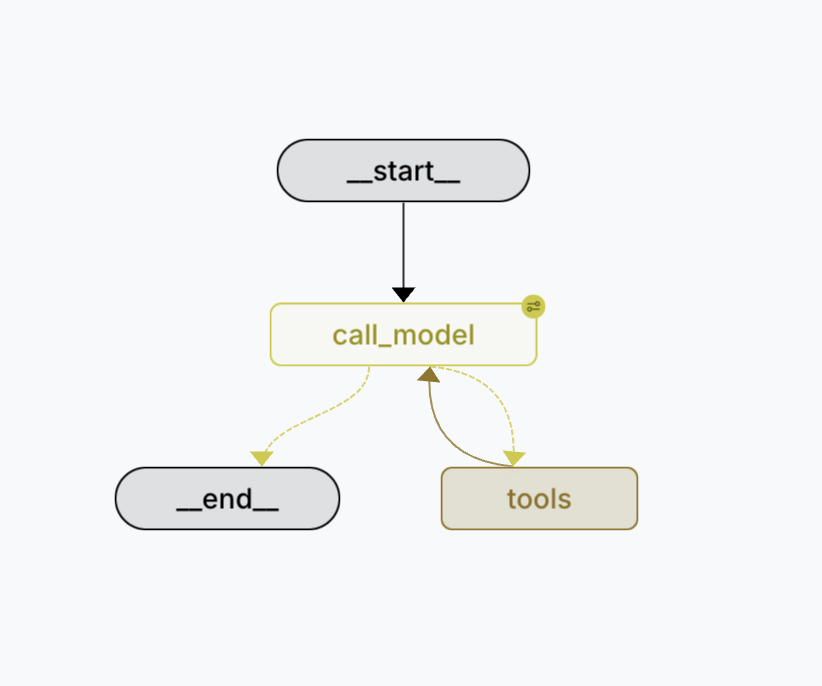
- With this set up, running your graph and viewing in LangGraph Studio will result in the graph rendering like such.
- Note the configuration icon in the top right corner of the
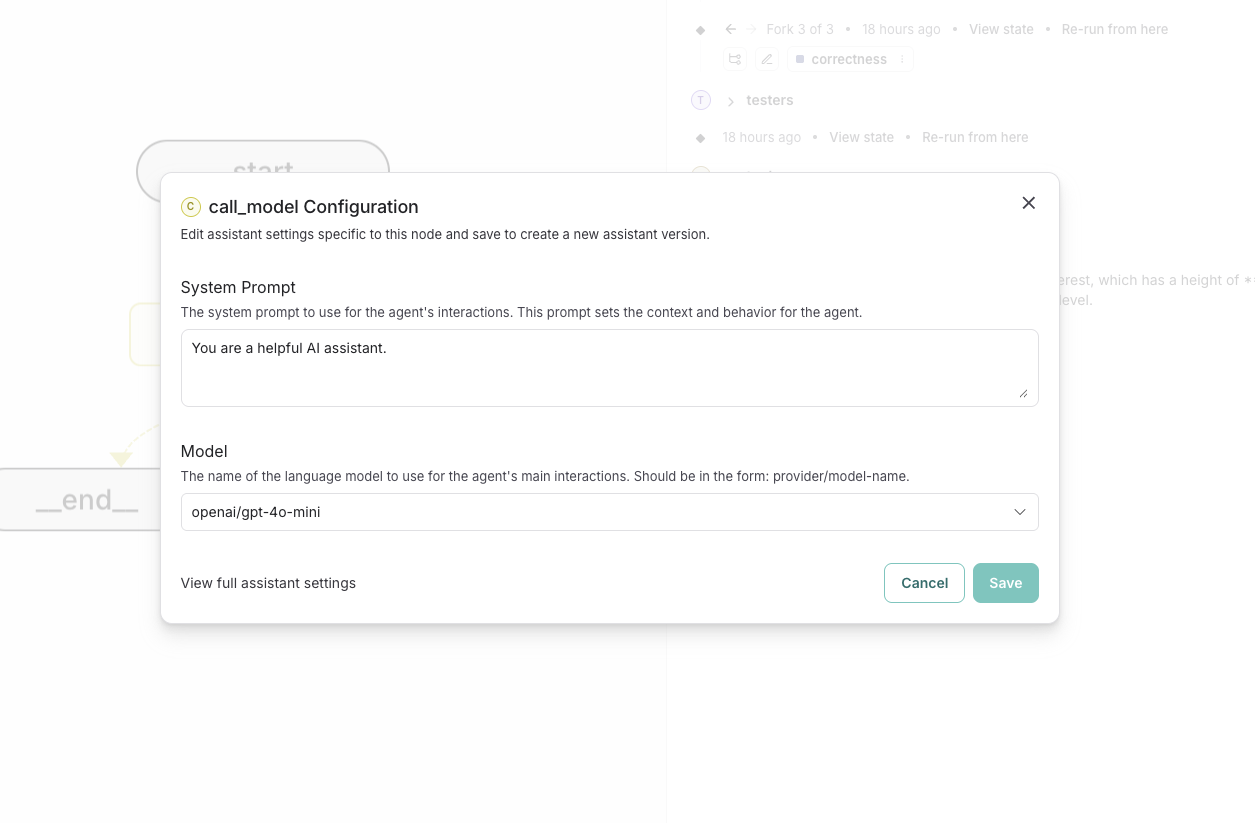
call_modelnode: - Clicking this icon will open a modal where you can edit the configuration for all of the fields associated with the
call_modelnode. From here, you can save your changes and apply them to the graph. - Note that these values reflect the currently active assistant, and saving will update the assistant with the new values.