Zoom H5/UG/12 Tools/09 Auto Rec Settings
Changing automatic recording settings
- You can set the input levels that start and stop automatic recording, and how long the H5 waits before it stops. Turning automatic recording on is covered in Zoom H5/UG/08 Recording/08 Auto Rec.
Setting the automatic recording start level
- 1. Press MENU, then use the scroll button to select
REC > AUTO REC > REC START LEVEL. - 2. Use the scroll button to set the start level, then press it.
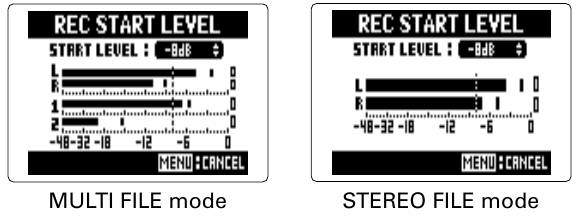
- Start level screens in
MULTI FILE and STEREO FILE modes - A dotted line on the level meters marks the start level.
- The start level can be set from −48 dB to 0 dB.
- Recording starts automatically when the input level goes above the start level.
Setting automatic stopping
- 1. To have recording stop automatically, press MENU, then use the scroll button to select
REC > AUTO REC > AUTO STOP. - 2. Use the scroll button to select the stop time, then press it.
- The stop time can be
OFF or from 0 to 5 seconds.
- 3. Select
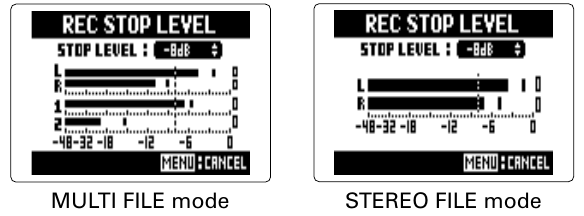
REC STOP LEVEL and set the stop level the same way as the start level in Zoom H5/UG/12 Tools/09 Auto Rec Settings/01 Start Level.- Stop level screens in
MULTI FILE and STEREO FILE modes
- When the input level falls below the stop level, recording stops automatically after the stop time set in step 2.