Zoom H5/UG/12 Tools/03 Monitor Mix
Properties
- logseq-entity
- Logseq/Entity/Book/Section/Level 2
Adjusting the input signal monitoring mix
- Available in
MULTI FILEmode only. - You can set the level and panning of each input signal as you hear it while monitoring.
- 1. Press MENU, then use the scroll button to select
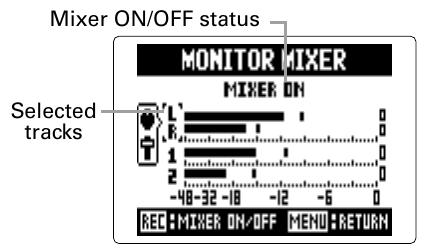
IN/OUT > MONITOR MIXER. - 2. Use the scroll button to select the track to adjust, then press it.
- 3. Change the parameter values.
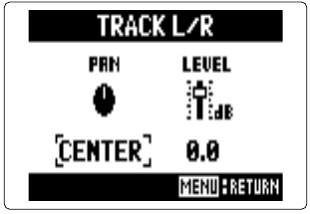
- Pan and level screen
- Move the scroll button up or down to move the cursor or change a value.
- Press the scroll button to select the parameter to change.
PAN— left–right balance, fromL100throughCENTERtoR100LEVEL— volume, from mute or −48.0 dB to +12 dBNote/Info These settings change only the monitoring signal. They do not affect the recorded data.
- 4. Press REC to turn the mixer on or off, so you can hear the sound without the mixer adjustments.
Note/Info Each recorded project saves its own mix settings. You can also change them during playback; see Zoom H5/UG/09 Playback/07 Mixing Projects.
- Available in