Zoom H5/UG/12 Tools
Properties
- logseq-entity
- Logseq/Entity/Book/Section/Level 1
Tools
Using the tuner
- The tuner reads an input signal so you can tune an instrument.
- 1. Press MENU, then use the scroll button to select
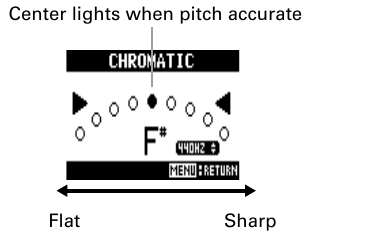
TOOL > TUNER. - 2. Use the scroll button to select the tuner type, then press it.
- 3. Use the scroll button to change the standard pitch.
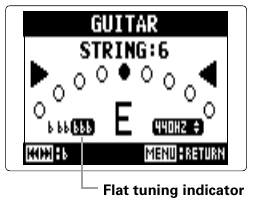
- 4. For every tuner type except
CHROMATIC, use Back and Forward to change the pitch (drop tuning). - 5. Press a track button (L, R, 1 or 2) to select the input to tune.
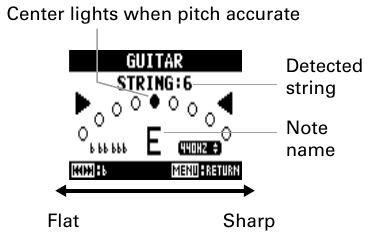
- 6. Tune the instrument.
Chromatic tuner
Guitar and bass tuners
Using the metronome
- The metronome can count in before recording or play as a click track.
- 1. Press MENU, then use the scroll button to select
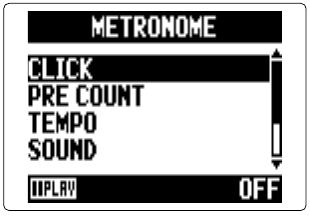
TOOL > METRONOME. - 2. Use the scroll button to select a setting, then press it.
Note/Info On any metronome setting screen, press PLAY/PAUSE to hear the current settings.
CLICK
PRE COUNT
- Sets the count-in before recording. See Zoom H5/UG/08 Recording/10 Count In.
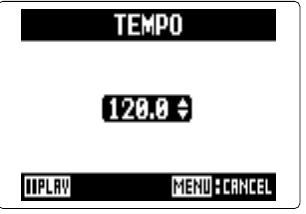
TEMPO
SOUND
PATTERN
LEVEL
Note/Info The metronome cannot be used together with Zoom H5/UG/08 Recording/08 Auto Rec. Turning
AUTO RECon disables the metronome.Note/Info The metronome cannot be used together with Zoom H5/UG/08 Recording/09 Pre-Rec. Turning the metronome on disables
PRE REC.
Adjusting the input signal monitoring mix
- Available in
MULTI FILEmode only. - You can set the level and panning of each input signal as you hear it while monitoring.
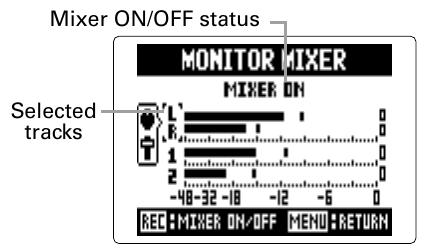
- 1. Press MENU, then use the scroll button to select
IN/OUT > MONITOR MIXER. - 2. Use the scroll button to select the track to adjust, then press it.
- 3. Change the parameter values.
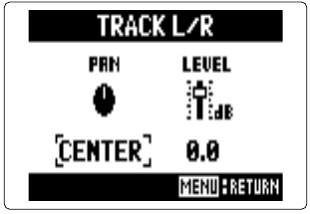
- Pan and level screen
- Move the scroll button up or down to move the cursor or change a value.
- Press the scroll button to select the parameter to change.
PAN— left–right balance, fromL100throughCENTERtoR100LEVEL— volume, from mute or −48.0 dB to +12 dBNote/Info These settings change only the monitoring signal. They do not affect the recorded data.
- 4. Press REC to turn the mixer on or off, so you can hear the sound without the mixer adjustments.
Note/Info Each recorded project saves its own mix settings. You can also change them during playback; see Zoom H5/UG/09 Playback/07 Mixing Projects.
- Available in
Lowering the line output level
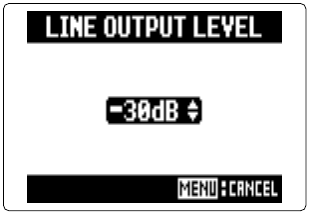
- You can lower the output level of the LINE OUT jack. Do this when the LINE OUT signal feeds a jack with high input gain, such as the external mic input on an SLR camera.
- 1. Press MENU, then use the scroll button to select
IN/OUT > LINE OUT LEVEL. - 2. Use the scroll button to set the LINE OUT level, then press it.
Note/Info This setting does not change the level from the PHONE jack.
Monitoring MS-RAW signals
- Available in MS-RAW mode only. MS-RAW mode is set with the side mic level; see Zoom H5/UG/08 Recording/11 Side Mic Level.
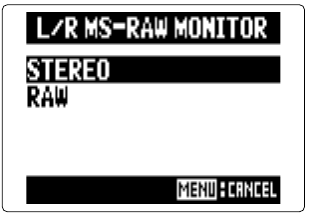
- When recording in MS-RAW mode with an MS capsule, you can monitor the unprocessed mic signals: the mid mic in the left channel and the side mic in the right channel.
- 1. Press MENU, then use the scroll button to select
IN/OUT > L/R MS-RAW MONITOR. - 2. Use the scroll button to select
RAW, then press it. Note/Info Select
STEREOto monitor an ordinary stereo mix.
Converting input MS signals to stereo
- Available on Inputs 1 and 2 only.
- The H5 can convert the signal from an MS stereo mic on Inputs 1 and 2 into an ordinary L/R stereo signal.
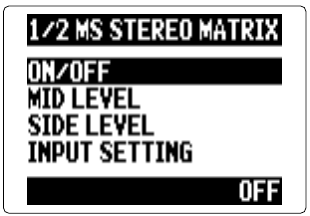
- 1. Press MENU, then use the scroll button to select
IN/OUT > In1/2 MS MATRIX. - 2. Use the scroll button to select an item, then press it.
ON/OFF
- Use the scroll button to select
ON, then press it. Note/Info When the matrix is on, tracks 1 and 2 become one stereo track.
Note/Info The MS stereo matrix cannot be used together with Zoom H5/UG/12 Tools/07 Mono Mix. Turning
MONO MIXon disables the MS stereo matrix.
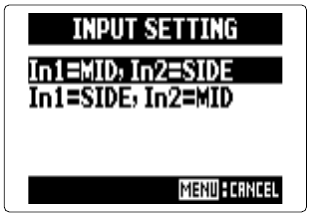
- Use the scroll button to select
MID LEVEL
SIDE LEVEL
INPUT SETTING
Mixing input signals to mono
- Available in
STEREO FILEmode only, on Inputs 1 and 2 only. - The signals on Inputs 1 and 2 can be mixed into one signal that goes to both channels.
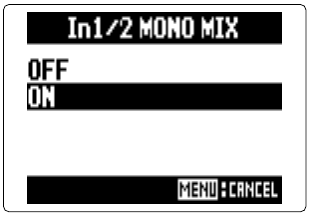
- 1. Press MENU, then use the scroll button to select
IN/OUT > In1/2 MONO MIX. - 2. Use the scroll button to select
ON, then press it. Note/Info With
MONO MIXon, recording file names end in_MN, as inZOOM0001_MN.WAV.Note/Info
MONO MIXcannot be used together with the MS stereo matrix (Zoom H5/UG/12 Tools/06 MS to Stereo). TurningMONO MIXon disables the MS stereo matrix.
- Available in
Setting the recording format
- Choose the format that gives the audio quality and file size you need.
- 1. Press MENU, then use the scroll button to select
REC > REC FORMAT. - 2. Use the scroll button to select the recording format, then press it.
Formats
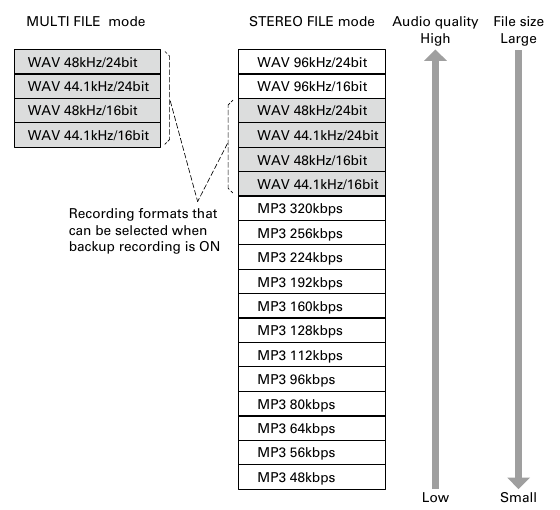
- Recording formats by mode
- Formats nearer the top of each list give higher audio quality and larger files.
MULTI FILEmodeSTEREO FILEmode- WAV:
WAV 96kHz/24bit,WAV 96kHz/16bit,WAV 48kHz/24bit,WAV 44.1kHz/24bit,WAV 48kHz/16bit,WAV 44.1kHz/16bit - MP3:
MP3 320kbps,MP3 256kbps,MP3 224kbps,MP3 192kbps,MP3 160kbps,MP3 128kbps,MP3 112kbps,MP3 96kbps,MP3 80kbps,MP3 64kbps,MP3 56kbps,MP3 48kbps - With Zoom H5/UG/08 Recording/12 Backup Rec on, only
WAV 48kHz/24bit,WAV 44.1kHz/24bit,WAV 48kHz/16bitandWAV 44.1kHz/16bitcan be selected.
- WAV:
Note/Info Use WAV to record high-quality audio.
Note/Info MP3 compression makes files smaller but also lowers the audio quality. Use MP3 when you need to save space, for example to store many recordings on one SD card.
Changing automatic recording settings
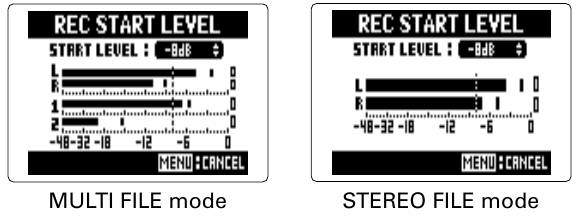
- You can set the input levels that start and stop automatic recording, and how long the H5 waits before it stops. Turning automatic recording on is covered in Zoom H5/UG/08 Recording/08 Auto Rec.
Setting automatic stopping
- 1. To have recording stop automatically, press MENU, then use the scroll button to select
REC > AUTO REC > AUTO STOP. - 2. Use the scroll button to select the stop time, then press it.
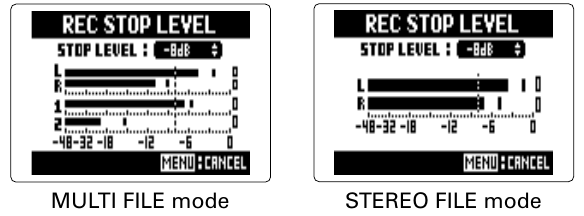
- 3. Select
REC STOP LEVELand set the stop level the same way as the start level in Zoom H5/UG/12 Tools/09 Auto Rec Settings/01 Start Level. - When the input level falls below the stop level, recording stops automatically after the stop time set in step 2.
- 1. To have recording stop automatically, press MENU, then use the scroll button to select
Setting how projects/files are named
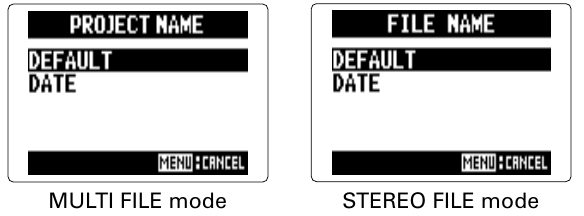
- You can change the kind of name the H5 gives new projects and files.
- 1. Press MENU, then use the scroll button to select
REC > PROJECT NAMEinMULTI FILEmode, orREC > FILE NAMEinSTEREO FILEmode. - 2. Use the scroll button to select the name type, then press it.
Name types
38 Linked References
Hierarchy
- Zoom H5UG12 Tools01 Tuner
- Zoom H5UG12 Tools01 TunerAsset01-Flat-tuning-indicatorpng
- Zoom H5UG12 Tools01 TunerAsset02-Chromatic-tunerpng
- Zoom H5UG12 Tools01 TunerAsset03-Guitar-and-bass-tunerpng
- Zoom H5UG12 Tools02 Metronome
- Zoom H5UG12 Tools02 MetronomeAsset01-Metronome-menupng
- Zoom H5UG12 Tools02 MetronomeAsset02-Tempo-screenpng
- Zoom H5UG12 Tools03 Monitor Mix
- Zoom H5UG12 Tools03 Monitor MixAsset01-Monitor-mixer-screenpng
- Zoom H5UG12 Tools03 Monitor MixAsset02-Pan-and-level-screenpng
- Zoom H5UG12 Tools04 Line Out Level
- Zoom H5UG12 Tools04 Line Out LevelAsset01-Line-output-level-screenpng
- Zoom H5UG12 Tools05 MS-RAW Monitoring
- Zoom H5UG12 Tools05 MS-RAW MonitoringAsset01-MS-RAW-monitor-screenpng
- Zoom H5UG12 Tools06 MS to Stereo
- Zoom H5UG12 Tools06 MS to StereoAsset01-MS-stereo-matrix-menupng
- Zoom H5UG12 Tools06 MS to StereoAsset02-Input-setting-screenpng
- Zoom H5UG12 Tools07 Mono Mix
- Zoom H5UG12 Tools07 Mono MixAsset01-Mono-mix-screenpng
- Zoom H5UG12 Tools08 Rec Format
- Zoom H5UG12 Tools08 Rec FormatAsset01-Recording-formatspng
- Zoom H5UG12 Tools09 Auto Rec Settings
- Zoom H5UG12 Tools09 Auto Rec Settings01 Start Level
- Zoom H5UG12 Tools09 Auto Rec Settings01 Start LevelAsset01-Start-level-screenspng
- Zoom H5UG12 Tools09 Auto Rec Settings02 Auto Stop
- Zoom H5UG12 Tools09 Auto Rec Settings02 Auto StopAsset01-Stop-level-screenspng
- Zoom H5UG12 Tools10 Naming
- Zoom H5UG12 Tools10 NamingAsset01-Name-type-screenspng