Zoom H5/UG/11 USB/03 Interface Settings
Audio interface settings
- While the H5 is an audio interface, MENU opens
IN/OUT, TOOL and EXIT. These settings are available: IN/OUTTOOLMaking direct monitoring settings
- Direct monitoring outputs the sound at the H5's inputs directly, before it passes through the connected computer or iPad. You hear the inputs without latency.
- 1. Press MENU, then use the scroll button to select
IN/OUT > DIRECT MONITOR.- In
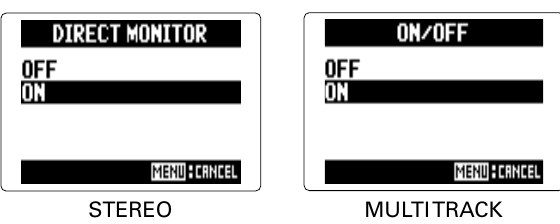
STEREO mode this opens the OFF/ON choice; go to step 3.
- 2. In
MULTI TRACK mode, select ON/OFF and press the scroll button. - 3. Select
ON and press the scroll button. MENU cancels.- Direct monitor setting in STEREO and MULTI TRACK
Monitor signal mixing (MULTI TRACK only)
- With direct monitoring on, you can balance the input signals you hear. This mix does not change the input signals sent to the computer or iPad.
- 1. Press MENU, then use the scroll button to select
IN/OUT > DIRECT MONITOR > MONITOR MIXER. - 2. Select a track and press the scroll button.
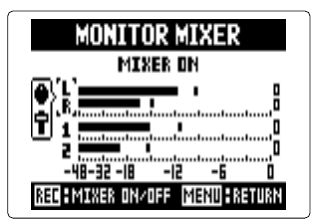
- Monitor mixer screen
- The screen shows a level meter for each track (L/R, 1 and 2) and whether the mixer is on (
MIXER ON).
- 3. Select a parameter and change its value.
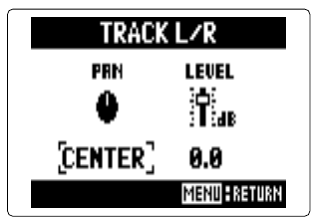
- Track pan and level screen
PAN sets the track's left–right balance; LEVEL sets its volume in dB.- Move the scroll button up or down to move the cursor or change a value.
- Press the scroll button to choose the parameter to change.
- MENU returns to the previous screen.
- 4. Press REC to hear the inputs without the mixer adjustments.
- REC turns the mixer on and off (
MIXER ON / MIXER OFF).
- The recorder's own input monitoring mix uses the same
PAN and LEVEL controls: Zoom H5/UG/12 Tools/03 Monitor Mix.
Using Loop Back (STEREO only)
- In
STEREO mode, the H5 can mix the sound coming from the computer or iPad with the sound at its own inputs, and send that mix back to the computer or iPad (loop back). - Use it, for example, to add narration over a backing track playing on a computer, then record the result with software on the computer or stream it live over the internet.
- 1. Press MENU, then use the scroll button to select
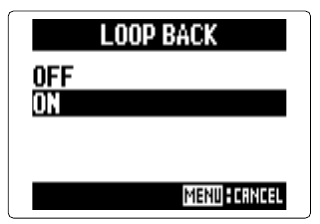
IN/OUT > LOOP BACK. - 2. Select
ON and press the scroll button. MENU cancels.