Zoom H5/UG/11 USB/02 Audio Interface
Properties
- logseq-entity
- Logseq/Entity/Book/Section/Level 2
Using as an audio interface
- Over USB, the H5 sends the signals at its inputs straight to a computer or iPad, and plays that device's audio back out through the H5.
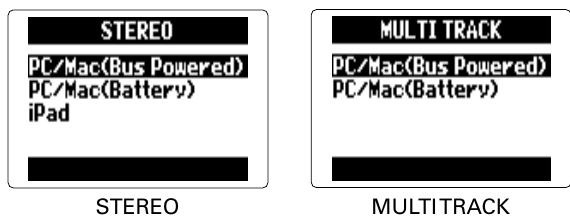
- 1. Press MENU, then use the scroll button to select
USB > AUDIO INTERFACE. - 2. Select
STEREOorMULTI TRACK, and press the scroll button.STEREO— a 2-in/2-out interface for a computer or an iPad. It needs no driver. USB 2.0 Full Speed, 44.1/48 kHz, 16-bit.MULTI TRACK— a 4-in/2-out interface for a computer, with inputs L, R, 1 and 2 on separate channels. An iPad cannot use this mode. Windows needs a driver from the ZOOM website (zoomcorp.com); Mac OS does not. USB 2.0 High Speed, 44.1/48 kHz, 16/24-bit.- In both modes the computer or iPad sends two channels back to the H5.
- Some settings work in one mode only:
MONITOR MIXERinMULTI TRACK, andLOOP BACKandIn1/2 MONO MIXinSTEREO. See Zoom H5/UG/11 USB/03 Interface Settings.
- 3. Select the connected device, and press the scroll button.
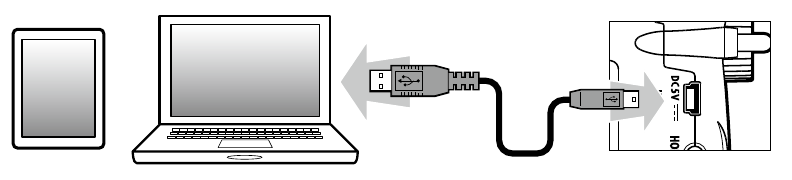
- 4. Connect the H5 to the computer or iPad with a USB cable.
- Connecting a computer or iPad
Note/Info An iPad needs an iPad Camera Connection Kit.
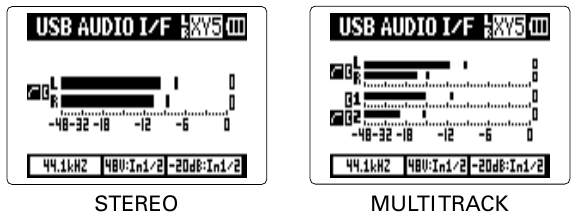
- The display shows
USB AUDIO I/Fwith level meters: one stereo pair (L, R) inSTEREO, and L, R, 1 and 2 inMULTI TRACK. The bottom line shows the sample rate and which of Inputs 1/2 have phantom power and the PAD on. - The settings available in this mode are in Zoom H5/UG/11 USB/03 Interface Settings.
- 5. To disconnect, press MENU, then use the scroll button to select
EXIT. - 6. At
EXIT AUDIO I/F MODE, selectYESand press the scroll button. - 7. Unplug the cable from the computer or iPad and from the H5.