Zoom H5/UG/10 Project and File Editing/08 Trim
Trimming project beginnings and ends
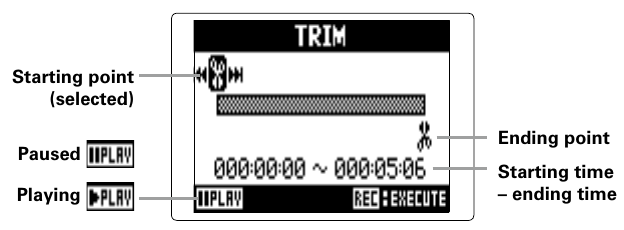
- Cut unwanted material from the start and end of a recording. Set the starting and ending points of the part to keep.
- 1. Press MENU, then use the scroll button to select
PROJECT(MULTI FILE mode) orFILE LIST(STEREO FILE mode). - 2. Select the project or file to trim, then select
EDIT > TRIM. - 3. Use the scroll button to select the starting point icon.
- 4. Use Back and Forward to find the starting point.
- 5. Use the scroll button to select the ending point icon, then set the ending point the same way.
- 6. Press REC.
- 7. Select
YES. Note/Info If a track holds several recordings, including overdubs, only the file currently selected for that track is trimmed.