Zoom H5/UG/10 Project and File Editing/03 Names
Changing project/file names
- 1. Press MENU, then use the scroll button to select
PROJECT(MULTI FILE mode) orFILE LIST(STEREO FILE mode). - 2. Select the project or file to rename, then select
EDIT > RENAME. - 3. Change the name.
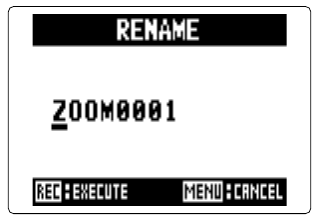
- Rename screen
- Move the scroll button up or down to move the cursor.
- Press the scroll button to select a character, move it up or down to change the character, then press it again to accept the change.
Note/Info Names can use spaces, the letters A–Z and a–z, the digits 0–9, the backtick, and these symbols:
! # $ % & ' ( ) + , - ; = @ [ ] ^ _ { } ~Note/Info A name cannot be only spaces.
Note/Info In MULTI FILE mode, only the project name can be changed. The names of the files inside it cannot.
- 4. Press REC to save the new name. MENU cancels.
- 1. Press MENU, then use the scroll button to select