Zoom H5/UG/09 Playback
Properties
- logseq-entity
- Logseq/Entity/Book/Section/Level 1
Playback
Basic playback
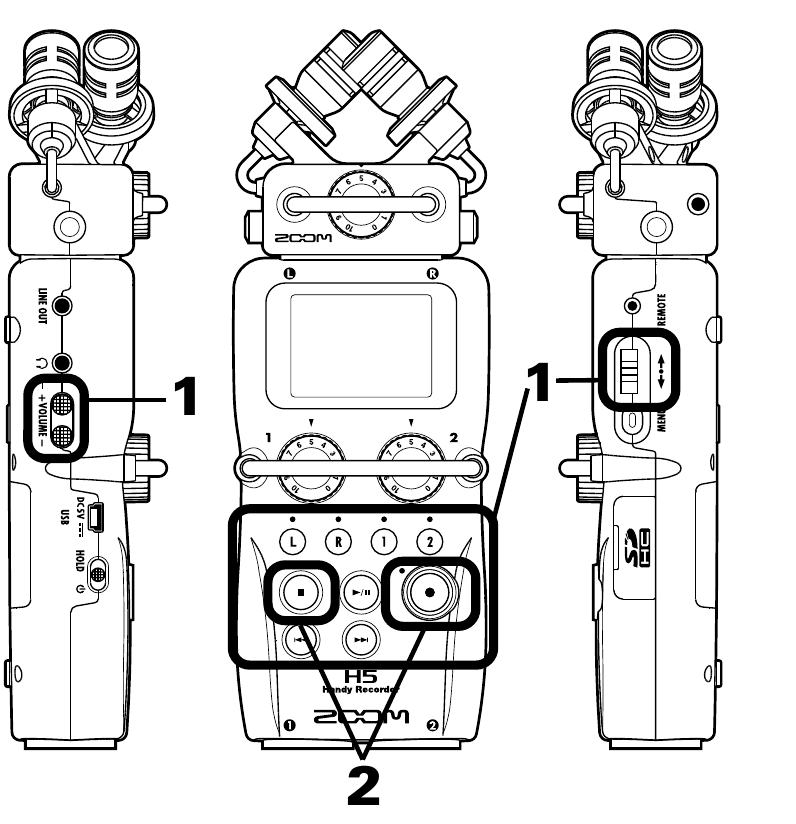
- Playback controls
- 1. Press PLAY/PAUSE.
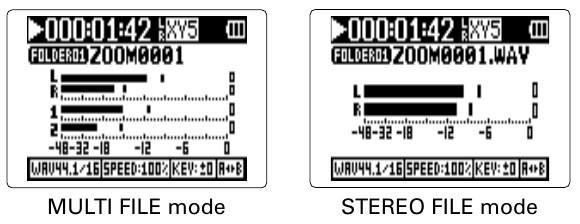
- The playback screen appears. Zoom H5/UG/06 Display explains its indicators.
- 2. Press STOP or REC to return to the Home Screen.
Controls during playback
- Select the project or file to play, or move to a mark: press Back or Forward.
- Search backward or forward: press and hold Back or Forward. The longer the button is held, the faster the search.
- Pause or resume: press PLAY/PAUSE.
- Change the side mic level, in MS-RAW mode only: move the scroll button up or down. See Zoom H5/UG/08 Recording/11 Side Mic Level.
- Mute or unmute tracks, in MULTI FILE mode only: press a track button. A lit green indicator means the track plays; an unlit one means it is muted.
Note/Info
Invalid Project!orInvalid File!means the selected project or file has a problem.Note/Info
No Project!orNo File!means there is no project or file that can be played.
Adding a mark
Adjusting the volume
Selecting playback project/files from lists
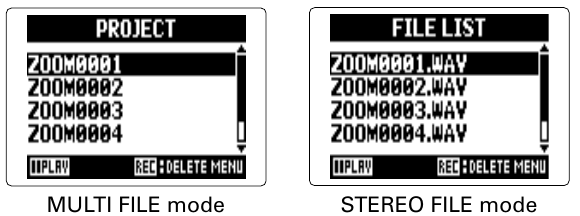
- 1. Press MENU, then use the scroll button to select
PROJECT(MULTI FILE mode) orFILE LIST(STEREO FILE mode). - 2. Use the scroll button to select the project or file to play, then press the scroll button.
- 3. Use the scroll button to select
PLAY, then press the scroll button.- The selected project or file starts playing.
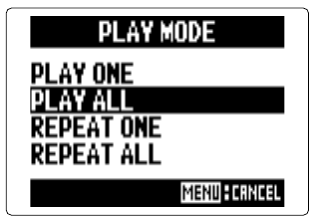
Note/Info When it finishes, playback may continue with other projects or files, depending on the playback mode. See Zoom H5/UG/09 Playback/03 Playback Mode.
- 1. Press MENU, then use the scroll button to select
Changing the playback pitch (key)
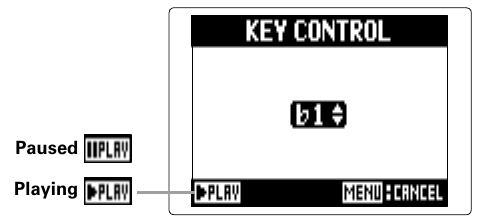
- The pitch can change while the playback speed stays the same.
- 1. Press MENU, then use the scroll button to select
PROJECT(MULTI FILE mode) orFILE LIST(STEREO FILE mode). - 2. Use the scroll button to select the project or file to adjust, then press the scroll button.
- 3. Use the scroll button to select
OPTION > KEY CONTROL. - 4. Move the scroll button up or down to set the pitch, then press the scroll button.
Note/Info In MULTI FILE mode, each project keeps its own pitch setting. In STEREO FILE mode, one setting applies to every file.
Note/Info
KEY CONTROLis disabled on theMIXER/OVERDUBscreen.
Changing the playback speed
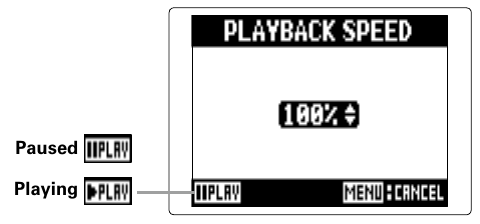
- Playback speed can be set from 50% to 150% of normal.
- 1. Press MENU, then use the scroll button to select
PROJECT(MULTI FILE mode) orFILE LIST(STEREO FILE mode). - 2. Use the scroll button to select the project or file to adjust, then press the scroll button.
- 3. Use the scroll button to select
OPTION > PLAYBACK SPEED. - 4. Move the scroll button up or down to set the speed, then press the scroll button.
Note/Info In MULTI FILE mode, each project keeps its own speed setting. In STEREO FILE mode, one setting applies to every file.
Note/Info
PLAYBACK SPEEDis disabled on theMIXER/OVERDUBscreen.
Repeat playback of a set interval (AB repeat)
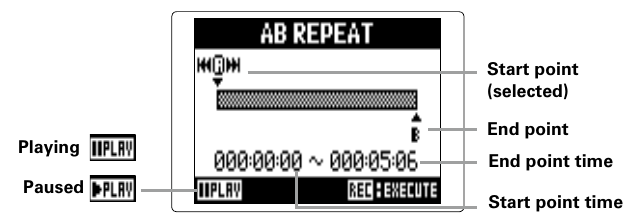
- AB repeat plays the stretch between two set points over and over.
- 1. Press MENU, then use the scroll button to select
PLAY > AB REPEAT. - 2. Use the scroll button to select the A point icon.
- 3. Use Back and Forward to find the start point.
- 4. Use the scroll button to select the B point icon, then set the end point the same way.
- 5. Press REC.
Note/Info To end AB repeat during repeat playback, press Back or Forward to select another project or file, or press REC or STOP to stop playback.
Mixing projects
- Set the volume and panning of each track for playback. Mixing works in MULTI FILE mode only.
- 1. Press MENU, then use the scroll button to select
PROJECT. - 2. Use the scroll button to select the project to mix, then press the scroll button.
- 3. Use the scroll button to select
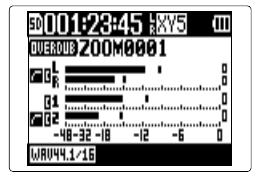
MIXER/OVERDUB > MIXER/OVERDUB. - 4. Use the scroll button to select the track to adjust, then press the scroll button.
- 5. Change the parameter values.
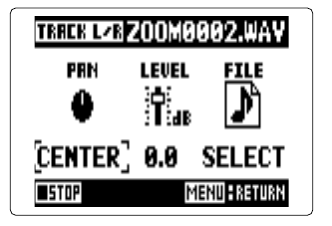
- Mixer screen
- Move the scroll button up or down to move the cursor or change a value. Press the scroll button to choose the parameter to change.
PAN— left–right balance, fromL100throughCENTERtoR100.LEVEL— volume,Muteor −48.0 to +12 dB.FILEassigns a recorded file to the track. See Zoom H5/UG/08 Recording/13 Overdubbing.
Note/Info Each project saves its own mix settings and uses them during playback.
Checking track settings
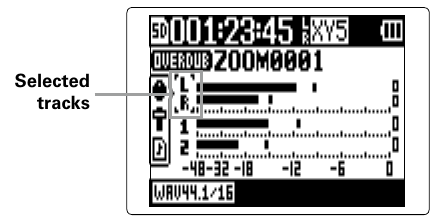
- To check the
LO CUT,COMP/LIMITERandMS STEREO MATRIXsettings, move the scroll button up while track L or L/R is selected, or down while track 2 or 1/2 is selected. - These settings are made in Zoom H5/UG/13 Settings/01 Low Cut, Zoom H5/UG/13 Settings/02 Comp Limiter and Zoom H5/UG/12 Tools/06 MS to Stereo.
- To check the
27 Linked References
Hierarchy
- Zoom H5UG09 Playback01 Basic Playback
- Zoom H5UG09 Playback01 Basic PlaybackAsset01-Playback-controlspng
- Zoom H5UG09 Playback02 Select from Lists
- Zoom H5UG09 Playback02 Select from ListsAsset01-Project-and-file-listspng
- Zoom H5UG09 Playback03 Playback Mode
- Zoom H5UG09 Playback03 Playback ModeAsset01-Play-mode-screenpng
- Zoom H5UG09 Playback04 Pitch
- Zoom H5UG09 Playback04 PitchAsset01-Key-control-screenpng
- Zoom H5UG09 Playback05 Speed
- Zoom H5UG09 Playback05 SpeedAsset01-Playback-speed-screenpng
- Zoom H5UG09 Playback06 AB Repeat
- Zoom H5UG09 Playback06 AB RepeatAsset01-AB-repeat-screenpng
- Zoom H5UG09 Playback06 AB RepeatAsset02-Repeat-playback-screenpng
- Zoom H5UG09 Playback07 Mixing Projects
- Zoom H5UG09 Playback07 Mixing ProjectsAsset01-Selected-trackspng
- Zoom H5UG09 Playback07 Mixing ProjectsAsset02-Mixer-screenpng
- Zoom H5UG09 Playback07 Mixing ProjectsAsset03-Track-setting-iconspng