Zoom H5/UG/08 Recording/08 Auto Rec
Properties
- logseq-entity
- Logseq/Entity/Book/Section/Level 2
Recording automatically
- Recording can start and stop on its own in response to the input level.
- 1. Press MENU, then use the scroll button to select
REC > AUTO REC > ON/OFF. - 2. Select
ON, then press the scroll button.Note/Info The other automatic recording settings,
REC START LEVEL,REC STOP LEVELandAUTO STOP, are covered in Zoom H5/UG/12 Tools/09 Auto Rec Settings.
- 3. Return to the Home Screen.
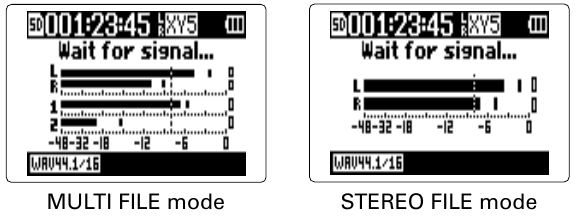
- 4. Press REC. Recording standby starts and the screen shows
Wait for signal....- Recording standby
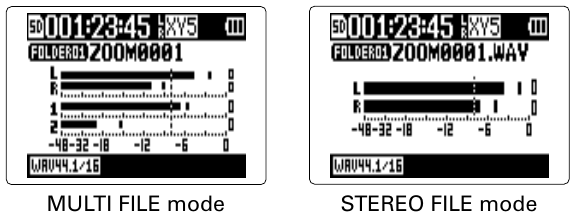
- When the input rises above the start level shown on the meters, recording starts.
- Recording can also stop on its own when the input falls below a set level: Zoom H5/UG/12 Tools/09 Auto Rec Settings/02 Auto Stop.
- 5. Press STOP to leave standby or to stop recording.
Note/Info
AUTO RECcannot be used together withPRE REC,METRONOMEorPRE COUNT. TurningAUTO RECon disables them. See Zoom H5/UG/08 Recording/09 Pre-Rec, Zoom H5/UG/12 Tools/02 Metronome and Zoom H5/UG/08 Recording/10 Count In.