VSCode/Docs/Python/Testing
Testing Python in Visual Studio Code - #Py #Pytest Software/Testing
logbookRun Tests
#VSCode #Keyshort for running tests from VSCode/Command/Palette
Cmd Shift PWhat's the VSCode command and Keyshort to run all the discovered tests? #card
- VSCode/Command/Test/Run/All Tests
- Command: Test: Run All Tests
- Keyshort:
⌘; A - #VSCode/Keymap
- VSCode/Command/Test/Run/All Tests
What's the VSCode Command and Keyshort to run the tests in open editor file? #card
- Command: VSCode/Command/Test/Run/Tests in Current File
- Command: Test: Run Tests in Current File
- Keyshort:
⌘; f - VSCode/Keymap
- #Mnemonic
- Command: VSCode/Command/Test/Run/Tests in Current File
VSCode Command and Keyshort to run the test at the cursorpoint? #card
- Command: VSCode/Command/Test/Run/Test at Cursor
- Keyshort:
⌘; C - VSCode/Keymap
- #Mnemonic - C for Test at Cursor
- Keyshort:
- Command: VSCode/Command/Test/Run/Test at Cursor
#VSCode #Keyshort for running tests from VSCode/View/Test Explorer
How can you run just a few specific tests from the test explorer? #card #Mouse
- 1. VSCode/Command/Testing/Focus on Test Explorer
- 2.
Cmd Clickon more than one - 3. click on the Run Test button on any of them
- TODO #Q - is there any way to do this with focus management? Certainly there must for A11y reasons
Run Tests in Parallel
logbook- add
pytest-xdistto your project's python requirements - Python/Library/pytest-xdist pytest-xdist · PyPI
- add
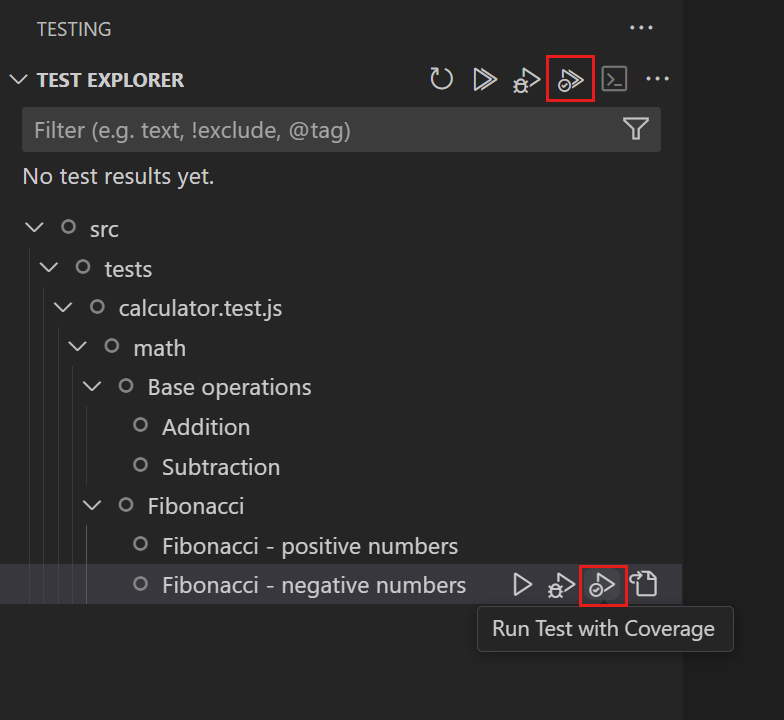
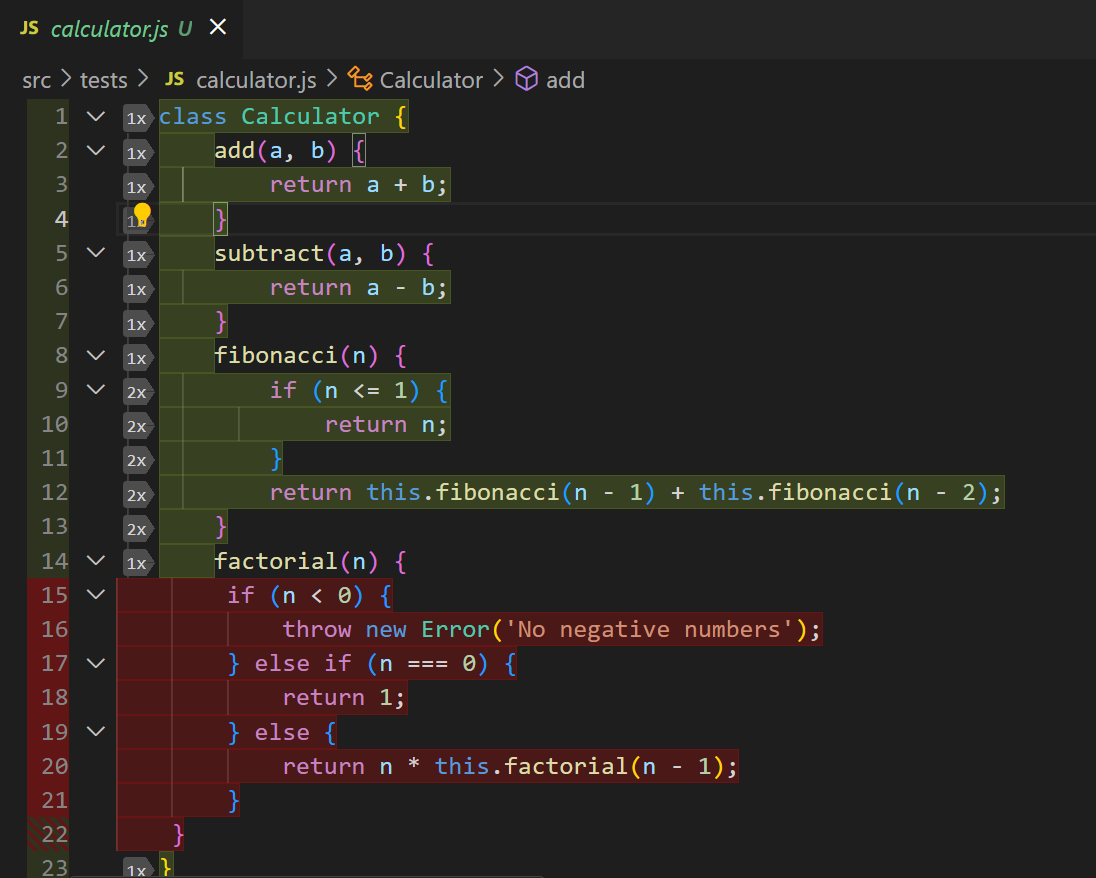
Run tests with coverage
logbook- See also VSCode/Docs/Editor/Testing/Test Coverage
VSCode/Docs/Python/Testing/Debug tests https://code.visualstudio.com/docs/python/testing#_debug-tests
logbook- see also
- Python debugging configurations VSCode/Docs/Python/Debugging
- general VS Code Debugging VSCode/Docs/Editor/Debugging
- important note:
VSCode Test Debugging Commands
You can change default in the test explorer from run to debug
You can customize #VSCode global settings for #Debugging #Software/Testing and create a VSCode/launch.json for all VSCode/Command/Test/Debug commands by ... ? #card
- See VSCode/Docs/Editor/Debugging/Launch configurations here
- updating
launch.jsonto include a"purpose": ["debug-test"]- Why? because you might want to set environment variables, etc. I was actually wondering how to set Python/Environment/Variables/PYTHONDONTWRITEBYTECODE or Python/Environment/Variables/PYTHONUNBUFFERED
This configuration will be used when you run Test: Debug All Tests, Test: Debug Tests in Current File and Test: Debug Test at Cursor commands.
{
  "name": "Python: Debug Tests",
  "type": "debugpy",
  "request": "launch",
  "program": "${file}",
  "purpose": ["debug-test"],
  "console": "integratedTerminal",
  "justMyCode": false
}
- see also Debugging configurations for Python apps in Visual Studio Code VSCode/Docs/Python/Debugging
- updating
- See VSCode/Docs/Editor/Debugging/Launch configurations here
- see also
VSCode/Docs/Python/Testing/Test Commands Test commands
logbookVSCode/Command and #Keyshort to Activate VSCode/Debugger on just the failed Test(s) in the VSCode/Editor/Test Explorer #card
- VSCode/Command/Test/Debug/Failed Tests with
⌘; ⌘E- Test: Debug Failed Tests
Debug tests that failed in the most recent test run.
- VSCode/Keymap
- #Mnemonic
- Test: Debug Failed Tests
- VSCode/Command/Test/Debug/Failed Tests with
VSCode/Command and #Keyshort to Activate VSCode/Debugger on the Tests that were run in the last run #card
- Command: Test: Debug Last Run VSCode/Command/Test/Debug/Last Run
- Keyshort:
⌘; ⌘L - VSCode/Keymap
Commands if the VSCode/Editor/Peek/Error view is open
- See also VSCode/Docs/User Guide/Code Navigation/Peek view here
VSCode/Command and #Keyshort to open and move VSCode/Editor/Peek/Error view of the previous or next #Test in the VSCode/View/Test Explorer that failed #card
VSCode/Command/Test/Go to/Previous/Test Failure
- Test: Go to Previous Test Failure
If the error peek view is open, open and move to the peek view of the previous test in the explorer that has failed.
- Keyshort: ⇧⌥F8
- VSCode/Keymap
- #Mnemonic see Go to Next Test Failure below; this is a modifier of that one
VSCode/Command/Test/Go to/Next/Test Failure
- Test: Go to Next Test Failure
If the error peek view is open, open and move to the peek view of the next test in the explorer that has failed.
- Keyshort: ⌥F8
- VSCode/Keymap
- Mnemonic:
VSCode/Command and #Keyshort to open VSCode/Editor/Peek/Error for a #Test particular Method that failed #card
VSCode/Command and #Keyshort to refresh tests in VSCode/View/Test Explorer #card
- VSCode/Command/Test/Refresh Tests:
⌘; ⌘R - VSCode/Keymap
- Mnemonic: R for Refresh
- VSCode/Command/Test/Refresh Tests:
Focus the VSCode/View/Test Explorer with a VSCode/Command and my User-Defined #Keyshort #card
- VSCode/Command/Testing/Focus on Test Explorer:
⌘; ⌘T - VSCode/Keymap
Testing: Focus on Test Explorer View
Open the Test Explorer view. Similar to Testing: Focus on Python View on versions prior to 2021.9.
- VSCode/Command/Testing/Focus on Test Explorer:
- note: there are about four more on the page I didn't import
#Defer TODO VSCode/Docs/Python/Testing/Django unit tests Django unit tests
VSCode/Docs/Python/Testing/Intellisense for Pytest #Pytest IntelliSense for pytest
logbook- This section is about VSCode/Extension/Pylance
- works with Pytest/Fixtures and Pytest/Parameterization
- How to parametrize fixtures and test functions - pytest documentation Pytest/Docs/How To/Parameterize
- Pylance will offer completions
- Pylance also supports VSCode/Code Navigation actions for fixtures and parameterized tests
- pylance will show the type of the fixture on hover
- pylance support VSCode/Code Actions - see VSCode/Docs/Editor/Refactoring
- code actions can be used to add type annotations to test funcs with fixture parameters
- example:
- what is an VSCode/Term/Inlay Hint and what Pylance Test configuration is available? #Q #card
Inlay hints for inferred fixture parameter types can also be enabled by setting
python.analysis.inlayHints.pytestParameterstotruein your User settings.- via ChatGPT/Response here
An Inlay Hint in Visual Studio Code is a small piece of contextual information that appears inline in your code, often as gray, non-intrusive text. It provides additional details such as inferred types, parameter names, or other annotations, without actually altering the source code itself. These hints help you better understand the code and improve your workflow.
When you enable the setting
python.analysis.inlayHints.pytestParametersby setting it totrue, Pylance (the Python language server) will show inlay hints for inferred types of the parameters in pytest fixtures. This means you’ll see hints that indicate the expected data type of the fixture parameters in your test functions, helping you understand what type of data is being injected into the function.For example, if you have a pytest fixture called
housing_datathat returns a tuple of Pandas DataFrames, enabling this setting might show a hint like this:The hint (
# (train_df: DataFrame, test_df: DataFrame, target_feature: str)) appears inline and tells you that thehousing_dataparameter is inferred to be of a specific type.
- works with Pytest/Fixtures and Pytest/Parameterization
- This section is about VSCode/Extension/Pylance
VSCode/Docs/Python/Testing/Test configuration settings Test configuration settings
logbookWhat's the difference between the VSCode/Commands that begin with Testing and those that begin with Test #card
The settings that affect the UI of the testing features are provided by VS Code itself, and can be found in the VS Code Settings editor VSCode/Docs/Getting Started/Settings when you search for "Testing".
General Python settings
TODO unittest configuration settings
pytest configuration settings #Pytest
logbookpytestEnabled- t/fpytestPath- the path to the pytest executable - unclear if it's python path or not, probably notpytestArgs- array - args to pass to pytest, See pytest command-line options.
IntelliSense settings