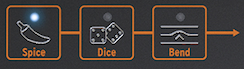
Spice and Dice work together, though their musical effect can be enjoyed without knowing the details.
Dice changes the gates and triggers of the playing Arpeggio or Sequence. It varies their timing and can shorten, lengthen, or omit gates.
Activate the Arpeggiator or Sequencer first. Select Dice, then touch the strip to set the amount of randomness: the left end adds none and the right end adds the most.
The Dice setting is silent until Spice is added. Select Spice and move right on the strip to increase the variation's intensity. Spice and Dice can be set in either order. With Spice held at a chosen amount, each Dice touch generates a different trigger variation at that intensity.
Spice and Dice also subtly vary octaves, velocity, and the Amp envelope's release time. Spice sets how far a parameter deviates from its normal value; Dice updates the random value per step.
Pattern randomizes chord pitches; Spice and Dice randomize gates and triggers. Together they can make an Arpeggio or Sequence sound very different from its starting pattern.
Note/Info Technical detail
A Sequence's Status is its series of gate lengths. New sequences start at a default gate length of 45%; Utility > Preset > Default gate length sets it from 5% to 85%.
A gate length of 0 is silent; 100 is a tie that continues into the next step without a noticeable pause. Values between them set the gate length percentage.
Spice moves gate lengths from the default toward the current Status. At maximum Spice, the gate lengths follow the Status exactly.
When Dice is lit, touching the strip changes the Status by adding a bipolar value to each step's gate length. A touch near the left makes small changes; a touch near the right can reshuffle the Status.
When the finger lifts, the last gate-length pattern heard becomes the new Status, which can then change again with another Dice touch.
Note/Info Spice and Dice settings are not saved with a preset. They are intended for live playing, and the generated variations cannot be repeated. Recording the performance into a DAW preserves it.
Pitch bending raises or lowers a note. Press the Bend icon to enable bending.
The Bend Strip
The center is neutral. Moving left lowers the pitch; moving right raises it. Touching another point jumps directly to that pitch.
In standard mode, pitch follows the strip's absolute position. In relative mode, finger movement is added to or subtracted from the current pitch, regardless of where the finger first touches. Enable relative mode at Utility > Misc > Relative bend.
Note/Info Six W-shaped marks on the strip help guide accurate bends.
The default bend range is 24 chromatic steps: 12 to either side of center. Utility > Preset > Bend range sets the range, up to 48 steps (four octaves).
Tapping between two points can alternate pitches quickly. When the finger lifts, pitch returns to the center. Moving a finger slightly on the strip also creates vibrato.
Note/Info Indian music and instruments such as the sarod and sitar offer examples of expressive pitch-bending traditions beyond Western music.