Microfreak/UG/04 Presets
Properties
- logseq-entity
- Logseq/Entity/Book/Section/Level 1
04 The MicroFreak Presets
- Arturia invites you to create your own presets. Making sounds yourself helps you learn how to shape sounds toward what you want to hear.
Microfreak/UG/04 Presets/01 Load Presets 04.01 Loading Presets
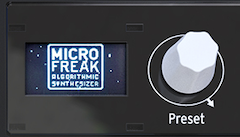
- Turn the Preset encoder to load a preset. The first 128 slots contain factory presets. If you want to keep those intact while learning synthesis, use slots 129–512 for your sounds.
- Presets in slots 129–512 are templates for building sounds in specific categories. A preset you like can also serve as a template for further exploration.
- Tweak the loaded preset, then save it if you want to keep your changes.
Note/Warning By default, loading another preset clears unsaved changes without warning. Turn on Utility > Global > Controls > Click to Load to browse without replacing the current sound; click the encoder to save the current changes and load the selected preset.
- Press the Preset encoder quickly three times to reset the current sound to its initial empty state. This also clears an existing preset's sound.
Note/Info The reset does not change the stored preset unless you save afterward.
- The Preset encoder
Microfreak/UG/04 Presets/02 Save Presets 04.02 Saving Presets
- Press Save to enter save mode. From there you can save to the current slot or another location, change the category, or rename the preset.
Note/Info Press Save again to cancel; the display shows “Save Cancelled.” To save changes in the current slot, hold Save until the display shows “Preset saved.”
- To use another slot, turn the encoder to select a location and press it. When the display shows “Click to save,” choose one of the eleven categories: bass, brass, keys, lead, organ, pad, percussion, sequence, sfx, strings, or template.
- Press the encoder again to name the preset. The Save button blinks while you enter the name. Turn the encoder to cycle through uppercase letters, lowercase letters, then the digits 0–9; turn it all the way left to enter a space.
- Push and turn the Preset encoder to edit a character in an existing name. Hold Shift while turning the encoder to scroll through characters faster.
- Click to accept each character and move to the next field. When the name is complete, press Save to store the preset.
- Saving a preset stores the knob positions, sequences, modulation tracks, and Utility settings specific to that preset.
- To arrange presets for a song, place them in consecutive slots in MIDI Control Center, then load the reordered presets into the MicroFreak.
- The Template category holds presets you want to explore further. Use one as a starting point, then save variations in other slots.
- On startup, the MicroFreak loads the most recently saved preset.
Note/Info Chord settings and the last-used chord are saved with a preset. Spice & Dice settings are not.
Note/Warning If the display says “Memory protect is on,” set Utility > Misc > Mem Protect to Off.
Microfreak/UG/04 Presets/03 Preset Config 04.03 Tweaking the Preset Configurations
- Utility contains settings that change how the current preset behaves. Each preset saves its own settings, so presets can differ in voice mode, pressure response, sequence length, and other behavior.
Note/Info The two sequences in a preset always have the same length.
- Changing Utility > Preset settings can reshape a sequence. For example, change Glide Mode from Time to Rate, turn on Envelope Reset for a snappier sequence, or change Seq (1–4) Smooth to hear how smoothing affects its mood.
- The following preset parameters can be edited in Utility. None can be edited in MIDI Control Center.
Voice
Modulations
- Envelope Legato [Off, On]: Resets the envelope on a keyboard trigger.
- Envelope Snap [Off, On]: Creates a sharper envelope decay.
- LFO Retrig [Off, On, Legato]: Sets whether the LFO retriggers, retriggers on a keyboard trigger, or does not retrigger during legato playing.
- Press Mode [Aftertouch, Velocity]: Selects the pressure mode.
- Key/Arp Mode [Linear, Random]: In Random mode, generates a new random value for each key pressed.
- Velo Amp Mod [0–10]: Sets how velocity affects the output volume.
Preset Volume
Scale
Seq/Arp
- Seq Length [4–64]: Sets the sequence length.
- Default Gate Length [5–85]: Sets the default sequencer or arpeggio gate length; the default is 45.
- Seq 1 Smooth [Off, On]: Smooths the sequencer MOD track 1.
- Seq 2 Smooth [Off, On]: Smooths the sequencer MOD track 2.
- Seq 3 Smooth [Off, On]: Smooths the sequencer MOD track 3.
- Seq 4 Smooth [Off, On]: Smooths the sequencer MOD track 4.
Vocoder
Microfreak/UG/04 Presets/04 Panel 04.04 Panel
- After loading a preset, the MicroFreak plays the sound stored in memory. The panel's current knob positions may differ from those saved positions, so moving a knob may not immediately match the sound you hear.
- You can edit a preset by adjusting knobs individually. The Utility > Browsing > Knob Catch setting controls how each knob matches its saved value: it can jump to the new position, take effect when it reaches the saved position, or gradually match the panel position.
- Press Panel once after loading a preset to apply all current knob positions to the sound. The preset may sound different, but the panel positions will then correspond to the sound.
- For example, after loading a preset with a slow attack, turn the Attack knob to make it snappier. The knob's position becomes part of the current preset.
- Panel works once after each preset load. After it applies the knob positions, it has no further effect until another preset is loaded.
The Panel button
Microfreak/UG/04 Presets/05 Digital Control 04.05 Understanding Digitally-Controlled Analog
- Every MicroFreak module, including the analog filter, is controlled digitally. This combines the warmth and direct control of analog sound with the ability to save and recall presets and settings.
- Knobs and sliders send instructions to the digital circuitry; they do not control voltages directly. After loading a preset, the physical control positions may not match the stored settings.
- MIDI Control Center offers three ways to match a control's position to its stored value:
- In the default mode, move the knob past its stored value to hook it. Press Panel to bypass the loaded preset and hear a sound based on the panel's current knob and slider positions.
Note/Info To arrange presets for a song, save them in consecutive MIDI Control Center slots and load the reordered presets into the MicroFreak.
25 Linked References
Hierarchy
- Microfreak/UG/04 Presets/01 Load Presets
- Microfreak/UG/04 Presets/01 Load Presets/Asset/01-Preset-Encoder/png
- Microfreak/UG/04 Presets/02 Save Presets
- Microfreak/UG/04 Presets/03 Preset Config
- Microfreak/UG/04 Presets/04 Panel
- Microfreak/UG/04 Presets/04 Panel/Asset/01-Panel-Button/png
- Microfreak/UG/04 Presets/05 Digital Control