Microfreak/UG/02 Installation
Properties
- logseq-entity
- Logseq/Entity/Book/Section/Level 1
02 Installation
Microfreak/UG/02 Installation/01 Usage Precautions 02.01 Usage Precautions
- Use only the power adapter supplied by Arturia. Arturia is not responsible for damage caused by an unauthorized power supply.
- The touch-capacitive keyboard can work with a power bank, but the MicroFreak must be grounded to function fully. Arturia recommends the supplied three-pin wall plug.
- After electrostatic discharge interference, the headphone output may go silent and the keyboard may malfunction. Restart the instrument to recover.
- Prolonged radio-frequency interference may disrupt the keyboard. Restart the instrument to recover.
Microfreak/UG/02 Installation/02 Warning 02.02 Warning
- Keep power cords and connecting cables out of walkways, where they could be stepped on or rolled over.
- Arturia does not recommend extension cords. If one is necessary, it must handle this product's maximum current; consult a local electrician about power requirements.
- Use only components supplied or recommended by Arturia, and follow the safety markings and instructions supplied with those components.
Microfreak/UG/02 Installation/04 Precautions 02.04 Precautions include, but are not limited to, the following:
- Read and understand all instructions. Follow the instructions printed on the instrument.
- Before cleaning, disconnect the power plug and USB cable. Use a soft, dry cloth. Avoid gasoline, alcohol, acetone, turpentine, other organic solvents, liquid cleaners, sprays, and overly wet cloths.
- Keep the instrument away from water and moisture. Place it somewhere stable where it cannot fall.
- Do not put heavy objects on the instrument or block its ventilation openings. Keep it away from heat vents and places with poor air circulation.
- Use only the supplied AC adapter, and check that local line voltage matches the adapter's specified input voltage.
- Do not open the instrument or insert objects into it; this can cause fire or electric shock. Do not spill liquid on it.
- If the instrument malfunctions, take it to a qualified service center. Opening and removing the cover voids the warranty; improper testing may cause electric shock or other malfunctions.
- Do not use the instrument during thunderstorms, in hot sunlight, or near a gas leak.
- Arturia is not responsible for damage or data loss caused by improper operation.
- Arturia recommends shielded audio cables shorter than 3 meters and ferrite-equipped CV/Gate cables.
Microfreak/UG/02 Installation/05 Register Instrument 02.05 Register your Instrument
- Registering the MicroFreak establishes legal ownership and provides access to Arturia Technical Support and update notices. Registration also offers an option to receive Arturia news and promotions.
- Sign in to your Arturia account, open My Registered Products, and add the MicroFreak using the serial number on the sticker underneath the instrument.
Microfreak/UG/02 Installation/06 Connecting to the World 02.06 Connecting the MicroFreak to the World
- Turn off all audio equipment before connecting anything to avoid damage to speakers, the MicroFreak, or other equipment.
- After making connections, set all levels to zero. Power on the devices with the audio amplifier or monitoring system last, then raise the volume to a comfortable level.
Connectors
Note/Info Use the included gray 1/8-inch TRS to 5-pin DIN adapter to connect external MIDI devices.
Microfreak/UG/02 Installation/07 Latest Firmware 02.07 Get the Latest Firmware
- The latest MicroFreak firmware adds features described in Microfreak/UG/01 Welcome and Introduction/02 New in FW 5.0.0. Install the latest firmware to get the full MicroFreak experience.
Download the firmware
- Open the Arturia Downloads and Manuals page.
- Find MIDI Control Center in the sidebar and install the latest macOS or Windows version.
- Find MicroFreak in the same sidebar and download its latest firmware.
Install the firmware
- Connect the MicroFreak over USB and power it on, then open MIDI Control Center.
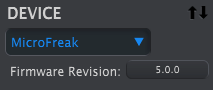
- Select MicroFreak from the DEVICE menu in the upper-left corner. The menu displays the current firmware revision:
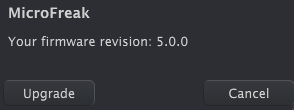
- Click Firmware Revision to open the dialog showing the current version:
- Click Upgrade, then use the operating system file dialog to select the downloaded firmware file.
Note/Warning While the firmware update is in progress, do not turn the MicroFreak's knobs, power it off, or disconnect its USB cable.
12 Linked References
Hierarchy
- Microfreak/UG/02 Installation/01 Usage Precautions
- Microfreak/UG/02 Installation/02 Warning
- Microfreak/UG/02 Installation/03 Notice
- Microfreak/UG/02 Installation/04 Precautions
- Microfreak/UG/02 Installation/05 Register Instrument
- Microfreak/UG/02 Installation/06 Connecting to the World
- Microfreak/UG/02 Installation/07 Latest Firmware
- Microfreak/UG/02 Installation/07 Latest Firmware/Asset/01-MIDI-Control-Center-device-and-firmware-revision/png
- Microfreak/UG/02 Installation/07 Latest Firmware/Asset/02-Firmware-revision-dialog/png