Launchpad/UG/06 Note Mode
6. Note Mode
- Play melodic instruments and drums from the velocity- and pressure-sensitive grid. The layout follows the currently armed Live instrument: a Drum Rack selects Drum Mode, while other instruments use Chromatic or Scale Mode.
- Use Up/Down to shift octaves and Left/Right to transpose by semitones. In Live, arm the MIDI track and set monitoring to Auto to hear the instrument.
6.1 Overview
- Note Mode offers Chromatic, Scale, and Drum layouts on an expressive 8 × 8 playing surface. Live automatically changes between Drum and melodic layouts when the armed instrument changes.
- Load an instrument or drum kit onto a MIDI track in Live, arm that track, and set its monitor to Auto. Use the arrow buttons to move the playable range.
6.2 Chromatic Mode
- Chromatic Mode is the default melodic layout and makes every semitone playable. Blue pads are notes in the chosen scale, purple pads are roots, and unlit pads are outside the scale.
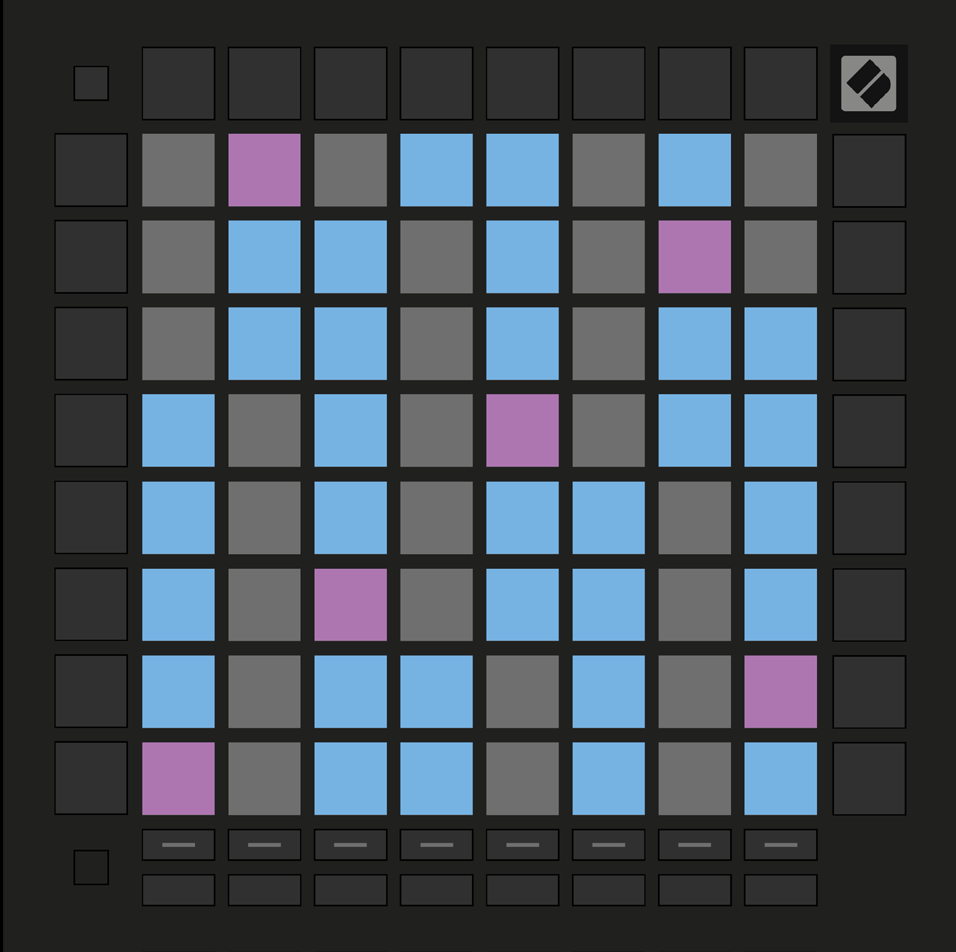
- With the default five-finger overlap, an octave lies two pads up and two pads right. The sixth column repeats the first column of the row above, allowing guitar-like shapes.
- 6.2.A — Chromatic layout with five-finger overlap
- Change the layout in Launchpad/UG/06 Note Mode/04 Note Mode Settings.
6.3 Scale Mode
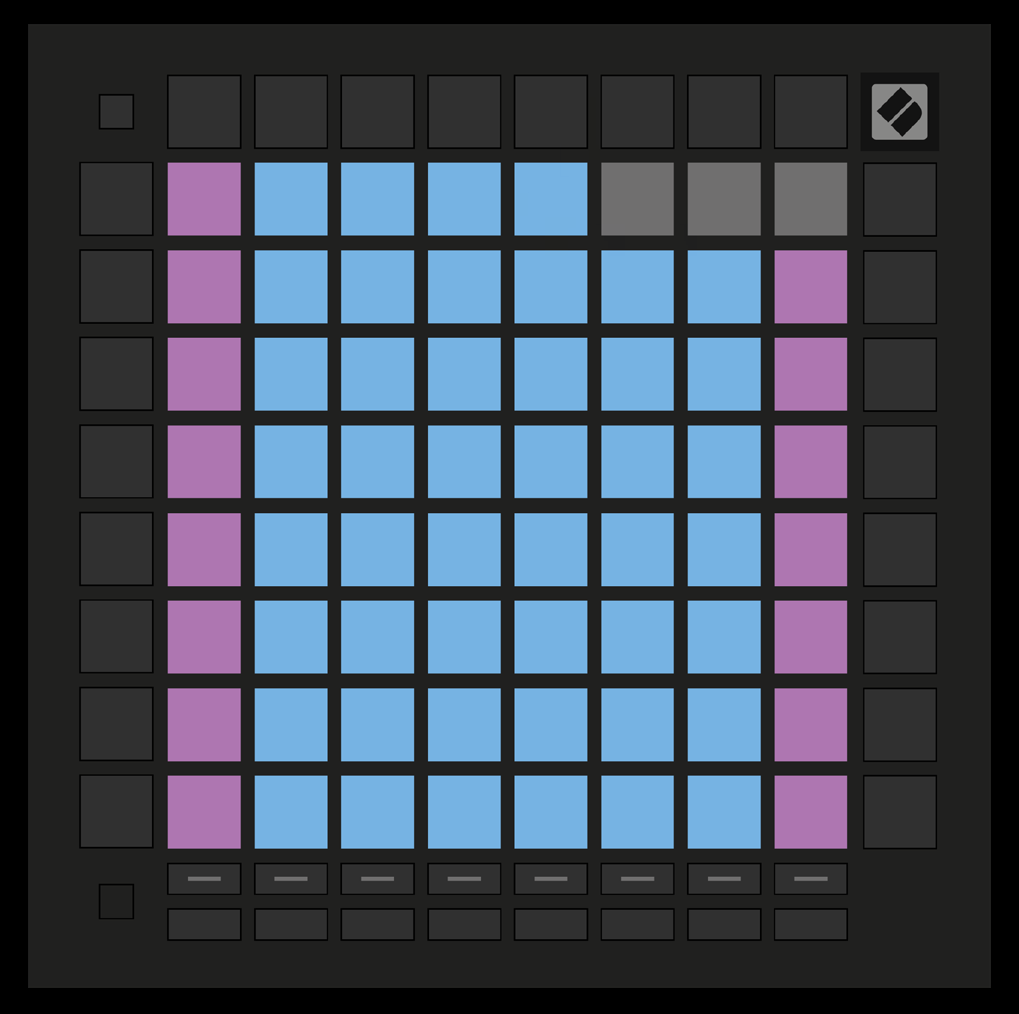
- Only notes in the chosen scale appear as playable pads. Blue pads mark scale notes, purple marks the root, and unlit pads are beyond the playable range.
- 6.3.A — Scale layout with sequential overlap
- Change the layout in Launchpad/UG/06 Note Mode/04 Note Mode Settings.
6.4 Note Mode Settings
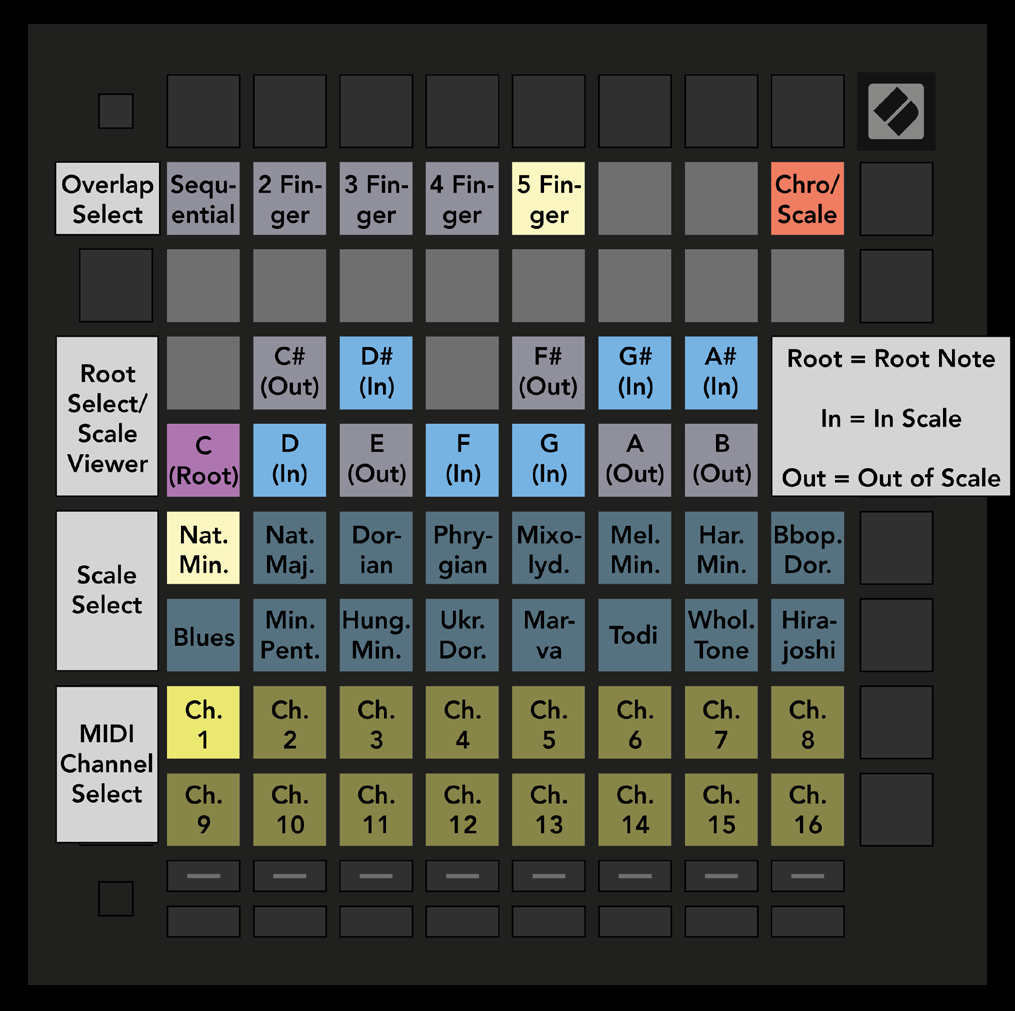
- Hold Shift and press Note or Chord to open settings. The Note and Chord buttons pulse green. Both modes share scale, root note, and MIDI channel.
- 6.4.A — Note Mode settings grid
- Press the Chromatic/Scale toggle to switch between Chromatic (dim red) and Scale (bright green). Overlap changes how successive rows share notes; see Launchpad/UG/06 Note Mode/05 Overlap.
- The Scale Viewer resembles a piano keyboard: blue notes belong to the scale, purple marks its root, and dim white notes are outside it. Press a viewer pad to choose the root.
- Scale Select offers sixteen scales. The selected pad is bright white and other scales are dim blue: Natural Minor, Natural Major, Dorian, Phrygian, Mixolydian, Melodic Minor, Harmonic Minor, Bebop Dorian, Blues, Minor Pentatonic, Hungarian Minor, Ukrainian Dorian, Marva, Todi, Whole Tone, and Hirajoshi.
- Choose a Note Mode MIDI channel from 1–16 to address a specific armed track.
6.5 Overlap
- Overlap sets the repeated notes between grid rows. With five-finger overlap, the leftmost note on one row matches the sixth pad on the row below. Four-finger, three-finger, and two-finger layouts change the vertical fingering.
- Sequential overlap puts unique notes on each chromatic pad. In Scale Mode, only root octaves repeat, giving an extended scale layout across the grid.
6.6 Drum Mode
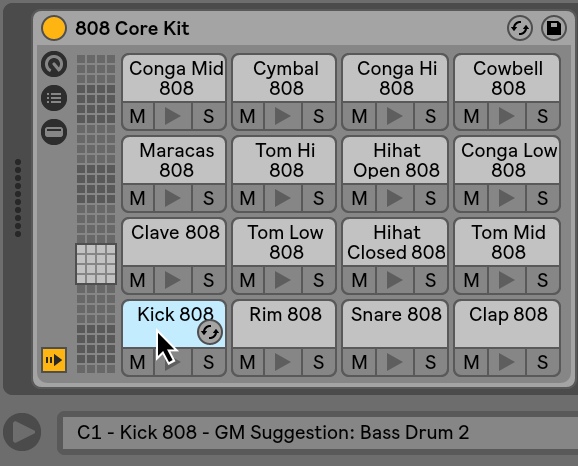
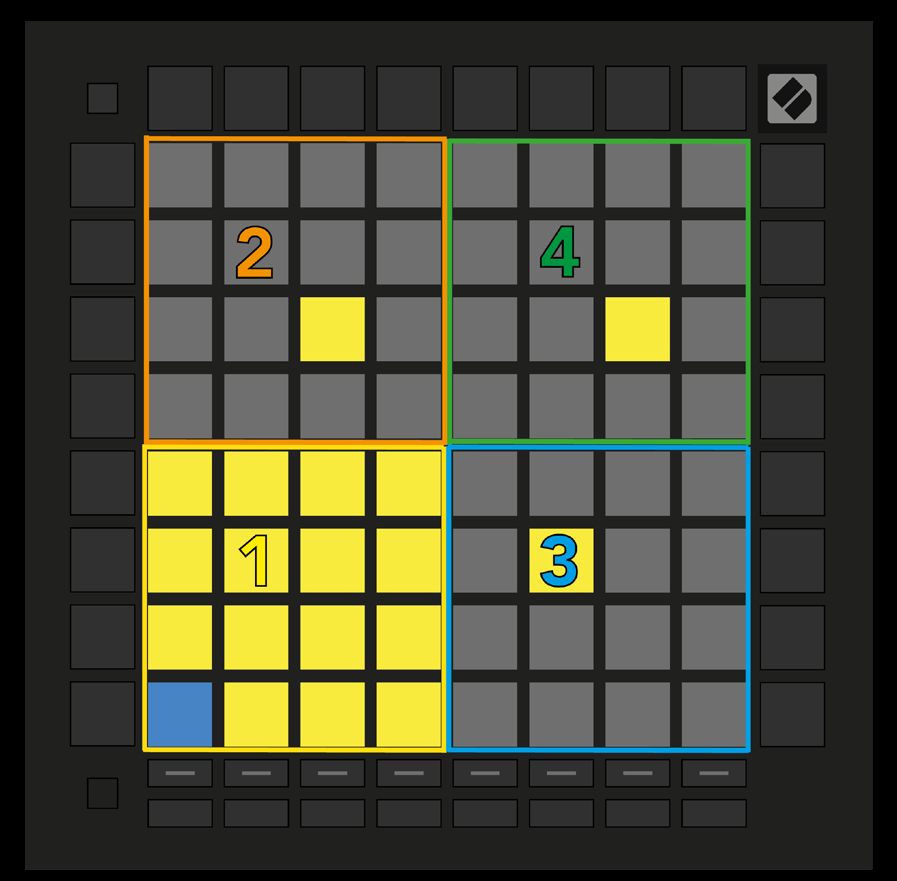
- Arming a Live track containing Drum Rack switches Note Mode to a four-quadrant Drum layout. Filled Drum Rack slots light on the grid; the lower-left quadrant matches the slots currently visible in Live.
- 6.6.A — Drum grid mapped to Live Drum Rack
- Up/Down scrolls sixteen slots at a time; Left/Right scrolls four. A loaded sample in another quadrant glows yellow. Press a drum pad to select it in Live; the pad turns blue for editing.
- Arming a track with another instrument restores the chosen Scale or Chromatic layout. To hear a Drum Rack, arm its track and set Live monitoring to Auto.