Launchpad/PRG/05 Software Integration
Integrating Launchpad Pro [MK3] with Software
- This chapter covers DAWs and DAW-like software or hardware driving the Launchpad, mostly by lighting the Session layout and using it as a control surface, for example faders for track volumes.
Accessing Session Mode (Enabling / disabling DAW mode)
- Session Mode needs DAW Mode. This message switches DAW Mode on or off; the Session button lights while DAW Mode is on.
- Hex:
F0h 00h 20h 29h 02h 0Eh 10h <Mode> F7h - Decimal:
240 0 32 41 2 14 16 <Mode> 247
<Mode>: 0 Standalone, 1 DAW, which enables the Session and DAW Fader layouts.- Software should return the Launchpad to Standalone when it exits, which clears its state and leaves the device usable on its own.
The DAW In/Out interface
- DAWs talk to the Launchpad on the USB DAW In/Out interface.
- Messages the Launchpad accepts there:
- Channel 1: static colour in Session view. Note
90h (144), CC B0h (176) - Channel 2: flashing colour in Session view. Note
91h (145), CC B1h (177) - Channel 3: pulsing colour in Session view. Note
92h (146), CC B2h (178) - Channel 5: set DAW fader positions. CC
B4h (180) - Channel 6: set DAW fader colours. CC
B5h (181) - Channel 9: static colour in Drum Rack. Note
98h (152) - Channel 10: flashing colour in Drum Rack. Note
99h (153) - Channel 11: pulsing colour in Drum Rack. Note
9Ah (154) - Channel 16: external note injection on all external MIDI channels. Note
9Fh. The PDF prints its decimal as 154; 9Fh is 159.
- Messages the Launchpad sends there:
- Channel 1: Session layout pads and buttons. Note
90h (144), CC B0h (176) - Channel 5: DAW fader movements. CC
B4h (180) - Channel 9: Drum Rack layout pads. Note
98h (152)
- Aftertouch, polyphonic or channel pressure depending on settings, goes out on channel 1 for Session and channel 9 for Drum Rack.
- These messages work whichever layout is showing. State set while a layout is hidden is kept and appears when the layout is shown.
DAW Faders
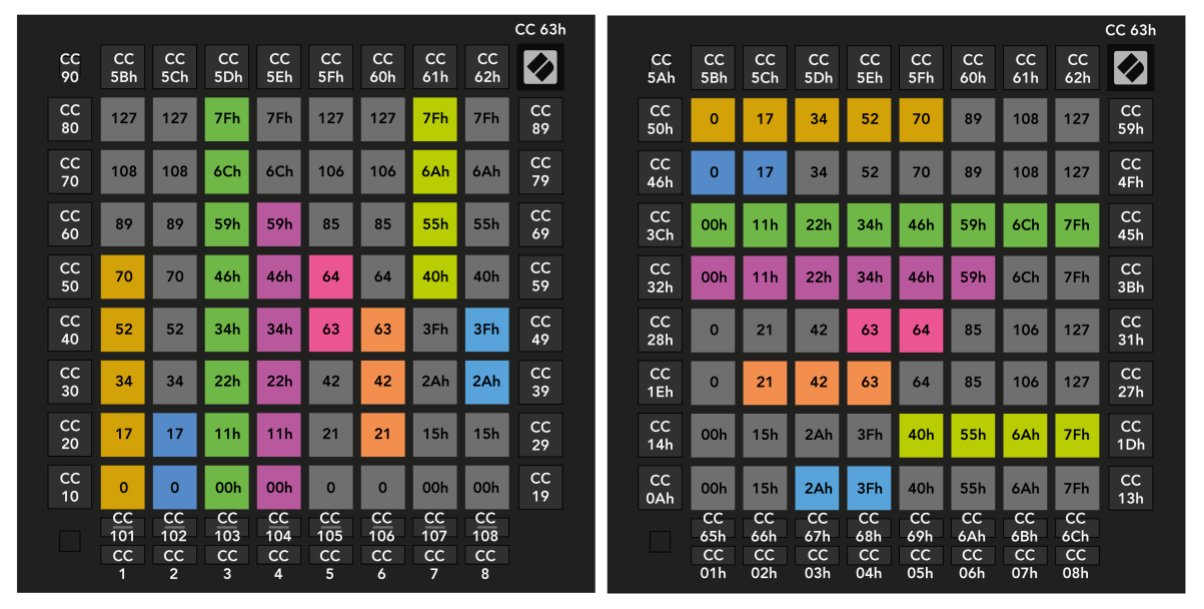
- The DAW Fader layout holds banks of up to eight faders. A bank's faders share one orientation, vertical or horizontal; each fader can be unipolar or bipolar.
- DAW Fader layout, vertical bank (left) and horizontal bank (right); pad labels give the value each pad sets
DAW Fader bank set-up
- Set up a fader bank with:
- Hex:
F0h 00h 20h 29h 02h 0Eh 01h <Bank> <Orientation> <Fader> [<Fader> ...] F7h - Decimal:
240 0 32 41 2 14 1 <Bank> <Orientation> <Fader> [<Fader> ...] 247
<Bank>: 0 Volumes, 1 Pans, 2 Sends, 3 Devices.<Orientation>: 0 vertical, 1 horizontal.- Each
<Fader> is four bytes, and a message may hold up to eight:- Index 0-7, left to right when vertical or top to bottom when horizontal
- Type: 0 unipolar, 1 bipolar
- CC number the fader sends
- Colour, a palette index. Colour 0 hides the fader.
- Example:
F0h 00h 20h 29h 02h 0Eh 01h 00h 00h 00h 00h 07h 25h 01h 01h 08h 15h F7h (240 0 32 41 2 14 1 0 0 0 0 7 37 1 1 8 21 247) sets up the Volumes bank vertically, with a turquoise unipolar fader on CC 7 in the leftmost column and a green bipolar fader on CC 8 next to it.- The guide follows it with
F0h 00h 20h 29h 02h 0Eh 00h 0Dh F7h (240 0 32 41 2 14 0 13 247) to show the bank. As printed, that layout byte is 0Dh, which the layout table names Sequencer Projects, and the page byte is missing; the Fader layout is 01h. See Launchpad/PRG/03 MIDI/03 Selecting Layouts.
- Fader positions and colours then arrive as CCs on channels 5 and 6 of the DAW interface: Launchpad/PRG/05 Software Integration/02 DAW Interface.
DAW Stop Fader for Bank
- Stops any fader in a bank that is currently moving.
- Hex:
F0h 00h 20h 29h 02h 0Eh 19h <Bank> F7h - Decimal:
240 0 32 41 2 14 25 <Bank> 247
<Bank>: 0 Volumes, 1 Pans, 2 Sends, 3 Devices.
DAW Drumrack
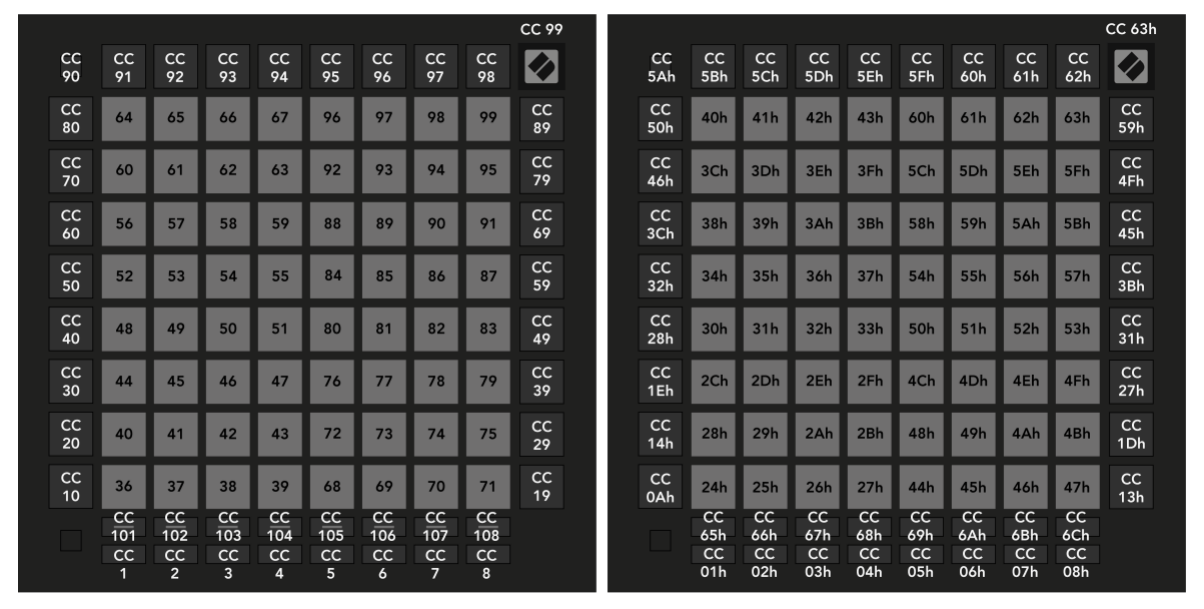
- A DAW can make Note mode show a Drum Rack instead, and light its pads to match the loaded drum samples with the channel 9-11 messages in Launchpad/PRG/05 Software Integration/02 DAW Interface.
- The Drum Rack grid is two 4x8 halves. The left half runs notes 36-67 and the right half 68-99, each rising four notes per row from the bottom. Buttons keep their Session CCs.
- DAW Drumrack layout, decimal (left) and hex (right)
DAW Note / Drumrack mode select
- Chooses whether Note mode shows the note layout or the Drumrack. Available only in DAW mode.
- Hex:
F0h 00h 20h 29h 02h 0Eh 0Fh <Mode> F7h - Decimal:
240 0 32 41 2 14 15 <Mode> 247
<Mode>: 0 Note mode, 1 Drumrack.- The message does not change layout. If Note mode is showing, the change appears at once; otherwise it appears the next time Note mode is selected.
DAW Note mode Active colour set
- Changes Note mode's active colour, normally green.
- Hex:
F0h 00h 20h 29h 02h 0Eh 17h <Colour> F7h - Decimal:
240 0 32 41 2 14 23 <Colour> 247
<Colour> is a palette index; 0 restores the default green.
DAW Note/Chord mode Buttons
- In Note, Drumrack, and Chord modes the DAW can still light these buttons with their Session CCs:
- Left-hand buttons except Up and Down: CC 10, 20, ... 60. Clear is not available in Chord Mode.
- Track select buttons: CC 101-108
- Track control buttons: CC 1-8
- Shift: CC 90
- Logo: CC 99
Programmer Mode
- Programmer Mode is the alternative to Session Mode for scripts. Switch between Live and Programmer Mode with:
- Hex:
F0h 00h 20h 29h 02h 0Eh 0Eh <Mode> F7h - Decimal:
240 0 32 41 2 14 14 <Mode> 247
<Mode>: 0 Live, 1 Programmer.- Selecting Live with this message opens the Session layout in DAW mode, or Note mode otherwise.
- After entering Programmer Mode by SysEx the Setup menu is unreachable. To return to normal use, send a Select Layout message for any layout other than Programmer Mode.
- To enter Programmer Mode by hand, hold Setup, press the orange bottom Scene Launch button, and release Setup. See Launchpad/UG/10 Setup/07 Live and Programmer Mode.
- The Launchpad always powers up in Live Mode.
Programmer mode layout
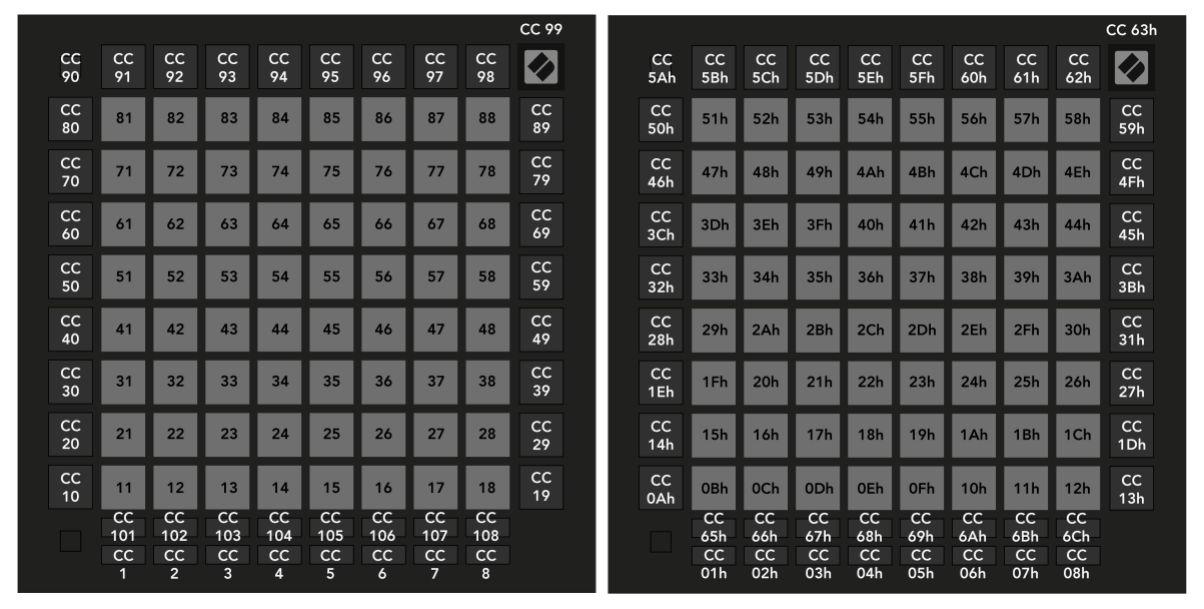
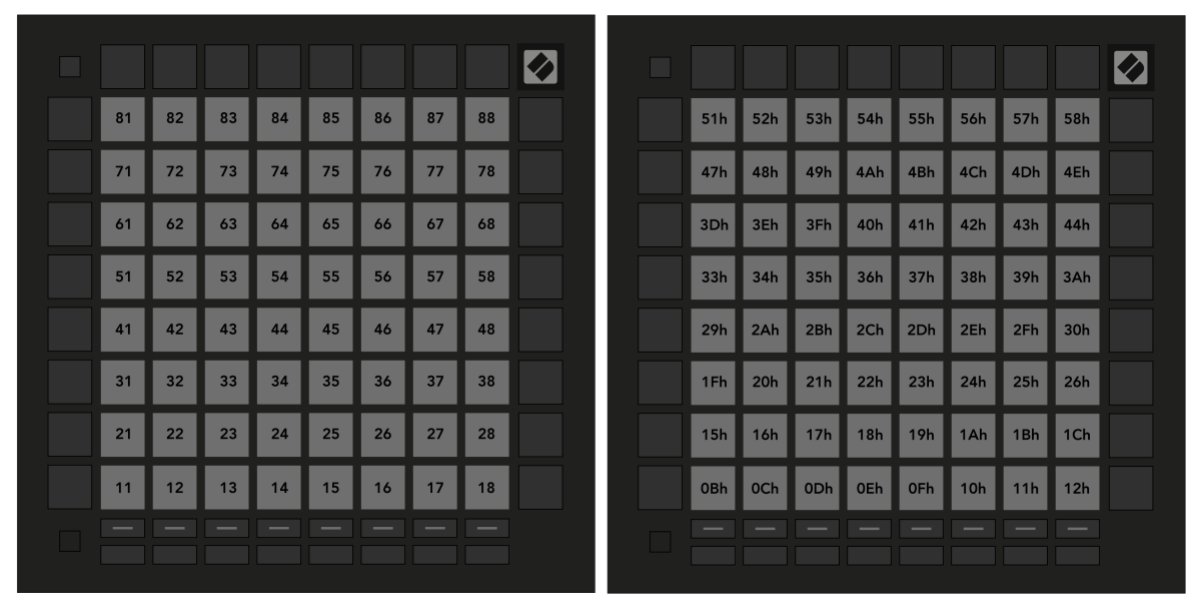
- Every pad and button in Programmer Mode accepts both Note and CC messages for lighting. The layout shows which type each one sends when pressed.
- Numbering:
- Grid pads send notes
10 x row + column, rows and columns 1-8 from the bottom left: 11-18 on the bottom row up to 81-88 on the top row. - Left column: CC 10, 20, ... 80 from bottom to top. Top-left button: CC 90.
- Right column: CC 19, 29, ... 89 from bottom to top.
- Top row: CC 91-98. Logo: CC 99.
- Below the grid: CC 101-108 in the upper row and CC 1-8 in the lower row.
- Programmer mode layout, decimal (left) and hex (right)
- The User Guide's map is Launchpad/UG/11 Appendix/01 Default MIDI Mappings/09 Programmer Mode.
Factory default Custom Mode layouts (for lighting pads)
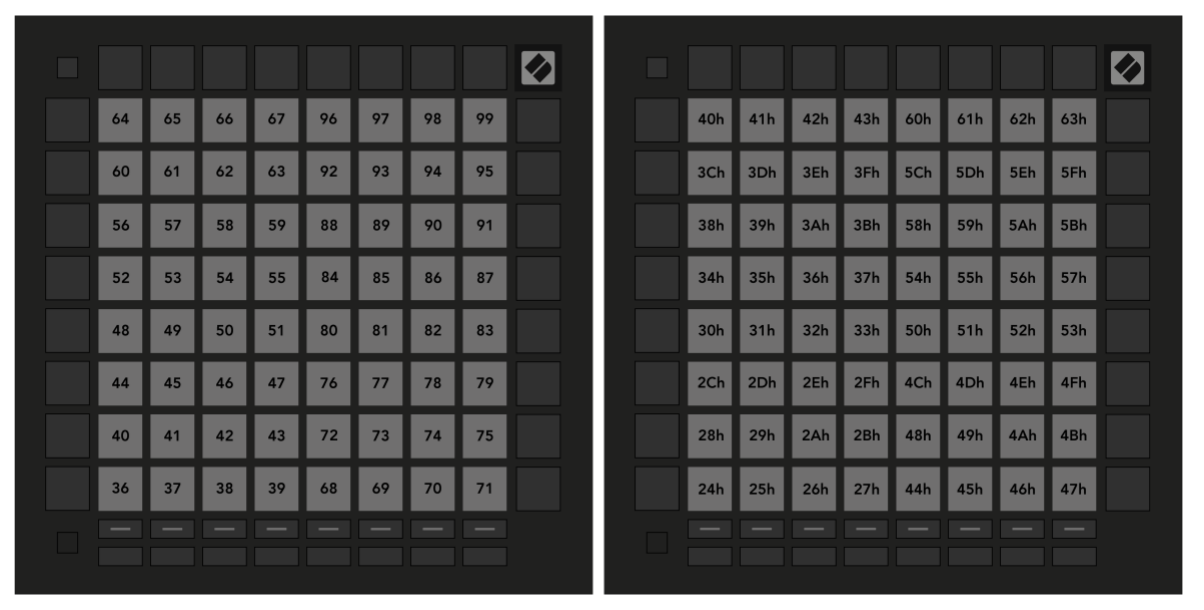
- From the factory, Custom Modes 7 and 8 are set up for lighting pads over MIDI, each with a different note layout. Select them from the device.
- Custom Mode 7 uses the Drumrack arrangement: two 4x8 halves, notes 36-67 on the left and 68-99 on the right.
- Custom Mode 8 uses the Programmer grid numbering, notes 11-88.
- The figures label only the 8x8 grid in both modes. Changing these mappings requires Novation Components, per Launchpad/PRG/04 Controlling the Surface. See also Launchpad/UG/08 Custom Modes/02 Default Custom Modes.