LV4AD/Ch/07 Objects and Operator-pending Mode
Properties
Chapter 7: Objects and Operator-pending Mode - LazyVim for Ambitious Developers
A sentence is defined in vim as anything that ends with a
.,?, or!followed by whitespace.
The sentence keybindings are two of the hardest for me to remember. I use them rarely enough that it hasn't become muscle memory, and it doesn't have a good mnemonic I can remember.
Have I built enough suspense? Pay attention, because you will forget this. To move one sentence forward (to the first letter after the whitespace following sentence ending punctuation), type a)(right parenthesis) command in normal mode. To move to the start of the current sentence, use(. Press the parenthesis again to move to the next or previous sentence or add a count if you want to move by multiple sentences.I do use the paragraph motions all the time, though. A paragraph is defined as all the content between two empty lines, and that is a concept that makes sense in a programming context. Most developers structure their code with logically connected statements separated by blanks. The commands to move up or down by one "paragraph" are the curly braces,
{and}. If you need to jump multiple paragraphs ahead or back, they can, as usual, be prefixed by a count.7.1. Unimpaired Mode
Here's what I see if I type
[and then pause for the menu: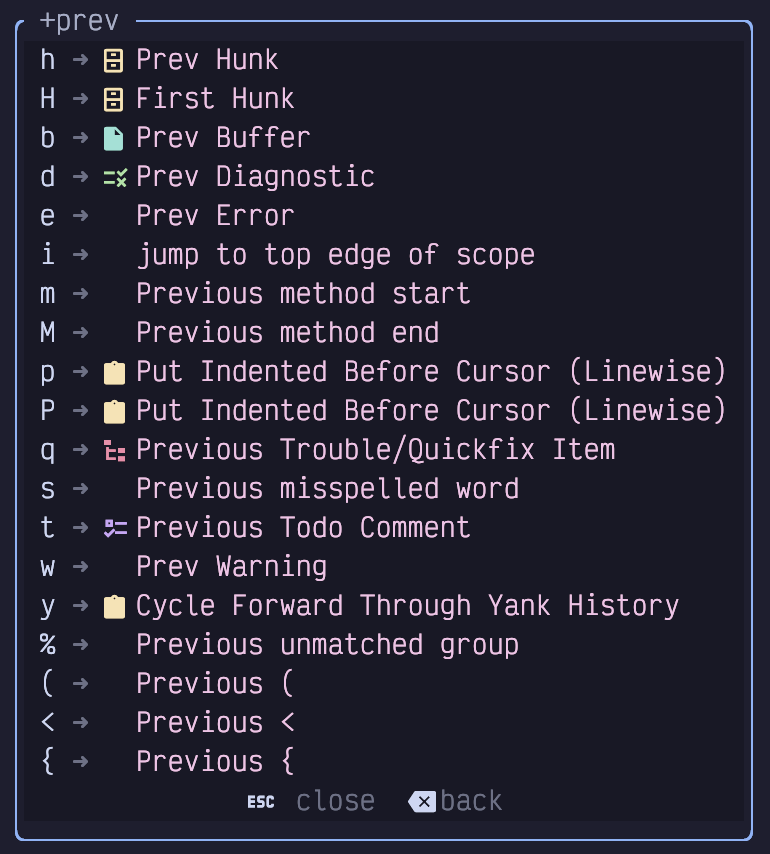
unimpaired menu darkonly there because I have a Lazy Extra enabled for it.
First, the commands to work with
(,<, and{are quite a bit more nuanced than they look. They don't blindly jump to the next (if you started with]) or previous (if you used[) parenthesis, angle bracket, or curly bracket. If you wanted to do that, you could just usef(orF(.
Instead, they will jump to the next unmatched parenthesis, angle bracket, or curly bracket. That effectively means that keystrokes such as[(or]}mean "jump out". So if you are in the middle of a block of code surrounded by{}you can easily jump to the end of that block using]}or to the beginning of it using[{, no matter how many other curly-bracket delimited code blocks exist inside that object. This is useful in a wide variety of programming contexts, so invest some time to get used to it.- My Note Oh, good point
As a shortcut, you can also use
[%and]%where the%key is basically a placeholder for "whatever is bracketing me." They will jump to the beginning or end of whichever parenthesis, curly bracket, angle bracket, or square bracket you are currently in.
That last one (square bracket), is important, because unlike the others,[[and]]do not jump out of square brackets, so using[%and]%is your only option if you need to jump out of them.7.1.1. Jump by Reference
Instead of jumping out of square brackets as you might expect, the easy to type
[[and]]are reserved for a more common operation: jumping to other references to the variable under the cursor (in the same file).
This feature typically uses the language server for the current language, so it is usually smarter than a blind search. Only actual uses of that function or variable are jumped to instead of instances of that word in the middle of other variables, types, or comments as would happen with a search operation.
7.1.2. Jump by Language Features
The
[c,]c,[f,]f,[m, and]mkeybindings allow you to navigate around a source code file by jumping to the previous or next class/type definition, function definition, or method definition. The usefulness of these features depends a bit on both the language you are using and the way the Language Service for the language is configured, but it works well in common languages.
By default, those keybindings all jump to the start of the previous or next class/function/method. If you instead want to jump to the end, just add aShiftkeypress:[C,]C,[F,]F,[M, and]Mwill get you there.- My Note I wonder what these would do in markdown … or what they could be made to do. Maybe jump to next fenced code block function …
I personally don't use these keybindings very much as there are other ways to navigate symbols in a document that we will discuss later. But if you are editing a large function and you want to quickly jump to the next function in the file,
]fis probably going to get you there faster than usingjwith a count you need to calculate, or even aControl-dfollowed bySto go to seek mode.- My Note In vim and LazyVim, Key/Control-d is the standard shortcut to scroll down by half a page.
As for the difference between lowercase s and uppercase S:
- Lowercase s (provided by plugins like nvim/Plugin/flash.nvim) puts you into standard Seek mode, which is used to jump your cursor to specific characters anywhere on the screen.
- Uppercase S (used in operator-pending mode after a verb like c or d) triggers a specialized object selection mode. Instead of just moving the cursor, it displays pairs of labels around the surrounding code structures (like functions, blocks, or classes) so you can perform an operation directly on an entire code object on the fly.
- My Note In vim and LazyVim, Key/Control-d is the standard shortcut to scroll down by half a page.
7.1.3. Jump to End of Indentation
If you are working with indentation-based code such as Py or deeply nested tag-based markup such as HTML and JSX, you may find the
[iand]ipairs helpful.
These are provided as part of the nvim/Plugin/snacks.nvim suite of plugins, via nvim/Plugin/snacks.nvim/Indent. This plugin helps visualize the levels of indentation in a file. Here's an example from a Svelte component I was working on recently: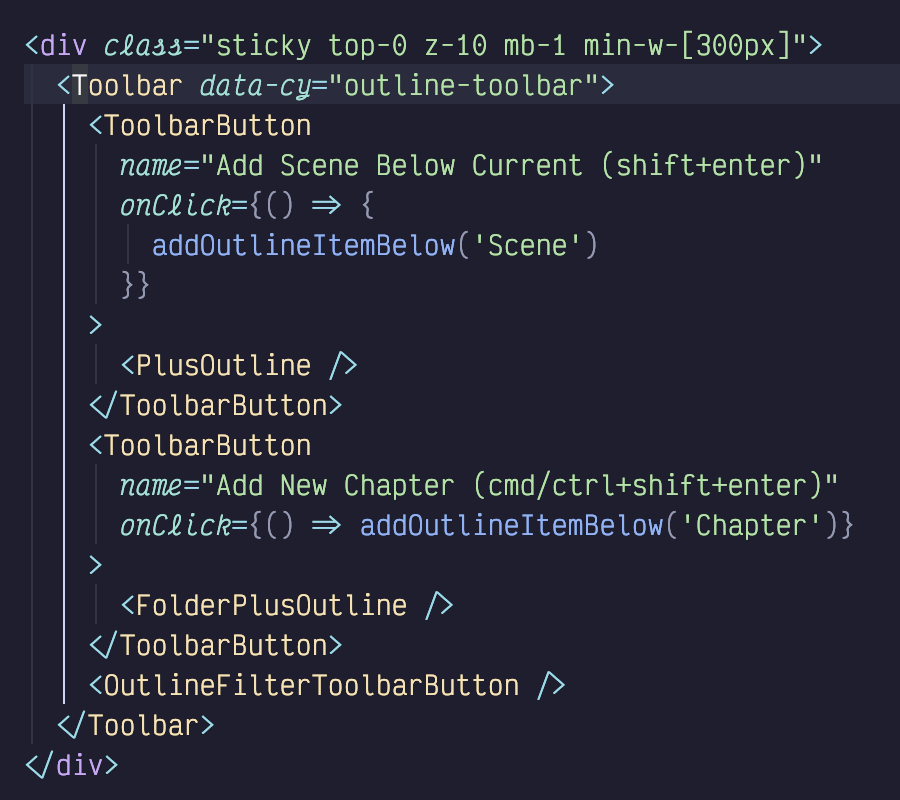
indent guides dark
This Svelte code uses two spaces for indentation. Each level of indentation has a (in my theme) grey vertical line to help visualize where that indentation level begins and ends, and the "current" indentation level is highlighted in a different colour.
In addition, the plugin adds the unimpaired commands[ior]ito jump out of the current indentation level; it will go either to the top or the bottom of whichever indentation line is currently highlighted.
I use this functionality all the time when editing Py code and Svelte components. I use it less often in other languages where[%and]%tend to get me closer to where I need to go next. But the visual feedback of indent guides can be super helpful, even in bracket-heavy languages; I may be surprised by which curly bracket I will "jump out" to, but the indent guides are always obvious.- My Note You are entirely right that the i in i and ]i stands for indentation.
The author uses the term ["Unimpaired mode" because these square-bracket navigation pairs (
and ]) harken back to a foundational vim plugin called nvim/Plugin/vim-unimpaired by Person/Tim Pope. Even though the specific indentation commands are provided by nvim/Plugin/snacks.nvim/Indent, LazyVim groups these bracket-based navigation shortcuts under that same conceptual naming convention.
LazyVim groups these commands under the term "Unimpaired mode" based entirely on their syntax and naming convention: any navigation command accessed using square brackets falls into this family.
In this system, opening square brackets () generally move to the previous instance, and closing brackets (]) move to the next instance. While the letter that follows determines what you are jumping to (like i for indentation, d for diagnostics, or hfor git hunks), they are all grouped together because they share this common prefix pattern.
You can actually see this grouping directly in the editor: if you [press a single [ or ], LazyVim brings up a unified menu displaying all of these bracket-based navigation shortcuts.
The text notes that LazyVim doesn't actually use the original nvim/Plugin/vim-unimpaired plugin directly. Instead, the author uses the term "Unimpaired mode" to collectively describe the pairs of navigation techniques accessed using square brackets ([ and ]) because they harken back to Person/Tim Pope's foundational vim plugin.
- My Note You are entirely right that the i in i and ]i stands for indentation.
7.1.4. Jumping to Diagnostics
Because I am so incredibly talented at introducing problems in my code, a common navigation task I need to perform is "jump to the next squiggly line". Collectively, these are referred to as diagnostics, so the key combinations are
[dand]d. If you only want to focus on errors and ignore hints and warnings, you can use[eand]e. Analogously, the[wand]wkeybindings navigate between only warnings.If you are editing a file in a language that enables spellcheck, or you have enabled it explicitly with
<Space>us, misspellings can be jumped to with[sand]s. This tripped me up when I started this book because I expected the]dto take me to the squiggly underlines under misspelled words, but it doesn't. I need]sinstead.Finally, if you use
TODOorFIXMEcomments in your code, you can jump between them using[tand]t.
7.1.5. Jumping to Git Revisions
This is actually my favourite of the square bracket pairs:
[hand]hallow you to jump to the next git "hunk". If you aren't familiar with the word (or if you're from a generation that thinks it means a gorgeous man), a "git hunk" just refers to a section of a file that contains modifications that haven't been staged or committed yet.Once I've started editing, I may have to jump back and forth between those locations.
]hand[hare perfect for this, and I don't need to remember my jump history or add named marks (essentially bookmarks) to do it.
7.2. Text Objects
The grammar for objects is
<verb><context><object>. The verbs are the same verbs you have already learned for working with motions, so they can bed,c,gU, etc.
The context is always eitheraori. As you know, these are two commands to enter Insert mode from Normal mode. But if you have already typed a verb such asdorc, you are technically not in Normal mode anymore!
You are in the so-called "Operator Pending Mode". The navigation keystrokes you are familiar with are generally also allowed in Operator-Pending mode, which is the real reason you can perform a motion after a verb. But if a plugin maintainer neglects to define the operator-pending keymaps, you end up with situations where you can navigate but not perform a verb.Typically, you can think of them as
aroundandinside(though in my head I always just pronounce them as "a" and "in"). The difference is thataoperations tend to select everything thatinsideselects plus a bit of surrounding context that depends on the object that is defined.
For example, one common object is the parenthesis:(. If you type the commanddi(, you will delete all the text inside a matched pair of parenthesis. But if you instead typeda(, you will delete all the text inside the parenthesis as well as the(and)at each end.To see a list of many possible text objects in LazyVim, type
daand pause for the menu. Here's what I see: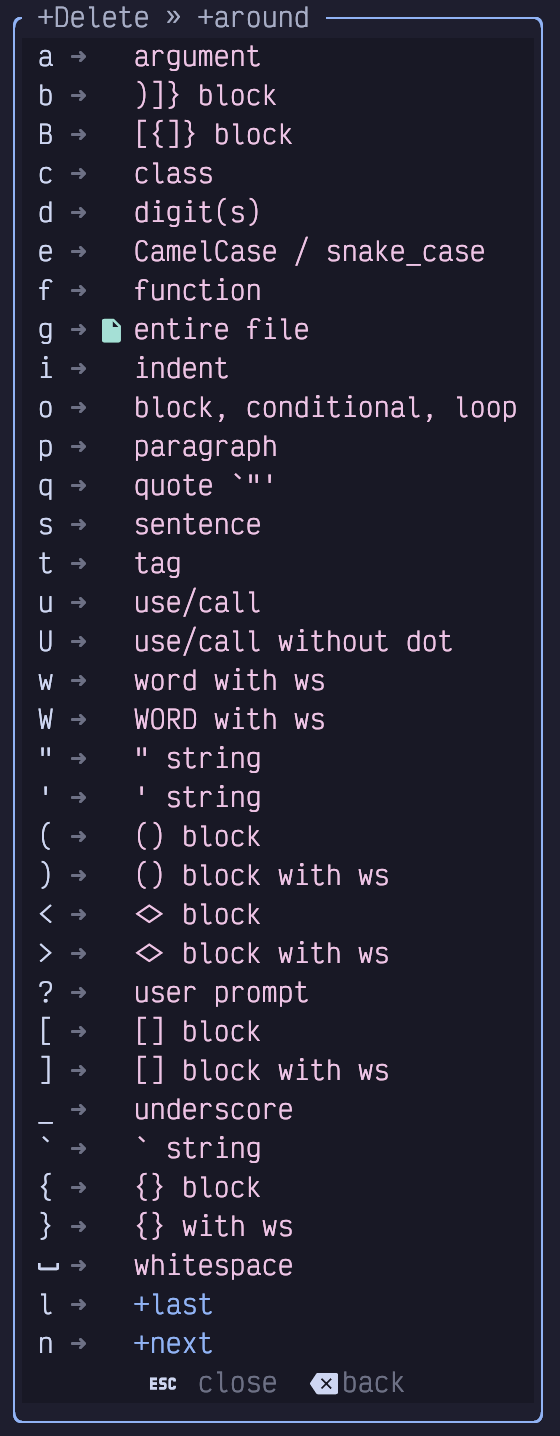
operator pending dark7.2.1. Textual Objects
The operators
w,s, andpare used to perform an operation on an entire word, sentence, or paragraph, as defined previously: word is contiguous non-punctuation, sentence is anything that ends in a.,?, or!, and paragraph is anything separated by two newlines.For example, consider the following snippet of text and imagine my cursor is currently at the
|character in the middle of the wordhandfulin the second sentence:
If I want to delete the wordhandfulwhile I'm at that location, I could typebdeto jump to the back of the word, then delete to the end of the word. Or I can use theinside wordtext object and typediw.
Either way, I end up with an extra space betweenaandofbecausediwisinsidethe word and doesn't touch surrounding whitespace.
If I instead typedaw, it will delete the word and one surrounding space character, so everything lines up correctly afterward with a single space betweenaandof.- My Note Missing snippet text:
This snippet contains a bunch of words. There are a hand|ful of
sentences.
And two paragraphs.
- My Note Missing snippet text:
There is also a
W(capitalized) operator that has a similar meaning to the captialWwhen navigating by words: it will delete everything between two whitespaces instead of interpreting punctuation as a word boundary.- My Note In standard vim motion, capital W (Shift+W) moves your cursor forward to the beginning of the next "WORD" (as opposed to a lowercase w, which moves to the next "word").
The key distinction is that lowercase w treats punctuation marks as word boundaries, whereas capital W ignores punctuation entirely and treats only whitespace as a boundary. For example, foo-bar is treated as three separate words by w, but as a single WORD by W.
- My Note In standard vim motion, capital W (Shift+W) moves your cursor forward to the beginning of the next "WORD" (as opposed to a lowercase w, which moves to the next "word").
Similarly, I can use
disanddasfrom that same cursor position to delete the entire "There are a handful of sentences." sentence. The former won't touch any of the whitespace beforeTheor after the., while the latter will sync up the whitespace correctly.Finally, I can delete the entire paragraph with
dipordap. The difference is that in the former case, the blank line after the paragraph being deleted will still be there, but inaroundmode, it will remove the extra blank.Typically, I use
iwhen I am changing a word, sentence or paragraph, with acverb, since I want to replace it with something else that will need to have surrounding whitespace. But I useawhen I am deleting the textual object withdbecause I don't intend to replace it, so I want the whitespace to behave as if that object never existed.- My Note Yes, exactly. The c operator stands for "change," which deletes the target text and automatically puts you into Insert mode so you can start typing the replacement immediately.
When combined with iw (inside word), ciw deletes just the word itself—leaving the surrounding whitespace completely untouched. The author prefers this when changing words because it preserves the correct spacing around the new word you type.
- My Note Yes, exactly. The c operator stands for "change," which deletes the target text and automatically puts you into Insert mode so you can start typing the replacement immediately.
7.2.2. Quotes and Brackets
The objects
",', and`operate on a string of text surrounded with double quotes, single quotes, or backticks. If you use the commandci", you will end up with your cursor in Insert mode between two quotation marks, where everything inside the string was removed. If you useda", however, it will delete the quotation marks as well.- My Note So much to remember here
As a shortcut, you can use the letter
qas a text object and LazyVim will figure out what the nearest quotation mark is, whether single, double, or backtick, and delete that object. I don't use this, personally, but I guess it would save a keypress on double quotes.- My Note Normally, when working with quoted text, you have to explicitly type the specific quote character you want to target—such as " for double quotes, ' for single quotes, or
LazyVim provides the q text object shortcut to save you from having to think about which one it is. Instead of typing di" or di', you can just type diq (delete inside quote) or daq, and the editor will automatically figure out whichever quotation mark is closest to your cursor and apply the action to it.
- My Note Normally, when working with quoted text, you have to explicitly type the specific quote character you want to target—such as " for double quotes, ' for single quotes, or
Similarly if you want to apply a verb to an entire block contained in parentheses or curly, angle, or square brackets, you just have to type one of those bracketing characters. Consider these examples:
di[,da(,ci{orca<. As with quotes, theiversions will leave the surrounding brackets intact, and theaversion will delete the whole thing.The shortcut to select whatever the nearest enclosing bracket or parenthesis type is the
bobject. (Mnemonic is "bracket").These actually work with counts so you can delete the "third surrounding curly brackets" instead of the "nearest surrounding curly brackets" if you want to. I can never remember where to put the count, though! If your memory is better than mine, the syntax is to place the count before the
aori. So for example,d2a{will delete everything inside the second-nearest set of curly brackets. I'm not sure if that makes sense, so here's a visual:
class Foo {
function bar() {
let obj = {fizz: 'buzz'}
}
}
If my cursor is on the colon betweenfizzand'buzz'then you can expect the following effects:
•di{will deletefizz: 'buzz'but leave the surrounding curly brackets.
•c2i{will remove the entirelet obj =line and leave my cursor in Insert mode inside the curly brackets defining the function body.
•c2a{will do the same thing, but also remove those curly brackets, so I'm left with afunction bar()that has no body.
•d3i{will remove the entire function and leave me with an emptyFooclass.You can also delete things between certain pieces of punctuation. For example,
ci*andca_are useful for replacing the contents of text marked as bold or italic in Markdown files.If you want to operate on the entire buffer, use the
agorigtext object. Socagis the quickest way to scrap everything and start over andyigwill copy the buffer so you can paste it into a pastebin or chatbot. Thegmay seem like an odd choice, but it has a symmetry to the fact thatggandGjump to the beginning or end of the file. If you need a mnemonic, think ofyigas "yank in global".
7.2.3. Language Features
LazyVim adds some helpful operators to perform a command on an entire function or class definition, objects, and (in HTML and JSX), tags. These are summarized below:
•c: Act on class or type
•f: Act on function or method
•oAct on an "object" (the mnemonic is a stretch) such as blocks, loops, or conditionals
•tAct on an HTML-like tag (works with JSX)
•iAct on a "scope", which is essentially an indentation level
7.2.4. Git Hunks
7.3. Seeking Surrounding Objects
The nvim/Plugin/flash.nvim plugin that gave us
Seekmode, has another trick up its sleeve: the holy grail of text objects. After specifying a verb, you can use theSkey (there is noiorarequired) to be presented with a bunch of paired labels around the primary code objects surrounding your cursor.
As an example, I'm going to lean on thatFooclass again. I have placed my cursor on the:and typedcS. The plugin identifies the various objects surrounding my cursor and places labels at both ends of each object: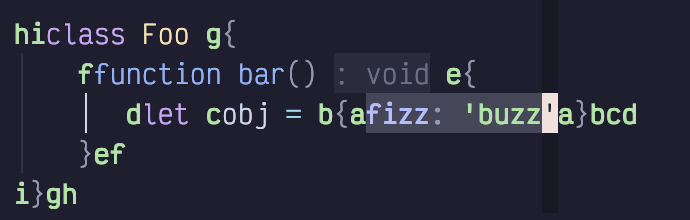
seek object dark
The labels in this image are in green, and (typically) go in alphabetical order from "innermost" to "outermost". The primary difference from Seek mode is that each label comes in pairs; there are twoalabels, twoblabels, and so on. The text object is whatever is between those labels.
If the next character I press isa(or enter, to accept the default), then I will change everything inside the curly brackets defining theobj. If I pressb, it will also replace those curly brackets. Pressingcwill change the entire assignment anddwill change the contents of the function. Hittingereplaces the curly brackets as well, andfchanges the full function definition. Theglabel is the contents of the class, whilehchanges the entire class.7.3.1. Seeking Surrounding Objects Remotely
With a mnemonic of "Remote",
Ris easy to use, but hard to explain. It is an operator-pending operation, so you need to type a verb first, followed byR(as withS, there is noiorarequired).
At this point, LazyVim is essentially in Seek mode, so you can type a few characters from a search string to find matches anywhere on the screen. However, instead of showing a single label at any matches for the string you searched for, nvim/Plugin/flash.nvim will automatically switch to surrounding object mode, and show pairs of labels of all constructs that surround the matching locations.To put the icing on the cake, you can also perform a remote seek on any kind of object without using the surround mode. In this case, you would type a verb followed by a lowercase
r(it still means "remote"). This will also put you in Seek mode, and you can start typing the matching characters. Single (normal Seek mode, rather than Surround Seek mode) labels will pop up, and you can enter a character to temporarily move your cursor to that label, just like normal Seek mode. But when your cursor arrives there, it is automatically placed in Operator-pending mode again. So you can now type any other operator such asawori(. Once the operation completes, your cursor will move back to where it was before you entered the remote Seek mode.
As a specific example, the commanddrAth2wwill delete two words starting at the word "At" that gets the labelh, then jump your cursor back to the position it was at before you started the delete. In other words, it is the same as the commandsAthd2w<Control-o>, which will seek to the word "At" at label h, then delete two words, and useControl-oto jump back to your previous history locatio
7.4. Operating on Surrounding Pairs
Maybe you want to change a double quoted string such as
"hello world"to a single quoted'hello world'. Or maybe you are changing aobj.get(some_variable)method lookup to aobj[some_variable]index lookup, and need to change the surrounding parentheses to square brackets.
LazyVim ships with the LazyVim/plugins/extras/coding/mini-surround plugin for this kind of behaviour, but it's not installed by default. It is a recommended extra, so if you followed my suggestion to enable all the recommended plugins, you may have it already.7.4.1. Add Surrounding Pair
default verb for adding a surrounding pair is
gsa. That will place your editor in operator-pending mode, and you now have to type the motion or text object to cover the text you want to surround with something.- My Note You are right that g is most famously used in vim for "go to" commands (like gg to go to the top or gi to go to the last insert position).
However, in modern nvim plugin design—specifically in plugins like LazyVim/plugins/extras/coding/mini-surround—the g prefix is frequently used as a namespace for extended, multi-key extension commands that don't fit into standard single-letter keys (since single letters like s are often already claimed by other plugins, like nvim/Plugin/flash.nvim's seek mode).
In this case, the g serves as a general prefix key, and the s stands for surround. That is why gsa means add surrounding, gsd means delete surrounding, and gsr means replace surrounding. Because typing gs repeatedly can feel a bit cumbersome, the author even demonstrates later in the chapter how to remap those commands to something shorter, like ; for surround actions.
- My Note You are right that g is most famously used in vim for "go to" commands (like gg to go to the top or gi to go to the last insert position).
7.4.2. Delete Surrounding Pair
7.4.3. Replace Surrounding Pair
Replacing is similar to deleting, except the verb is
gsrand you need to type the character you want to replace the existing character with after you type the existing character.
So if you have the text"hello world"and your cursor is inside it, you can usegsr"'to change the double quotes to single quotes:'hello world'.
7.4.4. Navigate Surrounding Characters
The easiest one has been built into vim for a long time. If your cursor is currently on the beginning or ending character of a parenthesis, bracket, or curly brace pair, just hit
%to jump to its mate at the other end of the parenthetical. If you use%in Normal mode when you aren't on a pair, it will jump to the nearest enclosing pair-like object. This only works with brackets, though, so arbitrary pairs including quotes are not supported.don't use these, because the nvim/Plugin/mini.ai plugin provides a similar feature using the
g[andg]shortcuts. These shortcuts both need to be followed by a character type, so e.g.g[(will jump back to the nearest surrounding open parenthesis, andg]]will jump to the nearest closing square bracket. If you give it a count, it will jump out of that many surrounding pairs.