LV4AD/Ch/05 Plugin Basics
Properties
Chapter 5: Plugin Basics - LazyVim for Ambitious Developers
5.1 Three Categories
Others, such as nvim/Plugin/flash.nvim and nvim/Plugin/which-key.nvim provide new commands or modes to work with.
- AI Notes The document identifies nvim/Plugin/flash.nvim as a pre-installed plugin that provides new commands or modes to work with. While specific examples aren't detailed so far in the text, it generally enables:
- Rapid Navigation: Jumping to any visible text by typing labels.
- Enhanced Search: Instant jumping to / search results.
- nvim/treesitter Integration: Quickly selecting logical code blocks.
- AI Notes The document identifies nvim/Plugin/flash.nvim as a pre-installed plugin that provides new commands or modes to work with. While specific examples aren't detailed so far in the text, it generally enables:
These plugins are preconfigured in LazyVim with (generally) sane defaults. Because they are deeply integrated, customizing those defaults is doable, but sometimes requires a few tricks that we will cover in this and later chapters.
The second category of plugin in LazyVim are the “Lazy Extras”. These plugins are not enabled by default, but can be enabled with just a couple of keystrokes if you want them. Lazy Extras exist to make it easy to install popular plugins with a configuration that is expected to play nicely with the other plugins that ship with LazyVim.
The third category includes third-party plugins that LazyVim has no awareness of. You will have to configure these plugins from scratch and do your own due diligence to ensure that keybindings and visual artifacts don’t conflict with the plugins that LazyVim manages. In a non-LazyVim configuration, all plugins fall in this category, and it can be a headache to maintain as plugins evolve and fall out of use over time. In LazyVim, this category includes relatively few plugins, so the whole experience is much more pleasant.
As some specific examples consider these three nvim plugins for file management, two of which we discussed in the previous chapter:
- My Note Some text is missing in Readwise:
nvim/Plugin/snacks.nvim/Explorer
- Snacks explorer ships with LazyVim and is active by default. The LazyVim configuration for the nvim/Plugin/snacks.nvim/Explorer does not conflict with other LazyVim plugins by default. However, if you want to tweak that configuration, there may be some hoops to jump through.
nvim/Plugin/mini.files
- ships as a Lazy Extra, and is basically a “one click” (or, since this is Vim we’re talking about, one keypress!) install that is expected to cooperate well with LazyVim.
nvim/Plugin/Oil.nvim
- is an alternative plugin for filesystem management that LazyVim does not explicitly support. You can install it in LazyVim with a few lines of configuration, but it’s not quite as easy to set up as an extra and there is no guarantee it won’t have command or keybinding conflicts you need to sort out yourself. From the underlying nvim client’s point of view, all these plugins are exactly the same, as nvim only knows about third-party plugins LazyVim just comes with a bit of extra structure that you need to
- My Note Some text is missing in Readwise:
5.2 Lazy Extras
The Lazy Extras mode can be accessed by pressing
xfrom the nvim/Plugin/snacks.nvim/Dashboard. If you aren’t on the nvim/Plugin/snacks.nvim/Dashboard, you’ll need to enter Command mode with:and typeLazyExtrasfollowed by the usualEnterto confirm a command (Incidentally, you can also show the nvim/Plugin/snacks.nvim/Dashboard at any time by typing the command:lua Snacks.dashboard()or binding that to a keypress).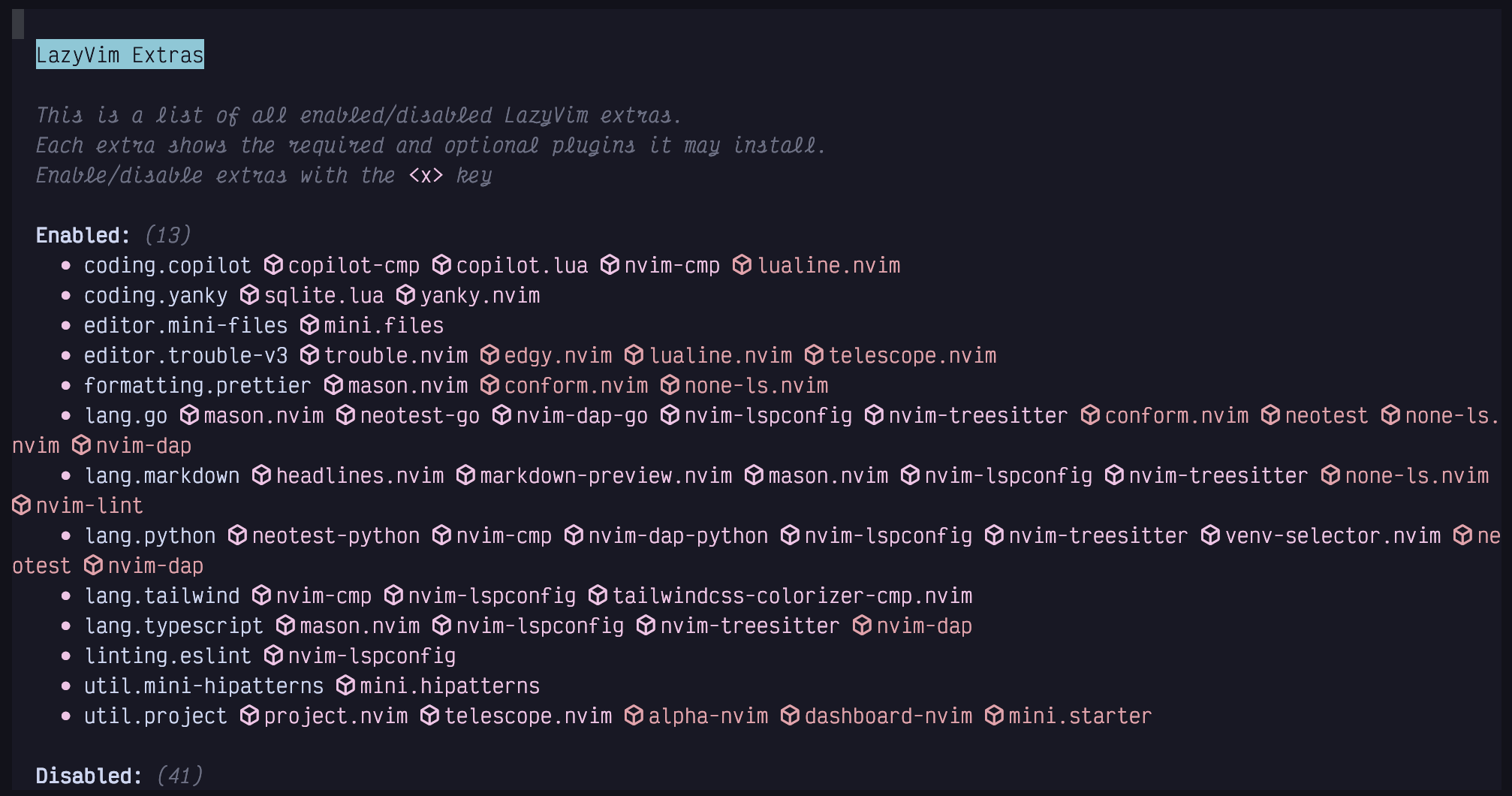
lazy extras darkI’ve installed over a dozen extras at the moment, mostly for the various programming languages I dabble in. You can navigate this file using all the standard navigation commands such as
j,k, ors.No matter how you get there, once your cursor is on the extra you want to install (such as
editor.mini-files) line, just hit thexkey to install the extra. If you want to uninstall it, do the same thing; move to the appropriate line (now under the list ofEnabledextras), and hitxto disable the extra. The mnemonic here is thatxmeans “Extra”.While we’re in the
LazyExtrasscreen, I recommend enabling thelang.*extras for whichever programming languages you use most frequently. You should also install all the plugins in the “Recommended plugins” section (they have star icons beside them).I wouldn’t install any other non-recommended extras until you’ve either encountered them later in this book or had a chance to research them after you finish the book. Otherwise, they may change behaviours in ways that I won’t have the foresight to write about.
You can find more information on each extra by visiting https://lazyvim.org and clicking the “Extras” menu item on the left menu bar. It includes links to the list of plugins each extra installs as well as the configuration LazyVim brings for that extra.
5.3 Disabling Built-in Plugin - nvim/Plugin/bufferline.nvim
The only LazyVim plugin I have disabled is the nvim/Plugin/bufferline.nvim. I’ll show how to do that and you can adapt it to any other built-in plugins you want to disable.
First I want to give an introduction to the LazyVim configuration directory. You can open the config directory from the nvim/Plugin/snacks.nvim/Dashboard by simply pressing the
ckey. Or you can use Space mode to access the configuration files at any time using<Space>fcfor “Find Config File”.- AI Notes Yes, the dashboard is the interface you see when you first launch the editor, acting as a functional "splash screen." It is powered by the nvim/Plugin/snacks.nvim suite of plugins and serves as a starting hub for several common tasks.
- Specifically, the nvim/Plugin/snacks.nvim/Dashboard allows you to:
- If you are already working in a file and want to return to this screen, you can show the nvim/Plugin/snacks.nvim/Dashboard at any time by running the command :lua Snacks.dashboard().
- AI Notes Yes, the dashboard is the interface you see when you first launch the editor, acting as a functional "splash screen." It is powered by the nvim/Plugin/snacks.nvim suite of plugins and serves as a starting hub for several common tasks.
With LazyVim,
init.luajust uses the Luarequirestatement to include the LazyVim configuration infrastructure. You will normally not have to touch this file, even though most third party plugins have installation files that presume your configuration is in it. Instead follow the “LazyVim way” as outlined in this chapter.For now, the main thing we need to know is that any Lua files inside the
lua/pluginssubdirectory will automatically be loaded by LazyVim, no matter what their name is. I have a number of different files in this folder for my custom configurations.I call the one that holds my disabled plugins
disabled.lua. The easiest way to create this file is to open one of the existing config files and use either the nvim/Plugin/snacks.nvim/Explorer or nvim/Plugin/mini.files to create a new file in the same folder, as described in Chapter 4.- My Note I really appreciate how Person/Dusty Phillips assumes we are going to edit these files in LazyVim when giving these instructions
In reality, it’s a fairly short list. To disable a plugin simply set
enabled = false:If there are any other plugins that LazyVim enables by default that you don’t want to use, just follow the same syntax. The first argument in each Lua table is a string containing the github repo (with owner) you want to disable. The second argument is to set
enabled = false. That’s it!- My Note Missing text:
In Lua, a table is like a combination of an array and a record or dictionary found in other dynamic languages. This means that Lua tables can act like an array and a dictionary at the same time.
If you’re less foolish than me, you might want to type
:help luaand read the official nvim docs on the topic. Then check out:help lua-guide-apito learn about the vim-specific APIs.
5.4 Modifying Keybindings
Keybindings are one of the few things I don’t love about working with LazyVim, although it’s not strictly LazyVim’s fault. I just never quite know where to define them!
There are three possible places to configure keybindings, depending on how any one plugin is configured:
• In
.config/nvim/lua/config/keymaps.lua. This is typically where you configure or modify keybindings that are not specific to plugins, but rather modify core nvim or LazyVim functionality.• In the
keysfield of the Lua table (in Lua, a “table” is like a combination of an array and a record or dict in many other dynamic languages) passed to a plugin. This is typically where you map global Normal mode keybindings to set up a plugin. This is what we will do with nvim/Plugin/mini.files.• In the
opts(options) argument passed into a plugin’s configuration. The format of the options for any one plugin are plugin-specific, but many plugins prefer to set up keymaps on your behalf through options instead of having you do the mapping yourself. This is especially true if the keymaps define a different “mode” or only apply if the plugin is currently open or active. I’ll give an example of this with nvim/Plugin/mini.files as well.To demonstrate, I want to “fix” the fact that nvim/Plugin/mini.files doesn’t have a “open in root” option. I like the “open in directory of current file” option, but I also want to be able to open in the root directory.
Since I don’t use the nvim/Plugin/snacks.nvim/Explorer, I’m going to steal the
<Space>eand<Space>Ekeybindings and use them for nvim/Plugin/mini.files instead, then I’ll remap the existing<Space>fmkeybinding to open the root so I can access all three commands. You can, of course, choose different keybindings if they map better to your mental model or you want to keep the nvim/Plugin/snacks.nvim/Explorer for some things.I used nvim/Plugin/mini.files to create a new file named
extend-mini-files.luain my.config/nvim/lua/plugins/directory. As with thedisabled.luafile, this file can be named anything so long as it’s in thepluginsdirectory.I have a habit of prefixing any configuration that I am using to change the defaults provided by LazyVim with the word
extend. This makes it easy to distinguish it from non-LazyVim plugins I’ve installed when I’m listing the directory using nvim/Plugin/mini.files or a picker.function() require("mini.files").open(vim.uv.cwd(), true) end,
- My Note Still getting to know Lua. It looks a bit like bash, I wonder whether white space matters?
- AI Notes The document hasn't explicitly defined this abbreviation so far, but in the context of nvim and the snippet you've selected, uv stands for libuv.
- libuv is the multi-platform support library that nvim uses to handle system-level operations, such as asynchronous I/O and filesystem access. The specific function
vim.uv.cwd()is used to programmatically retrieve the current working directory (the folder you are currently working in). In your snippet, this tells the nvim/Plugin/mini.files plugin exactly which directory to open when the function is triggered.
- libuv is the multi-platform support library that nvim uses to handle system-level operations, such as asynchronous I/O and filesystem access. The specific function
I constructed this by borrowing relevant function calls from the default configuration for the nvim/Plugin/snacks.nvim configuration conveniently provided on the LazyVim website.
It is important to understand that the
keysfield is merged with the keys that are provided by the default LazyVim (extras) configuration for nvim/Plugin/mini.files. If there are conflicts (such as with<space>fm), my values take precedence over the defaults.This is a powerful feature of LazyVim that allows you to use hosted configuration provided by LazyVim but override it as needed. Older nvim distros tended not to have this much flexibility, so you were either stuck with their configuration or had to copy the whole thing and edit it, which made updates a nightmare.
- My Note Useful context
5.4.1 Structure of Keys Entry
Each item in the
keystable is another Lua table with (in this case) three fields. The first two fields are positional and represent the keybinding name and the Lua callback function that gets called whenever that keybinding is invoked. The third field is a named field,descand provides a string description that will be shown in the Space mode menu.- My Note I still get distracted by the term Space Mode, thinking it has to do with outer space or having more space rather than having to do with the nvim/Plugin/which-key.nvim menu that pops up when you hit the space key
5.4.2 Customizing Mini.files Options
You’ll need to read each plugin’s documentation (often available on Github, and usually available with
:help plugin-name) to know exactly what options are available for it. You’ll also need to review the default configuration that LazyVim sets up for that plugin so you understand how it will merge.The mappings table in nvim/Plugin/mini.files is used to override the default keymappings that are active while the nvim/Plugin/mini.files view is open. This is different from the global keymaps we defined earlier to open nvim/Plugin/mini.files. In my case, I have mapped
go_inandgo_outto use the arrow keys instead ofhandlbecause it makes slightly more sense for my keyboard layout. I don’t recommend you make this change;handlwill work better for most anybody who isn’t me.
5.5 Modifying Existing Options
Sometimes the “merging” behaviour LazyVim uses to overwrite options with the ones you provide in your plugin overrides is too simplistic. This most often happens when you are modifying a plugin that calls or defines a function for options behaviour instead of customizing it.
To support this situation, the
optsentry in a lazy.nvim plugin’s configuration table can be a function instead of a static table. The function accepts the previousoptstable as it was configured by LazyVim as an argument. Your function needs to modify this table to suit your desired behaviour.Let’s say you want to add a "select session" entry to the nvim/Plugin/snacks.nvim/Dashboard. You can use the following structure to modify the existing keys array, as configured by LazyVim and add a new entry:
This
optsfunction accepts the LazyVim-definedoptstable as its second parameter. My code changes thoseoptsusing thetable.insertfunction provided by nvim. I add a new entry that is positioned at index 7 in the list, just after the relatedRestore Sessionentry, which autoloads your most recent session.This is harder to maintain than if I just had the whole configuration the way I wanted it in the first place, but easier to maintain than if I had to write that entire configuration from scratch. I am willing to accept that tradeoff for all the places that LazyVim configures things better than I would have done on my own.
5.6 Installing Third-Party Plugins
Most modern Lua plugins will be documented as having to call a
setupfunction with a Lua table containing the configuration. If the plugin you are trying to set up does not have explicit lazy.nvim instructions, don’t worry: Whatever the plugin documents as being passed into thatsetupfunction is what you need to include in theoptspassed to the LazyVim plugin manager.mode = { "n", "o", "x" },
- AI Notes The document does not explicitly define what these shorthand mode letters stand for, so I will provide their meanings based on general nvim knowledge.
- In the context of the nvim/Plugin/nvim-spider configuration you selected:
o(Vim/Mode/Operator-Pending Operator-pending mode): This mode is active when you have started a command liked(delete),y(yank), orc(change), and nvim is waiting for a motion to tell it which text to act upon. By including o in the configuration, it ensures that Spider's custom motions work when you are performing actions (e.g., typing dw to delete to the next "spider" word).x(Vim/Mode/Visual Visual Mode): Whilevis often used to describe Visual mode generally, in nvim mapping tables, x specifically refers to Visual mode. Including this allows you to use thew,e, andbmotions to expand your selection while you are visually highlighting text.- By defining these three modes, the plugin ensures that its behavior for navigating within CamelCase and snake_case words remains consistent whether you are just moving around, selecting text, or performing a deletion.
- In the context of the nvim/Plugin/nvim-spider configuration you selected:
- AI Notes The document does not explicitly define what these shorthand mode letters stand for, so I will provide their meanings based on general nvim knowledge.
Often, you don’t need to specify any opts, if the defaults are acceptable. For example, another third-party plugin I recommend is nvim/Plugin/nvim-spider (
chrisgrieser/nvim-spider), which subtly changes thew,e, andbcommands to support navigating within CamelCase and snake_case words. I have a file namednvim-spider.luain mypluginsdirectory as follows:This plugin doesn’t automatically set up keybindings, so I pass a
keys =table to the plugin configuration. This array is not passed to the plugin. Rather, the keys are parsed by the lazy.nvim plugin manager and added to the global keybindings. It is convenient to keep the keys with the plugin so all the configuration is in one place.The best resource for finding third-party plugins is the github repository Person/Dave Lage/GitHub/awesome-neovim. The list is well-maintained and (most importantly) pruned regularly, so there are few outdated or unmaintained plugins on the list.