LV4AD/Ch/04 Opening Files
Properties
Chapter 4: Opening Files - LazyVim for Ambitious Developers
4.1. Introducing File Pickers (My Notes: LV4AD/Ch/04 Opening Files/01 Introducing File Pickers)
LazyVim ships with the nvim/Plugin/snacks.nvim plugin, which includes a bunch of quality-of-life improvements for a modern age. It's maintained by Person/Folke Lemaitre, the creator of LazyVim, so we have some confidence that they integrate nicely. It is really a collection of random small plugins that perform a huge variety of tasks.
The nvim/Plugin/snacks.nvim/Picker is divided into three main areas: The input area, in this case labelled "Files" in the upper left, the results list in the lower left, and a preview of the currently selected file on the right.
Only files whose paths contain those three characters in order, with possibly other characters in between, are visible. The nvim/Plugin/snacks.nvim/Picker has helpfully highlighted the three letters in the results so you can easily see why it matched.
Also notice that by default, the match is case insensitive. I typed the lowercase letter
c, but it matched the uppercaseCin the filename. This is usually sufficient to narrow the search results to what you need. However, if you do use any capitalized letters in your search, it switches to a case sensitive mode (this is sometimes referred to as "smart case").There are 243 matching files, and I realize I should probably have typed
compin front to narrow it to just files in thecomponentdirectory. I could switch to Normal mode and edit the beginning of the line, but it's faster to just type<space>comp. The picker will interpret the space as "filter the lines again, fuzzy matching this new word from the beginning". Here we can see that onlycomp…outlinefiles have been matched: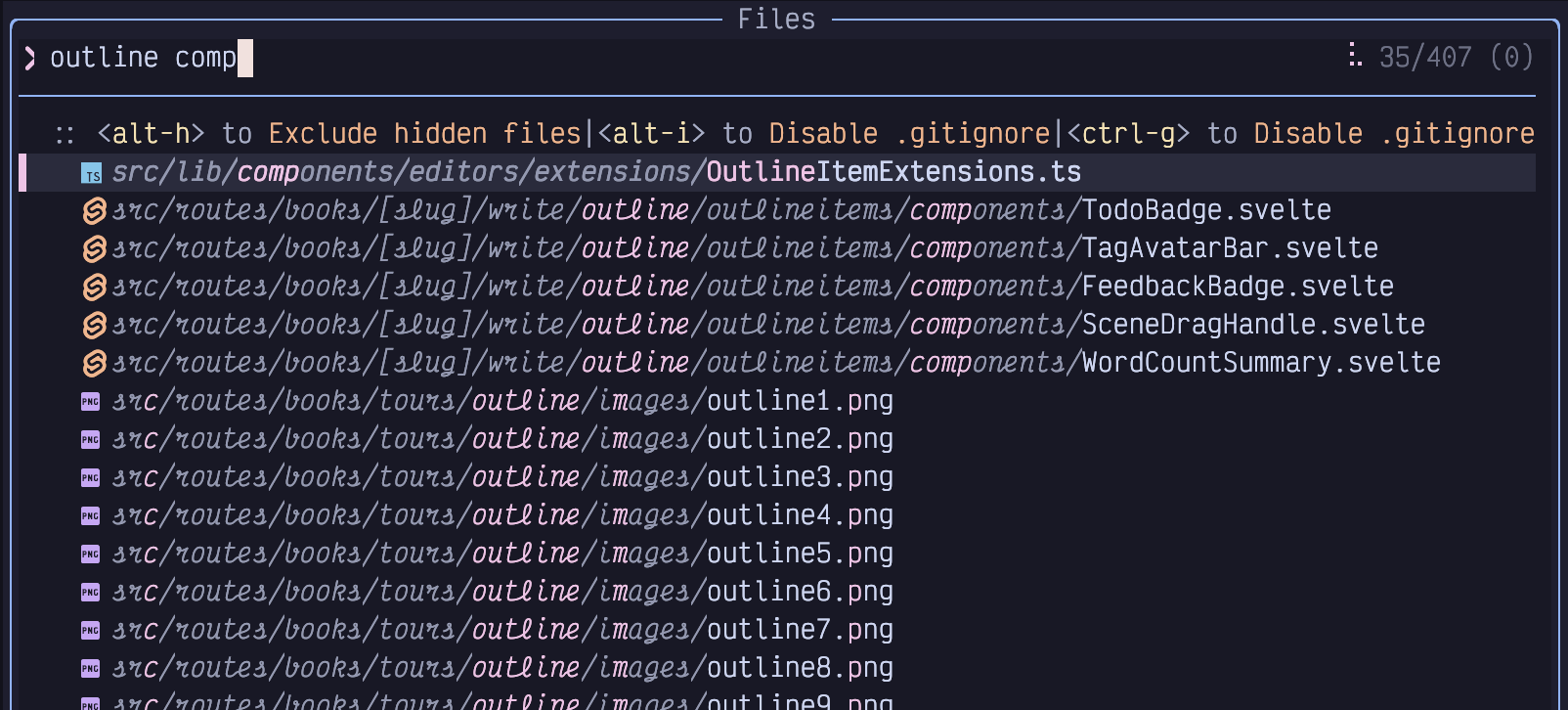
- My Note Hm… weird! So how about lines that have both words in the specified order?
You can even use a sort of Seek mode, as we discussed in LV4AD/Ch/03 Getting Around, though it works a bit differently in the picker. Press the
Alt-skeys while in the picker's input area. You'll see a label show up beside every line in the picker: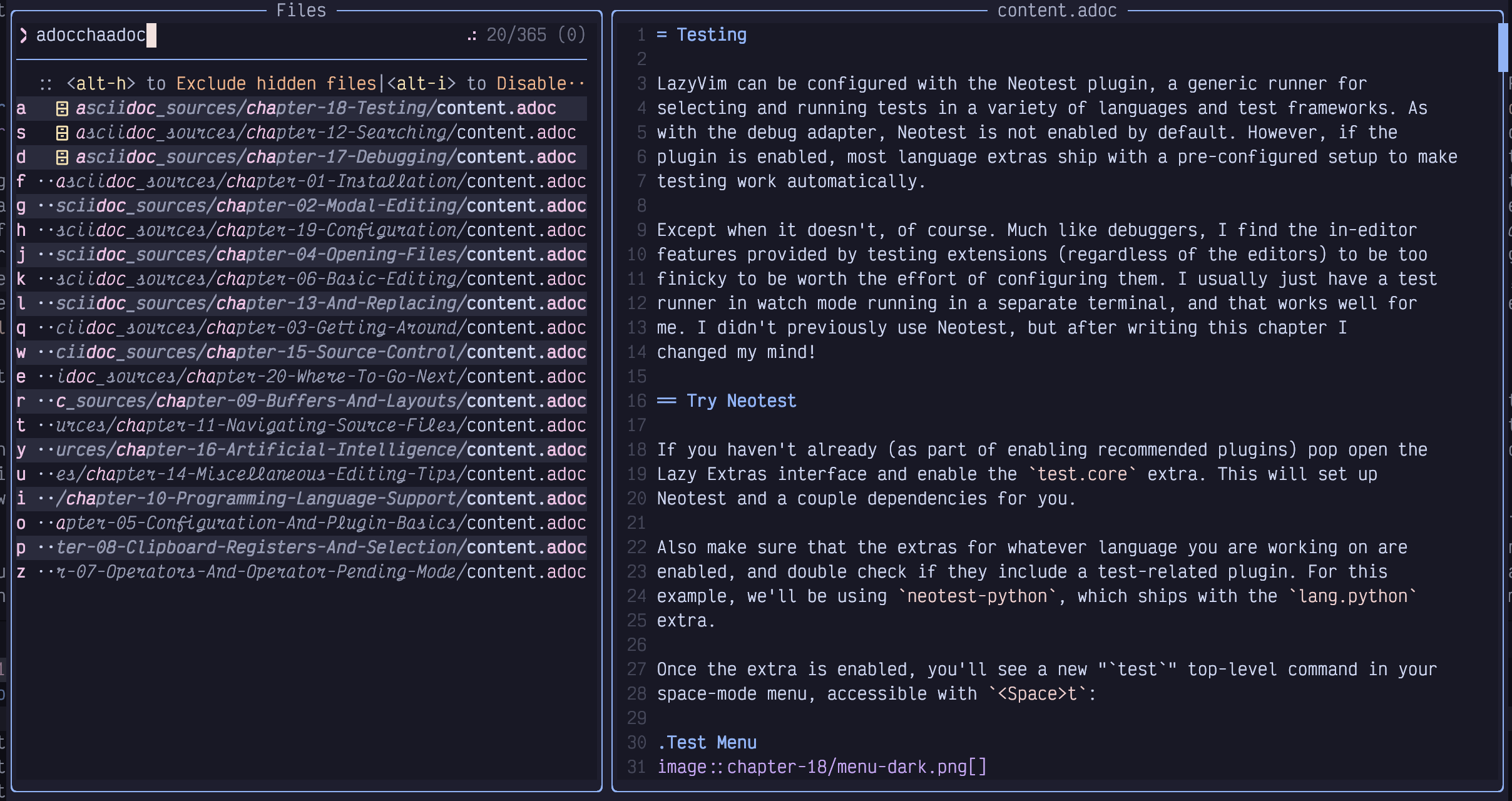
Figure 20. Seek LabelsThese characters are labels for each line in the picker. Simply press one of the shown letters on your keyboard, and whichever line the label associated with that letter is on will be selected. Then press
Enterto actually open the fileIf you want to open multiple files from the picker, instead of pressing
Enter, pressTabto select the file. Navigate to other lines and pressTabto select them as well. PressEnterto confirm your selection. We'll discuss other things you can do with a group of selected files later.- My Note it's so cool that we can select multiple files at once with `Tab.
If you need to scroll the results window to see something lower down in the list, use the
Control-dandControl-ukeys. If you want to scroll the preview window, useControl-f, andControl-binstead.- My Note Strange that f and b are for preview while d and u are for file search
So close nvim with
Space q qit is also possible to change directories from inside LazyVim using the
:cdcommand. Type:cd the/path/to/the/directoryand hitEnter, remembering that you can use theTabkey to autocomplete the path. Now if you use:eto open files, they will be relative to the directory you specified.- My Note this seems like a design flaw. Having two current directories is very weird.
Use
:pwdto see what the current directory is.- My Note Not for me! out of the box this doesn't work for me.
:pwddoes nothing as far as I can tell.
- My Note Not for me! out of the box this doesn't work for me.
Simply press
Spacetwice (i.e.Space Space) to pop up the "Files In Current Project" picker. As I mentioned, this is the easiest keybinding to type on your entire keyboard. The Space bar on most keyboards is big, and you're hitting it with your strongest digit: the thumb. As usual, just oneSpacewill pop up the Space mode menu, and you can see that a secondSpacewill present you with "Find Files (Root Dir)".
4.2. The Difference Between "Root" and "Cwd" (My Notes: LV4AD/Ch/04 Opening Files/02 Root vs Cwd)
4.2.1. Current Working Directory
If you are unsure what directory you are in, you can use the
:pwd(short for "print working directory") command to have it pop up in a little notification window.cdandpwdare the same commands used by Bash, zsh, and many other shells for changing and printing the working directory, so they may already be familiar to you.- My Note :psd doesn't do anything for me; not sure why
have different working directories for different windows. The command to change just the current window's directory is
:lcd, short for "local change directory". This can be a powerful way to work on multiple projects at the same time (for example, if you are a full stack developer working on backend and frontend projects).
4.2.2. Root Directory
The root directory is not a vim concept, but is instead a Language Server Protocol (LSP) concept. LSPs are the reason that VS Code became so popular so quickly; the idea was that the editor could call out to an external service running on your computer to find out useful things about the codebase. The LSP powers a lot of useful stuff such as go to definition and references, highlighting errors in your code, and showing documentation for a variable or class. It can even help with formatting and syntax highlighting.
However, it can sometimes be confusing, especially if you are working in a monorepo or if you have root directories in places you don't expect. For example, I have a fairly normal Svelte project that has a
package.jsonfile in it. This project uses Cypress for testing, and the Cypress folder contains atsconfig.jsonfile that causes the Typescript language server to interpret that as a separate root. So if I am working on one of the cypress test files and press<Space><Space>, the root directory is considered the Cypress folder and I can only open other Cypress tests. But often the thing I wanted to do was open a source file in the main folder to see why a test is failing. In this case, I have to press<Escape>to exit the picker, then<Space>fFto open the picker in current working directory mode instead.- My Note So if the find file dialog isn't showing the files I need, then I likely need to use space fF to get it to work from the root directory explicitly
4.3. The Snacks Explorer Plugin (My Notes: LV4AD/Ch/04 Opening Files/03 Snacks Explorer) - nvim/Plugin/snacks.nvim/Explorer
I want to be upfront and honest here: I don't personally use the nvim/Plugin/snacks.nvim/Explorer. I find that the file pickers we just discussed are the fastest way to open files, and when I need to manipulate the filesystem, I prefer to use nvim/Plugin/mini.files, which we will discuss later in this chapter. The primary reason I prefer nvim/Plugin/mini.files is that it uses the same keybindings as vim Normal mode instead of having a custom "explorer mode" that I have to memorize. Modes are great, but having more of them than necessary is not!
Let's start by opening an explorer using the
<Space>-ekeybinding, where the mnemonic is "e for Explore". If you pop up the Space mode menu, you'll see that, as with the picker, there are two ways to open the explorer:<Space>-eforExplore Snacks (root directory)and<Space>-EforExplore Snacks (cwd)."Root directory" and "cwd" have the same meanings we discussed in the previous section, and you will notice the consistent relationship between lowercase and uppercase letters:
<Space>ffand<Space>eboth open the root directory, and<Space>fFand<Space>Eboth open the current working directory.You can also select multiple files to manipulate using
Tab, similar to the picker window (In fact, the explorer is just a fancy picker window in disguise).Speaking of keyboard navigation, yes,
jandkto move up and down can be super slow if there are a lot of files to navigate. All of the commands that we discussed in LV4AD/Ch/03 Getting Around can be used to move faster. For example,10jwill move the cursor 10 lines down with just three keystrokes compared to pressingj10 times, andControl-dorControl-ucan be used to scroll the tree down or up.Use
ito enter Insert mode while the explorer is focused to search for a specific file. Since this is a picker under the hood,Alt-scan be used to Seek to any line in the picker view. You can also use the normal modescommand to seek to text in any window, including the explorer.The explorer will show either the root or cwd as the topmost directory. If you need to navigate "up" the tree to a higher-level directory, use the
Backspacekey.- My Note Unintuitive; in such an interface I would expect the backspace key to delete a file
For example, to delete a file, you can move the cursor over that file and hit the
dkey. You'll be prompted with a popup window asking if you are sure. Hityand thenEnterto confirm it:
explorer delete darkTo add a file or folder/directory, use the
akey and enter a new name. Use a trailing slash (/) to indicate a folder.To copy or move a file, you can use the explorer's pseudo-clipboard. I say "pseudo-" because you can't use this to copy a file to be pasted in e.g. MacOS Finder or Windows Explorer; only to other places in the explorer.
If you want to copy the file, use
y. The mnemonic foryisyank, and is actually the same key you would use to copy text in the normal editor. To complete the copy, you'll need to navigate to the destination folder and use thepkey (which you may recall means "put" or "paste").Use the
mkeybinding to move a file to a new location or name.- My Note I expected y to yank and p to paste, even though I have not used these commands in the explorer. But using m for move is new to me.
There is a ton of other cool stuff that the explorer can do. Use the
?(mnemonic "ask question for help") key while the explorer window is focused to get an overview.- My Note I wasn't aware that the explorer view had contextual help available with the ? Key
4.4. The Mini.files Alternative (My Notes: LV4AD/Ch/04 Opening Files/04 Mini.files Alternative) - nvim/Plugin/mini.files
That said, I'm clearly not alone in these opinions, because LazyVim optionally provides a different file management experience with a plugin called nvim/Plugin/mini.files. It is disabled by default.
Mini.files is part of a suite of fairly random nvim packages known as mini.nvim. These plugins are independent from each other and provide a lot of common features that in many cases ought to ship with nvim. Occasionally, the mini.nvim plugins are inferior to other plugins that they clone, but many are best in class. Mini.files is not the only mini.nvim plugin that ships with LazyVim, and we'll touch on others later.
In order to use nvim/Plugin/mini.files, you have to enable it as a Lazy Extra. We'll go into this in more detail in the next chapter, but for now, these steps should be sufficient:
• Type:LazyExtras<Enter>
• Move your cursor to the line that contains mini.files (Seek mode is fastest)
• Pressxto install the eXtra
• Wait a moment for the plugins to install
• Restart Neovim
Once installed, you can show the nvim/Plugin/mini.files view using<Space>fmand<Space>fM. By default, these are not quite the same as thecwd/rootstructure we've seen in the picker and explorer.- My Note It's a bit difficult for me to imagine the interface here, reading this away from my computer, but it sounds like there is a way to install lazyvim packages inside of lazyvim without editing the configuration file directly?
4.4.1. Using Mini.files nvim/Plugin/mini.files
The default nvim/Plugin/mini.files configuration doesn't have an open in root option. I like having the ability to open the directory of the currently open file, but I don't like losing the ability to open the root of the current project. I show how to address this when we discuss customizing plugins in LV4AD/Ch/05 Plugin Basics.
Instead of a sidebar, the nvim/Plugin/mini.files menu shows up as columns of windows (known as Miller columns) side-by-side. For example, here's what happens when I open mini.files to the current working directory of this book:
- My Note It doesn't show in the Readwise version, but basically it works like yazi with the three columns and the h j k l keys used for navigation, dd key for delete
- AI Notes The document mentions that the menu shows up as Miller columns, but it doesn't explain their origin so far.
- General knowledge indicates that Miller columns are named after Mark S. Miller, a computer scientist who popularized this multi-column hierarchical browsing interface (often seen in file managers like the classic NeXTSTEP and macOS Finder) while working on early hypertext systems like Project Xanadu in the 1980s. They allow users to navigate deep folder hierarchies by cascading sub-directories into successive columns to the right, keeping the parent context visible.
Interacting with nvim/Plugin/mini.files is very similar to interacting with a standard vim window. You can use the
jandkkeys to move the cursor up and down. If this places your cursor over a folder, the contents of that folder will immediately show up to the right, and if it is over a file, you will see a preview of the file.If you want to move "into" a folder to interact with the contents of that folder instead, simply press the
lkey to move "right".Similarly, pressing
hwill move "out" of the current folder. If the cursor is in the left-most column, moving left will open a new left-most column, so you can navigate right up to the root of your file-system if you need to.To open a file in the currently active nvim window, press
lon that file again. The behaviour here may be a bit surprising; the file will open under the nvim/Plugin/mini.files view, but it won't hide the file menu. This allows you to open multiple files before closing the navigator, which can be done with theqkey.- My Note Weird that the l key is used to open the file
The beautiful thing about nvim/Plugin/mini.files compared to the explorer is that the little windows act like normal editors, and all the navigation features you have become used to are available. For example creating a file or folder is done with the
ocommand, which is the same command to open a new line in a normal editor.• To rename a file or folder, navigate to the line that has it, and enter Insert mode to change or add text.
• Deleting a file or folder uses the command
ddwhich is the keybinding to delete an entire line of text in normal nvim windows.• Copy a file or folder with
yy, the command to copy ("yank") a line of text.• Put/paste a deleted or yanked file with
p.- My Note It's kind of a neat conceit that editing the file system can be like editing a text file in vim
Saving Filesystem Changes
Any modification that you make using these keybindings will not actually be saved on the filesystem until you type the
=key, which is a (rare) nvim/Plugin/mini.files specific keybinding. I think of it as meaning "make the filesystem equal to what I've typed". This will pop up a little window telling you what actions mini.files wants to take on your behalf, such as deleting, moving, renaming, or copying files. You can confirm or decline the changes with ayorn(yes or no, of course).
37 Linked References
Hierarchy
- LV4ADCh04 Opening Files01 Introducing File Pickers
- LV4ADCh04 Opening Files01 Introducing File PickersActivate File Picker Keyshorts
- LV4ADCh04 Opening Files01 Introducing File PickersFastest Way to Close LazyVim
- LV4ADCh04 Opening Files01 Introducing File PickersFile Picker Smart Case
- LV4ADCh04 Opening Files02 Root vs Cwd
- LV4ADCh04 Opening Files02 Root vs CwdFind Files Cwd Mode Keyshort
- LV4ADCh04 Opening Files02 Root vs CwdLocal Change Directory Command
- LV4ADCh04 Opening Files02 Root vs CwdPrint Working Directory Command
- LV4ADCh04 Opening Files03 Snacks Explorer
- LV4ADCh04 Opening Files03 Snacks ExplorerExplorer File Delete and Add
- LV4ADCh04 Opening Files03 Snacks ExplorerExplorer Help Keyshort
- LV4ADCh04 Opening Files03 Snacks ExplorerOpen Snacks Explorer Keyshorts
- LV4ADCh04 Opening Files03 Snacks ExplorerRoot vs Cwd Lowercase Uppercase Pattern
- LV4ADCh04 Opening Files04 Mini.files Alternative
- LV4ADCh04 Opening Files04 Mini.files AlternativeApply Mini.files Filesystem Changes
- LV4ADCh04 Opening Files04 Mini.files AlternativeMini.files Miller Column Navigation
- LV4ADCh04 Opening Files04 Mini.files AlternativeMini.files Text Editor Keyshorts
- LV4ADCh04 Opening Files04 Mini.files AlternativeOpen Mini.files Keyshorts