LV4AD/Ch/03 Getting Around
Properties
Chapter 3: Getting Around - LazyVim for Ambitious Developers
3.1. Seeking Text (My Notes: LV4AD/Ch/03 Getting Around/01 Seeking Text)
LazyVim ships with a plugin called nvim/Plugin/flash.nvim, which was created by the Person/Folke Lemaitre and integrates very nicely with it.
This plugin provides a code navigation mode that has been available in various vim plugins for many years, and has historically been quite controversial. A lot of long-time vim users think it breaks the vim paradigm. I won't go into the details as to why, but I will acknowledge that this was true in older iterations of the paradigm but is somewhat less true in modern versions such as nvim/Plugin/flash.nvim.To invoke
flash, press theskey in Normal mode. My mnemonic forsfor "seek", although I've also heard it referred to as "sneak" or "search" mode. Searching in LazyVim is a different behaviour (it doesn't care if the text is currently visible or not), and "sneaking" sounds a little too dishonest, so I use "Seek".
The first thing to notice when you presssis that the text fades to a uniform colour and there's a little lightning symbol in the status bar indicating that Flash mode is active: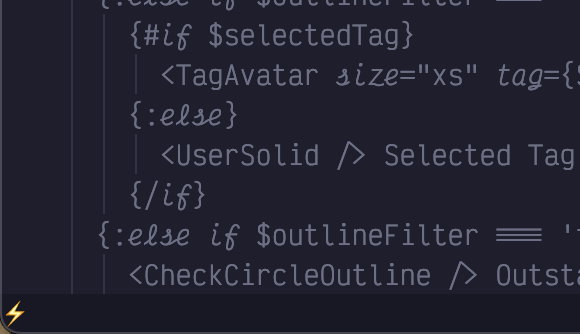
Figure 11. Flash Mode ActiveIf you have multiple files open in split windows (which we'll discuss in Chapter 9), Seek mode can be used to move your cursor anywhere on the screen, not just in the currently active split.
Now, all instances of
stin the file are highlighted in blue, and since there aren't as manystass, all of those instances have a label beside them. The text I want to move to is labelled with ap, so I presspand my cursor is moved to thescharacter I wanted to change- My Note ok, so you enter contiguous characters, then the item highlighted in green and inserted after is the jump key
For me this happens most often when I want to edit the end of a line. If I type
snbecause I want to edit a line that hasnas the last character, but there are a bunch ofncharacters closer to my cursor than the one I want to move to, flash may not label thenI want to move to, and it won't accept a carriage return as a "next character" input.
For this reason, I don't seek near ends of lines. Instead, I'll seek to a word somewhere in the middle of the same line and then useAwhich, as you may recall, will put me in Insert mode at the end of the line. Alternatively, if I don't want to enter Insert mode, I will use the$symbol (Shift+4), which is the Normal mode command for "Move cursor to end of current line".LazyVim ships with a plugin called nvim/Plugin/flash.nvim, which was created by the Person/Folke Lemaitre and integrates very nicely with it.
To invoke
flash, press theskey in Normal mode. My mnemonic forsfor "seek", although I've also heard it referred to as "sneak" or "search" mode. Searching in LazyVim is a different behaviour (it doesn't care if the text is currently visible or not), and "sneaking" sounds a little too dishonest, so I use "Seek".
3.2. Scrolling the Screen (My Notes: LV4AD/Ch/03 Getting Around/02 Scrolling the Screen)
The scrolling keys I use the most are definitely
Control-dandControl-u, where the mnemonics are down and up. They scroll the window by half a screen's worth of text. The cursor stays in the same spot relative to the window, which means that it is moved up or down by half a screen's worth of text relative to the document.If you need to move even further, you can use the
Control-fandControl-bkeybindings (forward and backward), which scroll by a full page of text. I don't like these ones because I never quite know where the cursor is going to end up and I become disoriented. But it can be handy if you need to scroll something into view quickly to use Seek mode on it. UnlikeControl-dandControl-u,Control-fandControl-bcan be prefixed with a count, so you can type5<Control-f>if you need to scroll ahead by5pages.To scroll the window by a single line, use
Control-yandControl-e. I have no idea why these keybindings were chosen. There is no mnemonic. I easily forget them, and so I never use them. These keybindings accept a count, so if you can remember them, they are useful for subtle repositioning of the text. The main advantage of these keybindings is that they don't move the cursor unless it would scroll off the screen, so if you are working on a line and need more visibility but don't want to move the cursor, you could useControl-yandControl-eto do it.3.2.1. Z Mode
The
zmenu mode is an eclectic mix of cursor positioning, code folding, and random commands. You can see a list by pressing thezkey while in Normal mode:
z menu dark- My Note I wish things a way to pin the favorites to the top of the menu
The relative cursor keybindings I use exclusively are
zt,zb, andzz. These move the line that the cursor is currently on to the top, bottom, or middle of the screen, respectively, where middle is represented by the easy-to-type double letter. When moving to the top or bottom it will leave a few lines of context above or below the cursor.You can find other scrolling keybindings in the nvim documentation by typing
:help scrolling, but the ones I just mentioned will probably more than cover your needs as you learn far more nuanced methods of navigating code.
3.4. Counting (My Notes: LV4AD/Ch/03 Getting Around/03 Counting)
So, for example, to move the cursor up 15 lines, you would enter Normal mode and hit the keys
15k. To move it five characters to the right, use5l.Open the file
~/.config/nvim/lua/config/options.lua, which should have been created for you by LazyVim but currently won't have anything in it other than a comment describing what it is for.
You can use the Space mode command<Space>fcto quickly find files in the LazyVim configuration directory. This will pop up one of the file pickers that we'll discuss in detail in the next chapter. Typeoptionsand press<Enter>to open thePersonally, I find line numbers to not be very useful and I don't like wasting valuable screen width on displaying those characters.
3.5. Find Mode (My Notes: LV4AD/Ch/03 Getting Around/04 Find Mode)
To enter Find mode, press the
fkey. Like Seek mode, a portion of your screen will dim, indicating that you should type another character. After you do so, all instances of that character after the cursor will be highlighted. For example,fswill highlight all instances of the lettersafter the current cursor position.If you miscounted or misguessed and jump too far, don't worry! You can take advantage of the fact that (Shifted)
Fmeans "find backwards", and can also be counted. So if you need to move to the 15th highlighteds, it's totally fine to guess18f, realize you've gone three too far, and use3Fto jump back to the previous character.Instead, we need to use counts to jump to later instances of the character. If I want to jump ahead to the third highlighted
s, I type3fand my cursor will move there. However, if you want to jump to a much laters, you probably don't want to individually count how manyskeys there are. Luckily, after you use a count, LazyVim leaves you in Find mode, so you can just guess how manyscharacters there are, and then once you are closer, repeat with a new count. If you only want to jump ahead by onescharacter, you don't need to enter a count, just pressfby itself and you'll move ahead.You might think that To mode is kind of redundant because you could fairly easily use Find mode followed by a single
hto move the cursor left. But "To" mode is extremely useful when you are combining it with operations to edit the text, which we will discuss later. As a taste, if you use the commandd2ts, it will delete all text between the cursor and the secondsit encounters, but leave thatsalone. This is much easier than thed2fsis<Escape>that would be required if you used a find command and then had to enter Insert mode to add thesback.
3.6. Moving by Words (My Notes: LV4AD/Ch/03 Getting Around/05 Moving by Words)
Instead, you can just enter Normal mode and press the
wkey to move to the beginning of the next word. If you instead want to move to the end of the current word, use theekey. If you are already at the end of the current word,ewill go to the end of the next word.Use the
bkey if you want to move backwards instead. This will move you to the beginning of the current word, or if you are already at the beginning of the word, it will move to the beginning of the previous word. As before, use a count to move to the beginning of even more words.Surprisingly, it takes a bit more work to move to the end of the previous word, as you need to press two keys:
gfollowed bye. The mnemonic for this is "go to end of previous word". In practice, you'll find that you hardly ever need this functionality for some reason, and the honest truth is I usually usebe(bto move to beginning of previous word, theneto go to end of that word) to move to the end of the previous word. If you do usege, however, it can be combined with a count as well. You'll need to type something like4ge, depending on the count. The commandg4ewouldn't do anything useful.Collectively, you may occasionally hear the
w,e, andbcommands referred as the "web" words. It just means "moving by words". These are probably the most common movements you will use, more than individual cursor positions, simply because most editing actions tend to involve changing or deleting a word or sequence of words.
3.7. Moving by Words, Only BIGGER (My Notes: LV4AD/Ch/03 Getting Around/06 Moving by Words Only BIGGER)
The "shifted" form of the
webwords also move by words, but the definition of "word" is subtly different. Specifically, a capitalWwill move to just after the next whitespace character, where a lowercasewwill use other forms of punctuation to delimit a word. Consider a method call on an object that looks something like this in many languages:As a visualization, here are all the stops on that line of code when you use
wcompared to when you useW:Listing 10. Behaviour of
wandWThe
B,E, andgEmotions behave similarly, moving in the appropriate direction by whitespace-delimited words instead of punctuation ones.One thing that is kind of annoying both in vim and the way LazyVim is configured is that there's no way to navigate between the individual words of
CamelCaseWordsorsnake_case_words. You can usefCort_and similar if you want to, but I will later show you how to set up the nvim/Plugin/nvim-spider plugin that makes navigating these common programming constructs simpler.
3.8. Line Targets (My Notes: LV4AD/Ch/03 Getting Around/07 Line Targets)
If you are familiar with regular expressions, you might know that
^is used to match the start of text or start of the line and that$is used to match the end, so the mnemonic of using these two keybindings to match the beginning and end of the current line will hopefully be less unmemorable than they seem at first.
There is a certain lack of symmetry between the two, however. The$(Shift-4) command simply means "go to the end of the line", as in the last character before the ending newline, no matter what that character is. The^or caret (Shift-6) means "go to the beginning of the text on this line". The "of the text" there is important: if your line has whitespace at the beginning (e.g. indentation), the^caret will not go to the very first column, but will instead go to the first non-whitespace character.
To move to the very beginning of the line, use the0key.The two character combination
g_(g underscore) means "go to the last non-blank character". I guess_kind of looks like "not a space", so it's kind of mnemonic? I include it to be comprehensive, but you'll likely not use it much. You also have the option of combining other commands you've learned so you don't have to memorize this one-off. For example, you can use the three character$ge(combining "end of line" with go backwards to end of word) or$beto move to the last non-blank on the line. You have options; pick the one that you find is easiest to remember or type!
3.10. Jump History (My Notes: LV4AD/Ch/03 Getting Around/08 Jump History)
[[Key/Control]]-ois the non-modal control-based keybinding that I use most often. I should honestly bind it to something more accessible, I use it so much. It basically means "Go to the place I jumped from".If you jump too far, you can use the
Control-ikeybinding to jump forward in history. It's just the opposite ofControl-o. I don't know whyiandowere chosen for these; maybe because they are side-by-side on a Qwerty keyboard? They are used commonly enough that once you learn them, you won't forget.
51 Linked References
Hierarchy
- LV4ADCh03 Getting Around01 Seeking Text
- LV4ADCh03 Getting Around01 Seeking TextEnd of Line Instead of Seek
- LV4ADCh03 Getting Around01 Seeking TextInvoke Flash Seek Mode
- LV4ADCh03 Getting Around02 Scrolling the Screen
- LV4ADCh03 Getting Around02 Scrolling the ScreenFull Page Scroll Keyshorts
- LV4ADCh03 Getting Around02 Scrolling the ScreenHalf Page Scroll Keyshorts
- LV4ADCh03 Getting Around02 Scrolling the ScreenSingle Line Scroll Keyshorts
- LV4ADCh03 Getting Around02 Scrolling the ScreenZ Mode Line Position Keyshorts
- LV4ADCh03 Getting Around03 Counting
- LV4ADCh03 Getting Around03 CountingCount Prefix Movement
- LV4ADCh03 Getting Around03 CountingFind LazyVim Config File
- LV4ADCh03 Getting Around04 Find Mode
- LV4ADCh03 Getting Around04 Find ModeFind Forward and Backward
- LV4ADCh03 Getting Around04 Find ModeFind Mode With Count
- LV4ADCh03 Getting Around04 Find ModeTo Mode for Operations
- LV4ADCh03 Getting Around05 Moving by Words
- LV4ADCh03 Getting Around05 Moving by WordsWeb Words Backward
- LV4ADCh03 Getting Around05 Moving by WordsWeb Words Forward
- LV4ADCh03 Getting Around06 Moving by Words Only BIGGER
- LV4ADCh03 Getting Around06 Moving by Words Only BIGGERBIG Word Backward and End
- LV4ADCh03 Getting Around06 Moving by Words Only BIGGERW vs w Word Boundaries
- LV4ADCh03 Getting Around07 Line Targets
- LV4ADCh03 Getting Around07 Line TargetsLine End Keyshorts
- LV4ADCh03 Getting Around07 Line TargetsLine Start Keyshorts
- LV4ADCh03 Getting Around08 Jump History
- LV4ADCh03 Getting Around08 Jump HistoryJump List Back and Forward