LV4AD/Ch/02 Modal Editing
Properties
Chapter 2: What is Modal Editing, Anyway? - LazyVim for Ambitious Developers
2.1. Introduction to Modal Editing Modal/Editing
This discoverability of keybindings in a given mode is a common theme in LazyVim, and a huge improvement over the opaque default behaviour of nvim itself.
You can access some keyboard shortcuts in Insert mode using Key/Control and Key/Alt. For example, you can hit
Control-rto enter the “Registers” mini-mode, which pops up a list of “registers” you can paste from. We’ll cover registers in detail in Chapter 8. For now, it is enough to know thatControl-rfollowed by the plus key (i.e.Shift-=) will paste text from the Clipboard when in Insert mode.vim and nvim aren’t very discoverable, but they ARE generally memorable. As often as possible, the keyboard shortcuts to perform an action start with a letter that makes sense for the action being performed. You might think
pstands for “paste”, but in fact the concept has been around for longer than the Clipboard abstraction. You are welcome to think of it as “paste” if that’s easier for you, but in vim parlance, it actually stands for “put”, and I’ll use that word throughout the book.For some contrast, the
Control-rkey that pops up the list of registers in Insert mode does not pop up a list of registers in Normal mode. Instead,Control-rmeans “redo” (i.e. undo an undo). In order to enter the Registers mini-mode from Normal mode, you would press the"(quote, as in<Shift>-apostrophe) key instead.Your operating system is probably also capable of remapping keys. A lot of modal users replace the useless
Capslockwith theEscapekey. (For non-modal paradigms it can be more comfortable to remapCapslockto the commonly-heldControlkey, especially on laptop keyboards).Commonly, you want to enter Insert mode after the current cursor position. To do that, use the
akey instead (mnemonic: i for Insert Before, a for Append, although I usually think of it as After).Two other very common operations are to insert at the very beginning or the very end of the current line. You could use navigation commands to move to the start or end and then use
ianda, but it’s easier to use the commandsIandAinstead (The difference is that they are capitalized, so you need theShiftkey with them).2.1.1. A Note on Keybinding Mnemonics
The
okey is used to enter Insert mode on a new line below the current one. For the “do the opposite thing” scenario, the shiftedOmeans “create a new line above the current one and enter Insert mode on it”.One final useful command that takes two keystrokes is
gi. That is a single press and release ofgfollowed byi. It means “Go to the last place you entered Insert mode, and enter Insert mode again”. In this case, thegkey is actually switching to a new mini-mode I call “Go To” mode, though not all the commands accessible from it are strictly related to going places. You can see the entire list of commands available in “Go To” mode by pressing thegkey in Normal mode and waiting for the menu to pop up at the bottom of the window: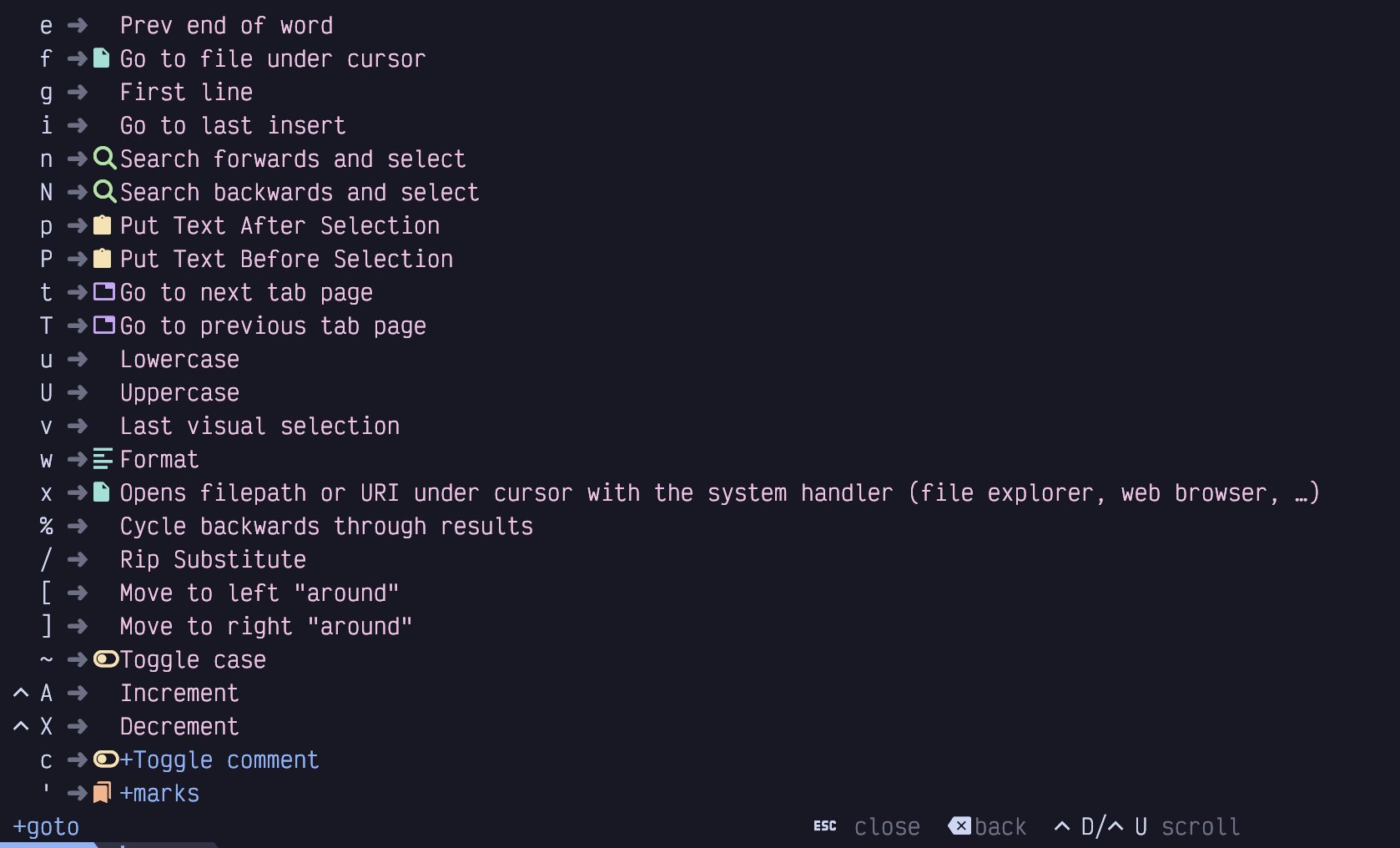
2.3. Command Mode
Command mode is kind of weird. It’s like an Insert mode in the sense that you can type text into it, and some of the keybindings that work in Insert mode also work in Command mode (including
Control-rto paste from a register). But other keybindings work differently in Command mode. The most important one is theTabkey, which will do a sort of “tab completion” on the command. For example,:q<Tab>pops up a menu like this:
This completion menu is disturbingly unintuitive to navigate. You’re probably going to want to bookmark this section or take some notes to refer to until you get used to it!You can type
:e f<tab>b<tab><tab><tab>to selectfoo/baz, but at this point the menu is still open: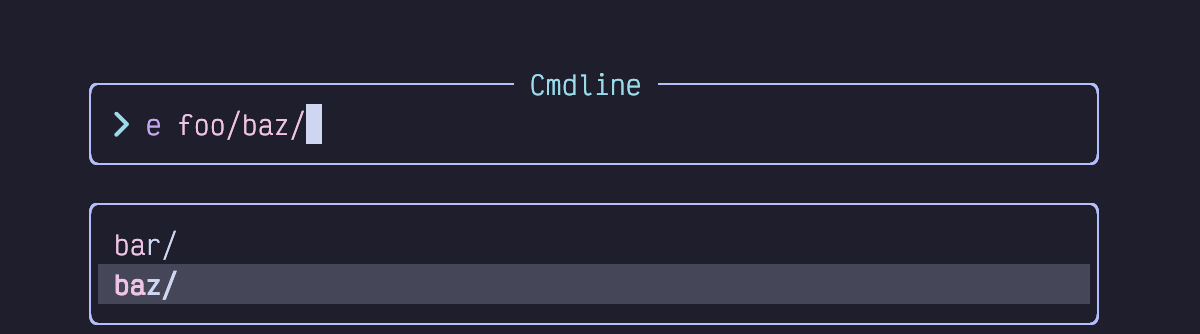
Figure 10. Edit Command with Completion Menu
If you pressEnternow, it’s going to open thebazfolder instead of just confirming the selection, which is not what you want. And if you pressTabagain it will cycle through the menu some more.
Instead, you have a couple of options. TheDownarrow key will (unintuitively) move “into” the selected directory, allowing you to tab through the files inside it. Alternatively, use theControl-y(yfor “yes”) key combination. This will confirm thebazselection and close the menu but leave you in Command mode. Now you can press tab again to complete thefizz.txtportion of the command.For now, remember
<Tab>andControl-yand you’ll be able to navigate the Command menu when you need to.