Ableton/Manual/06/01 Arrangement View Navigation
Ableton/Arrangement View navigation
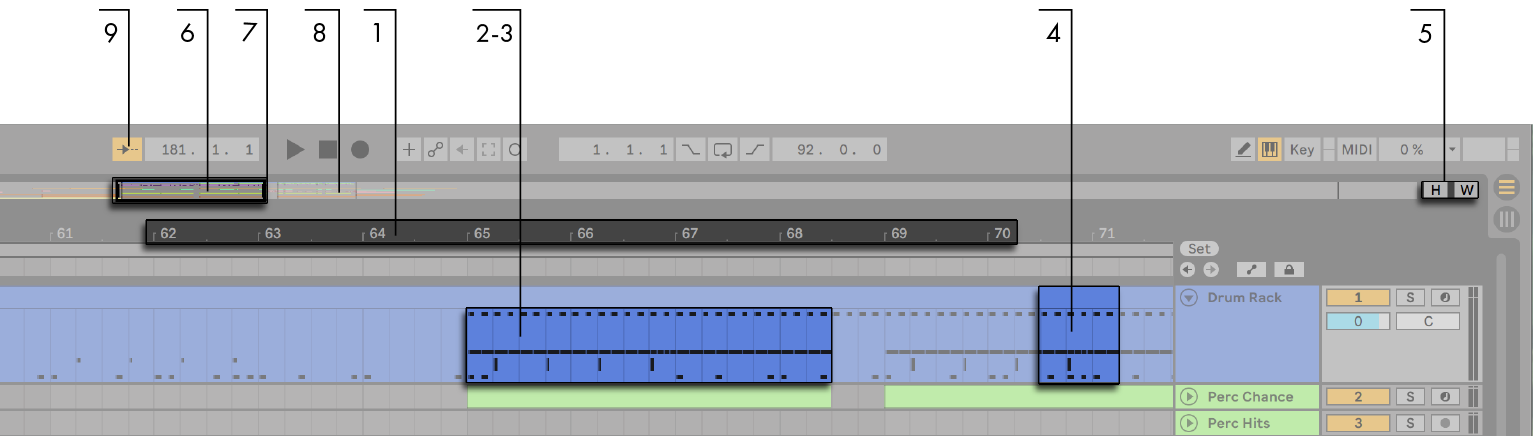
1 - Zooming left and right with Ableton/Arrangement View/Beat Time Ruler
2 - Zooming into Ableton/Selection in Ableton/Arrangement View/Track/Display Area Progressively
To zoom in and out around the current selection progressively, you can use the computer keyboard's
+and-keys, or scroll with themousewheelortrackpadwhile holding theCtrl(Win) /Cmd(Mac) modifier. To "pan" the display, click and drag while holding theCtrlAlt(Win) /CmdOption(Mac) modifier. Double-clicking in the beat-time ruler also zooms to the current selection. If nothing is selected, double-clicking the beat-time ruler zooms out to show the entire Arrangement.- My Notes
Ableton/Menu/View/Zoom/In or Out to zoom in or out (left to right)
Pan left/right or up/down around selection in Arrangement View #card
- Keyshort use
Cmd+Optwhile clicking and dragging a selection to pan up, down, left, right
- Keyshort use
3 - Zooming into Ableton/Selection in Ableton/Arrangement View/Track/Display Area Completely
To zoom in the current selection completely, press
Zor use the View menu's Zoom to Arrangement Time Selection command. Note that if you select time on a single Arrangement clip, the Clip Content Editor in Clip View will zoom in on that selected time. You can revert back to the previous zoom state by pressing theXkey. Note that when zooming in multiple times using theZkey, theXkey can be pressed multiple times to go back one step each time the key is pressed.- My Notes
To Zoom in to selection completely
- Press
Zto zoom to to selection horizontally and then vertically; Ableton/Menu/View/Zoom/Arrangement Time Selection/To
- Press
4 - Ableton/Arrangement View/Track/Display Area Vertical Zoom
5 - Ableton/Arrangement View/Optimize/Height and Ableton/Arrangement View/Optimize/Width
To optimize the height of all tracks to fit the Arrangement View, click the Optimize Arrangement Height button or press the
Hshortcut key. To adjust the Arrangement View's horizontal zoom so that the whole song fits to the view, click the Optimize Arrangement Width button or press theWshortcut key.- My Notes
Keyshorts and Buttons to see all tracks vertically or horizontally in Arrangement View #card
- little buttons located next to Ableton/Arrangement View/Overview in the top right, very small:
[ H ] [ W ]. - Both of the #Keyshort
HandWcan be toggled to quickly display the entirety of the left-right or top-bottom extents of all tracks in the arrangement view, respectively.
- little buttons located next to Ableton/Arrangement View/Overview in the top right, very small:
6-8 Ableton/Arrangement View/Overview
6 - Arrangement Overview (Bird's-Eye View)
The Arrangement Overview is like a "bird's-eye view" of your music. It always shows the complete piece, from start to end. The black rectangular outline represents the part of the Arrangement that is currently displayed in the Arrangement display below. To scroll the display, click within the outline and drag left or right; to zoom out and in, drag up and down. You can also resize the Arrangement Overview vertically by dragging up and down.
7 - Adjusting the Arrangement Overview Displayed Area left and right
8 - Zooming and Scrolling via Arrangement Overview
To see a specific part of the Arrangement in more detail, click on it in the Overview and drag downwards to zoom in around that part. Note that you can also drag horizontally to scroll the display. Using this method, you can zoom and scroll to focus around any part of the Arrangement with just one mouse motion.
9 - Ableton/Menu/Options/Follow Mode: Automatic Scrolling with Playback
To have the Arrangement display follow the song position and scroll automatically, turn on the
Followswitch, or use theFollowcommand from the Options menu.Followwill pause if you make an edit or scroll the view horizontally in the Arrangement, or if you click on the beat-time ruler.Followwill start again once you stop or restart playback, or click in the Arrangement or clip scrub area. If you zoom the Arrangement whileFollowis enabled, Live will zoom to the playhead.- My Notes
Toggle whether or not playing scrolls through Arrangement View when following #card
- Ableton/Menu/Options/Follow
- This is the
➔╌button in top of Arrangement View in the Transport - Activate with
Cmd+Shift+F#Keyshort - This is useful to turn off when trying to zero in on a particular sound. Pressing
Spacewill replay from the last start position of the playhead.
- This is the
- Ableton/Menu/Options/Follow
- Live 12 manual: Ableton/Live/UG/06 Arrangement View/02 Navigation and Zooming