Ableton/Live/UG/32 Max for Live
- Setting up, using, editing and building Max for Live devices and MIDI Tools.
- Ableton/Max for Live ships with Live Suite, and with Live Standard when the Max for Live add-on is installed. There is nothing separate to install.
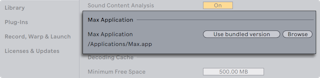
- To edit devices with a different Max application than the bundled one, set its path in Live's File & Folder Settings, then restart Live. The Max editor opened from a device then uses that application.
- The Core Library includes Max for Live instruments, audio effects, MIDI effects and Modulators. They appear under the matching labels in the browser. Modulators control other parameters in Live with modulation signals.
- The browser's Max for Live label lists every Max for Live device: built-in ones, ones from installed third-party Packs, and ones you have saved. It also holds Max for Live MIDI Tools, which transform or generate notes in MIDI clips.
- Many Max for Live devices come with presets that behave like Live's own device presets.
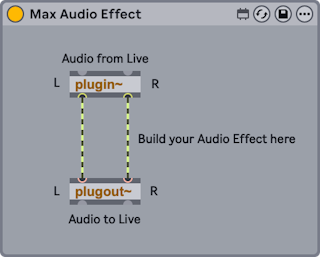
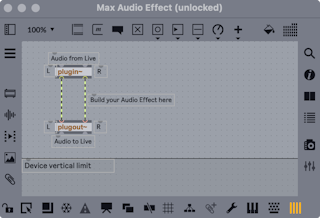
- A Max device, or "patch", is a set of objects passing data to each other through virtual cables. In the default Max Audio Effect, the
plugin~ object takes audio in from the device's place in the chain and passes it to plugout~, which sends it on to the next device. - To start a new device, drag Max Instrument, Max MIDI Effect or Max Audio Effect from the browser into the Set. Any existing Max device can be edited the same way.
- Open the Max editor, also called the patcher, with Edit in Max from the context menu or from the Show Options menu in the device title bar.
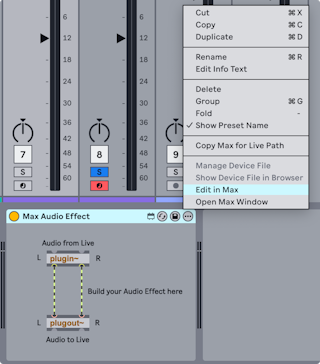
- Before Live 12.2 devices had an Edit button in the title bar instead. Adding
-MaxForLiveDeveloperMode to Options.txt brings it back.
- Save from Max's File menu.
- Save updates every instance of that device in the Set.
- Save As asks whether the change applies to the edited preset only or to all instances.
- Max devices are saved as separate Ableton/File/.amxd files, not inside the Live Set. By default each type goes to its own folder in the User Library, such as Max Audio Effect or Max MIDI Effect. Keep that default: moving or renaming an AMXD file breaks the path stored in the Set. The File Manager can find a missing file.
- Two ways to build a Max for Live MIDI Tool:
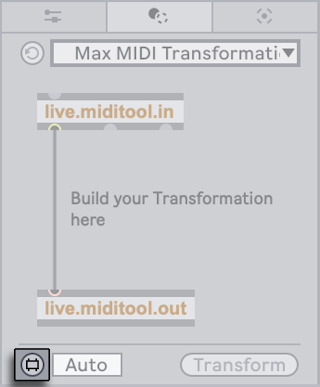
- start from the Max MIDI Transformation or Max MIDI Generator template in the Transformation or Generative Tools tab
- edit an existing Max for Live MIDI Tool
- Click the tool's Edit button to open the patcher, then save from its File menu.
- Default save folders:
- Transformations:
~/Music/Ableton/User Library/MIDI Tools/Max Transformations - Generators:
~/Music/Ableton/User Library/MIDI Tools/Max Generators
- Any folder added to Places in the browser also works. Live's Indexer only finds MIDI Tools in the default folders or in Places; tools saved elsewhere do not show up in Clip View's Transformation and Generative Tools menus.
- The Max for Live MIDI Tools guide in the Max documentation (Help → Reference → Max for Live → Guides) walks through patching a Transformation or a Generator.
- A Max device can depend on other files: samples, images, other Max patches. Freezing a Max device bundles all of those files into the device.
- Freezing a Max device has nothing to do with Live's Freeze Track command.
- The Max documentation covers freezing and dependency management in more detail.
- Cycling '74's documentation and tutorials are built into Max: choose Reference from the Help menu in any Max window. The contents include a Max for Live section.
- Other resources the manual points to:
- the Max for Live Production Guidelines on GitHub
- the Building Max Devices Pack, with step-by-step lessons — Ableton/Packs/building-max-devices
- the Learn Max page from Cycling '74