Ableton/Live/UG/29 Audio Effect Reference/26 Multiband Dynamics
- Multiband Dynamics is a dynamics processor aimed at mastering. It compresses and expands, upward and downward, in up to three bands with adjustable crossovers and per-band envelopes. Each band has an upper and a lower threshold, so two kinds of processing can run in each band at once.
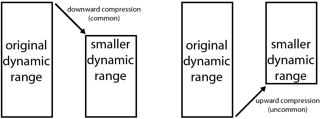
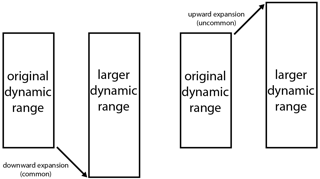
- Four ways to change dynamics:
- Both kinds of compression shrink the dynamic range; both kinds of expansion widen it.
- With three bands and two thresholds each, one Multiband Dynamics can apply six kinds of processing at once.
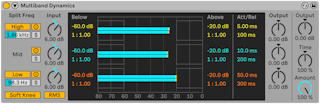
- High and Low switch those bands on; with both off it works as a single-band device using only the Mid controls. The sliders below them set the crossovers: at 500 Hz and 2000 Hz the bands are 0–500 Hz, 500–2000 Hz and above 2000 Hz.
- Each band has an activator (off bypasses its processing and gain) and a solo button. Input knobs set each band's level before processing, Output knobs after.
- In the display, large bars show each band's output and small bars its input; with no processing the input meters line up with the tops of the output meters. The scale is in dB.
- Thresholds: the blocks at the left and right of each band are the levels below the Below threshold and above the Above threshold. Drag their edges sideways to move the thresholds.
Cmd (Mac) / Ctrl (Windows) — same threshold on all bandsOption (Mac) / Alt (Windows) — Above and Below together for one bandShift — finer steps
- Ratios: drag up or down in the middle of a block to make that level range louder or quieter; the same modifier keys apply, and double-click resets.
- Above the Above threshold: down is downward compression, up is upward expansion.
- Below the Below threshold: down is downward expansion, up is upward compression.
- The column to the right of the display also shows the values. Buttons T, B and A switch it between Time (attack and release), Below (threshold and ratio) and Above (threshold and ratio).
- Attack and release:
- Above thresholds — Attack is the time to full effect once the signal rises past the threshold; Release the time to recover after it falls back
- Below thresholds — Attack is the time to full effect once the signal drops below; Release the time to recover after it rises again
- Soft Knee — processing starts gradually near the threshold
- RMS/Peak — Peak reacts to short peaks; RMS waits until the level has stayed past the threshold a little longer
- Output — overall output gain
- Time — scales all attack and release times together
- Amount — scales the strength of all processing; at 0% every ratio is effectively 1
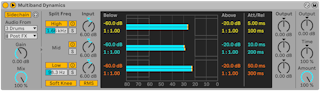

- The title bar button unfolds the sidechain.
- Sidechain picks any internal routing point as the trigger. Gain sets trigger level only (never heard); Dry/Wet mixes sidechain and own signal as the trigger.
- The headphones button plays only the sidechain signal.
- Practical starting points.
- Use only the upper thresholds for ordinary downward compression: set the crossovers for the material, then drag down in the upper blocks or set ratios above 1.
- For harsh, loud highs: enable only the high band, set its crossover near 5 kHz, and add gentle downward compression. Soloing the band helps; fairly fast attack and release usually work best.
- Upward expansion can bring some life back to a mix that was over-compressed and maximized:
- 1. Turn down Input for headroom.
- 2. Set the Above thresholds just under the highest peaks.
- 3. Add a little upward expansion per band — too much makes transients very loud.
- 4. Adjust attack and release per band. Here fast attack strengthens transients and slow attack sounds muffled, the reverse of normal compression.
- A limiter or maximizer afterward may flatten the restored peaks again.