Ableton/Live/UG/29 Audio Effect Reference/25 Looper
- Looper is modeled on hardware looping pedals: record audio and overdub endlessly in sync with the Set. With the Set stopped, it can detect the tempo of what was played and set Live's tempo, or fit a recording to a chosen number of bars. Audio can be dragged in as a bed for overdubs, or out as a new clip.
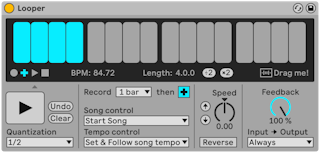
- The large display turns red while recording, then shows position and loop length in bars and beats.
- Transport buttons:
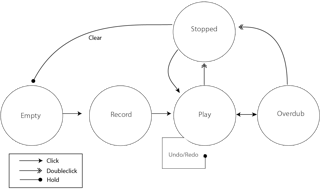
- Record — records until another button is pressed, replacing what was there
- Overdub — adds layers the length of the first recording
- Play — plays the buffer without recording
- Stop — stops
- With Live playing, Looper behaves like a clip and follows launch Quantization. With Live stopped, buttons act immediately.
- Clear — erases the buffer. In Overdub with Live playing, tempo and length are kept; otherwise they reset.
- Undo — removes everything overdubbed since Overdub was last turned on, keeping earlier passes; it then becomes Redo.
- The large Multi-Purpose Transport Button below them:
- Tempo Control:
- None — Looper keeps its own tempo
- Follow song tempo — playback speed follows Live's tempo
- Set & Follow song tempo — Live's tempo is set from the recording, then Looper follows later tempo changes
- Record Length:
- Live playing — "x bars" records until another button is pressed; a fixed length records that long, then switches to Play or Overdub (button next to the chooser)
- Live stopped — "x bars" guesses the tempo when Overdub, Play or Stop is pressed, possibly at double or half speed; a fixed length sets the tempo so the recording fits
- Song Control:
- None — Looper does not touch Live's transport
- Start Song — Play or Overdub starts Live; Stop does not stop it
- Start & Stop Song — Looper starts and stops Live
- Starting Live from Looper also lines up apps connected through Link.
- ×2 doubles the buffer, copying what is there — record one-bar ideas, then layer two-bar ones. ÷2 halves it, keeping the half that is playing.
- Drag me! — drag the buffer to the browser or a track as a new clip (Warp Mode Re-Pitch), or drag an audio file in to replace the buffer.
- Speed — playback speed and pitch; the arrow buttons jump an octave up or down. They follow Quantization.
- Reverse — plays the existing material backward; overdubs made while reversed play forward, and swap when Reverse is turned off. Follows Quantization.
- Feedback — how much of the loop survives each overdub pass: 100% never fades, 50% halves each pass. Changes apply from the next pass; no effect in Play.
- Input -> Output monitoring:
- Always — input always heard; usual on a single track
- Never — input never heard; usual on a return track fed by sends
- Rec/OVR — input heard only while recording or overdubbing; for several tracks each with its own Looper and footswitch
- Rec/OVR/Stop — input heard except in Play, like Beat Repeat's Insert mode — Ableton/Live/UG/29 Audio Effect Reference/05 Beat Repeat
- Looper can send to and receive from other tracks, so overdubs keep passing through another track's effects:
- 1. Put Looper on a track and record at least one pass.
- 2. Create another audio track.
- 3. Set its top Audio From and Audio To to the Looper track.
- 4. Set its bottom Audio From and Audio To to "Insert-Looper".
- 5. Set its Monitoring to In.
- 6. Add effects to the new track.
- 7. Put Looper in Overdub.
- Each pass goes through the other track's effects and back into Looper, getting more processed every time.