Ableton/Live/UG/29 Audio Effect Reference/09 Compressor
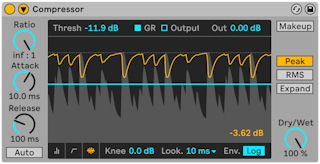
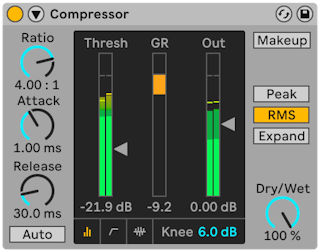
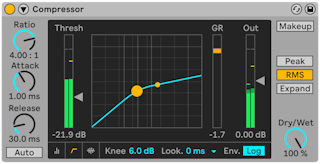
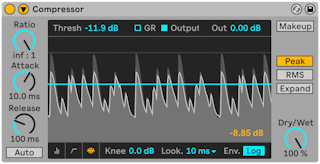
- A compressor turns down signal above a threshold. Lower peaks leave room to raise the overall level, so the result sounds louder and punchier.
- Threshold sets where compression starts. Ratio sets how much: at 3, a 3 dB rise above the threshold comes out as 1 dB. A ratio of 1 does nothing.
- The orange Gain Reduction meter shows the current reduction. The manual warns that more than about 6 dB changes the sound a lot and can flatten dynamics in a way that cannot be undone later — especially on the Main track.
- Out raises the level again after compression; Makeup does it automatically as Threshold and Ratio change.
- Dry/Wet — 0% bypasses, 100% is fully compressed
- Knee — how gradually compression starts. 0 dB is a hard knee, which can sound harsh at high ratios. A 10 dB knee with a −20 dB threshold starts gently at −30 dB and reaches full compression at −10 dB.
- Display views, chosen in the corners of the display:
- Collapsed — only the main controls
- Transfer Curve — input level against output level, with the knee as dotted lines
- Activity — input level in light gray, with GR or Output showing reduction in orange or output in dark gray over time
- Attack — time to reach full compression once over the threshold; Release — time to recover after the signal drops. Auto Release sets release from the material.
- 10–50 ms of attack lets the start of each hit through and keeps it lively; very short attack can sound lifeless or buzzy.
- Short release can cause pumping, sometimes used on drums on purpose.
- The manual suggests practicing with a drum loop, adjusting Attack, Release, Threshold and Gain.
- Lookahead — 0, 1 or 10 ms of delay so compression can start on time
- Mode:
- Peak — reacts to short peaks; precise, good for limiting
- RMS — reacts only to sustained level; closer to perceived loudness and usually more musical
- Expand — raises level above the threshold instead: at 1:2, each dB over becomes 2 dB. See Ableton/Live/UG/29 Audio Effect Reference/26 Multiband Dynamics for the types of dynamics processing.
- Envelope shape (hidden in Collapsed view):
- Lin — speed set entirely by Attack and Release
- Log — heavily compressed peaks release faster, for smoother, less obvious compression
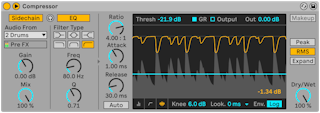

- The title bar button unfolds the sidechain controls. A sidechain lets another signal, or one frequency band, decide when to compress.
- Left side, external:
- Sidechain on — choose any internal routing point as the trigger
- Gain — trigger level only; the sidechain is never heard
- Dry/Wet — 100% triggers only from the sidechain, 0% ignores it
- Automatic Makeup is unavailable with an external sidechain.
- Right side, sidechain EQ — triggers from one frequency band, of this track or of the external source.
- The headphones button between them plays only the sidechain signal, to hear what drives the compressor.
- Ways to use Compressor's sidechain.
- To make background music duck under a narrator, put Compressor on the music track and pick the narration track as the external sidechain.
- Put Compressor on the bass (or Main) track with the kick as the sidechain, so the bass makes room for each kick.
- With only a mixed drum track: use it as the sidechain, enable the sidechain EQ with the low-pass filter, and tune Frequency and Q until only the kick triggers it. Sidechain listen helps.
- Compressor's algorithms were updated in Live 9 with Dr. Joshua D. Reiss of the Centre for Digital Music, Queen Mary University of London.