Ableton/Live/UG/27 Clip Envelopes
- Envelopes that belong to a clip and modulate or automate its sample, mixer, device and MIDI controller values.
- Every clip can carry clip envelopes. Depending on the clip, they represent MIDI controller data or automate or modulate device parameters.
- Open the Envelopes tab in Ableton/Clip/View.
- The Device chooser picks a category:
- audio clips — "Clip" (sample controls), each effect in the track, and the mixer;
- MIDI clips — "MIDI Ctrl" (controller data), each device in the track, and the mixer.
- The Control chooser picks a control within it. LEDs mark envelopes that have been changed; Only show adjusted envelopes shortens both lists.
- Session clips show Automation and Modulation toggles below the choosers. Arrangement clips only take modulation here; their automation lives in the track's automation lanes.
- Drawing and editing work as for automation envelopes; see Ableton/Live/UG/26 Automation.
- Clear Envelope in the editor's context menu, also reached with
Cmd+Delete (Mac) / Ctrl+Backspace (Windows), returns an envelope to default. - MIDI Envelope Auto-Reset (Options menu or Sample Editor context menu) resets certain MIDI controller values when a new clip starts.
- With audio effects, clip envelopes make Live a sound design tool: many variations of one clip, from small corrections to unrecognisable new sounds, all in real time.
- Envelopes are computed live and never change the sample on disk, so hundreds of clips can share one sample and all sound different.
- To keep a result as audio, render, resample, or use Consolidate in the Arrangement.
- With Warp on, choose Clip → Transposition and change the pitch of individual notes in a loop while it plays.
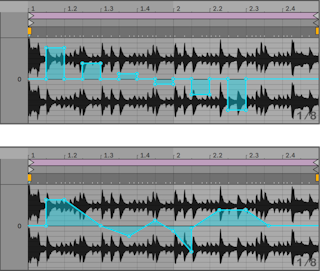
- Draw steps along the grid in Draw Mode, then switch Draw Mode off to move breakpoints and soften the steps into ramps.
- Warp settings decide how closely the envelope is followed: lower Grain Size in Tones or Texture mode, or a smaller Granulation Resolution in Beats mode, for a quicker response.
Shift while drawing or dragging gives finer steps for tuning corrections. Cmd+Option-drag (Mac) / Ctrl+Alt-drag (Windows) scrolls.- The envelope adds to the Transpose control, and the total stays within −48 to +48 semitones.
- Choose Clip → Gain and draw any volume shape onto the sample.
- The envelope is a percentage of the Clip Gain setting, so it can turn notes down to silence but never above the gain slider.
- In Beats warp mode only, Clip → Sample Offset shifts where the clip reads from, which rearranges a rhythmic loop.
- Picture a tape head moved by the envelope: positive values read ahead, negative values read behind. Each vertical grid line is a sixteenth note, from +8 to −8 sixteenths.
- A descending staircase repeats the first step; a smooth downward ramp slows time, with a slurred sound when it is slightly off 45° (try a 1/32 Granulation Resolution).
- Good for quick beat variations; precise cutting and splicing is easier in the Arrangement with Consolidate.
- To hear a clip's envelopes with another sample, select the clip and drag a new sample onto Clip View. All settings and envelopes stay; only the sample changes.
- Clip envelopes can automate or modulate mixer and device controls. Automation sets a control's absolute value; modulation only changes that value relatively, so both can act on one parameter.
- Automation is drawn in red, modulation in blue. On knobs, automation moves the needle while modulation shows as a blue segment of the ring.
- Example: volume automation fading out over four bars plus a modulation envelope rising over four bars first makes a crescendo, then fades once the falling automation limits the range.
- Session clips have both kinds, switched with a toggle below the choosers; Arrangement clips have only modulation.
- In the Control chooser, red LEDs mark automation and blue LEDs mark modulation; a parameter can show both.
- Two modulation envelopes affect volume: Clip Gain, and Track Volume, which acts on the mixer after the effects. A small dot under the volume slider shows the modulated value and follows the slider.
- Send modulation is also a percentage: it can lower a send to −∞ dB but never past the Send knob's setting.
- Pan modulation scales with the Pan knob: centred, it can sweep fully left to right; turned towards either side, its range shrinks; fully left or right, it does nothing.
- Every device on the clip's track is in the Device chooser. As with the mixer, a clip envelope can only move a device control relative to its current value, unlike a preset, which sets values outright.
- Choose MIDI Ctrl in a MIDI clip's Device chooser and a controller in the Control chooser to draw or edit controller data, including CCs recorded live or imported from MIDI files (marked with LEDs).
- Most controller numbers up to 119 are available. Receiving devices may not follow standard assignments, so "Pitch Bend" or "Pan" might do something else.
- The unlinking techniques below also work for MIDI controller envelopes.
- A clip envelope can be unlinked from its clip and given its own loop and region settings.
- To fade out over eight bars with only a one-bar loop:

- Choose Clip Gain or Mixer Track Volume and unlink it from the sample. The envelope's loop braces turn coloured and its own loop and region controls become active; the sample keeps looping while the envelope plays once.
- Type 8 into the envelope's loop length field.
- Drag up on the envelope's time ruler to zoom out fully.
- Add a breakpoint at the region end and drag it to the bottom.
- Turn on the envelope's own Loop switch and the eight-bar fade repeats over the one-bar sample. Any control works this way, such as a filter sweep every four bars.
- Make room by dragging the loop braces past the edge of the view or typing values. Lengths can be odd, such as 3.2.1.
- Several odd-length envelopes in one clip get complex; the start markers of sample and envelope give a shared reference for where playback begins.
- Markers, loop braces and drawing snap to the zoom-dependent grid.
- The reverse works too: a one-bar volume envelope loop over a sample several minutes long repeatedly cuts holes into it, for example removing every third beat.
- A looping clip envelope acts as an LFO synced to tempo, or unsynced with an odd loop length. Hide the grid to set loop points freely.
- Stretch and skew handles and automation shapes help design LFO shapes.
- Linked envelopes follow the clip's Warp Markers: moving a marker stretches or squeezes the envelope too. Warp Markers can also be adjusted from the envelope editor.