Ableton/Live/UG/26 Automation/06 Creating Automation Envelopes
- Besides recording, envelopes can be built by adding breakpoints with mouse or keyboard, drawing in Draw Mode, or inserting shapes.
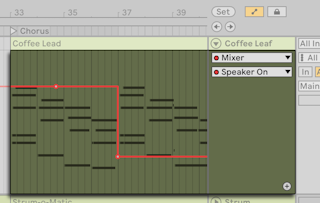
- Select the parameter, then click the dashed line to add the first breakpoint; the line turns solid. Drag before releasing to set the value, holding
Shift for fine control. Double-click away from the line to add a breakpoint there. - Breakpoints snap to the grid; hold
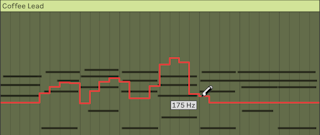
Cmd (Mac) / Alt (Windows) to place them freely. - Values show on hover and while dragging. Right-click the line → Add Value to place a breakpoint at an exact value.
- On/off and other stepped parameters get stepped envelopes instead of slopes.
- Keyboard entry is covered in Ableton/Live/UG/41 Accessibility and Keyboard Nav.
- In Draw Mode, drag to draw the whole envelope freehand. Toggle it from the Options menu, the Control Bar, or
B; hold B to use it temporarily. - Drawing makes steps as wide as the visible grid. Change the grid with shortcuts or the Options or context menu.
- For smooth lines, turn off Snap to Grid (
Cmd+4 / Ctrl+4), or hold Cmd (Mac) / Alt (Windows) while drawing.
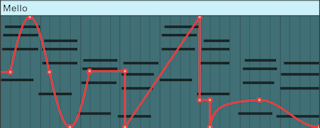
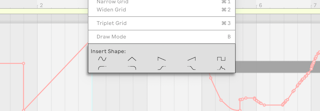
- Shapes from the Envelope Editor's or lane's context menu fill the time selection, or one grid step at the insert marker, scaled to the parameter's range. Useful for rhythmic patterns, swells and builds.
- The top row holds sine, triangle, sawtooth, inverse sawtooth and square; the bottom row holds two sets of ramps and an ADSR.
- Waveforms go in as drawn; ramps connect to the values on either side of the selection, so they look different depending on their surroundings.
- Stepped parameters accept only the square shape.