Ableton/Live/UG/26 Automation/05 Viewing Automation
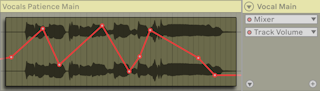
- An automation envelope is a line of breakpoints drawn over the clip or track: value on the vertical axis, time on the horizontal. Drawing it over the content helps line breakpoints up with audio or notes.
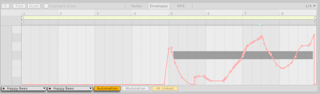
- In Clip View's Envelope Editor, turn on the Automation toggle and pick a device and control in the choosers beside it.
- The Device chooser lists the track's devices, the mixer and MIDI Ctrl (MIDI controller clip envelopes). LEDs mark automated controls and the devices holding them. A control without automation shows as a dashed line at its current value.
- Show Adjusted Envelopes Only shortens the lists to one combined Automated Control chooser; Show All Envelopes brings the full lists back.
- With Clip and Device View stacked, clicking any device or mixer control opens its envelope — unless Show Adjusted Envelopes Only is on and the control has no automation.
- Turn on Ableton/Live/UI/Arrangement View/Toggle/Automation Mode above the track headers, or press
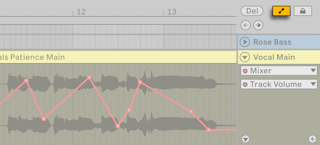
A, to open each track's main automation lane. - The Device and Automation Control choosers in the lane pick what to show; Device set to None hides the envelope. LEDs and dashed lines work as in Session View, and Show Automated Parameters Only / Show All Parameters shorten or restore the lists.
- In Automation Mode, clicking a control shows its envelope. Show Automation or Show Automation in New Lane in a parameter's context menu turns on Automation Mode and focuses its lane.
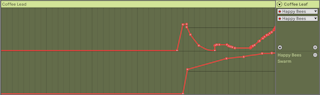
More lanes
- Add Automation Lane moves the current envelope to its own lane and sets the main lane to None, ready for another parameter.
- A toggle in the main lane hides or shows the extra lanes; drag to reorder them.
- Up and down arrows move between lanes; left goes back to the main lane; left and right on the main lane hide or show extras.
Option-click (Mac) / Ctrl-click (Windows) Add Automation Lane duplicates the main lane's envelope, up to two duplicates. Cmd-click (Mac) / Alt-click (Windows) adds a lane for every automated parameter.- Remove Automation Lane removes a lane, or all selected lanes;
Cmd/Alt-click removes it and every lane below. - See also Ableton/Clip/Q/How can I see all MIDI CC clip envelopes stacked in Arrangement View?
26.5.2.1 Context Menu Options for Automation Lanes
- Lane header context menus offer Add Automation Lane (main lane), Add Lane for Each Automated Envelope, Remove Automation Lane (extra lanes), and commands to clear all envelopes for the track or one of its devices.