Ableton/Live/UG/24 Plug-Ins/03 VST Plug-Ins
- Setting up VST plug-in folders, and using VST presets and banks.
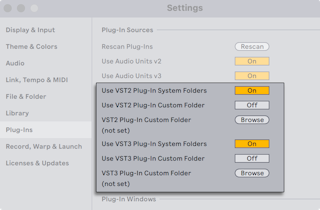
- VST sources must be activated before first use: press Activate in the browser's Plug-Ins panel, or open the Plug-Ins Settings with
Cmd+, (Mac) / Ctrl+, (Windows) and find Plug-In Sources. - Windows: Browse to set the VST Plug-In Custom Folder (Live may already have found it in the registry) and turn on Use VST Plug-In Custom Folder.
- macOS: plug-ins in /Library/Audio/Plug-Ins/VST (home and local) are used when Use VST plug-ins in System Folders is on. A custom folder can be added alongside or instead, with its own on/off option.
- Live scans the chosen folders and their subfolders. Aliases placed in a scanned folder can point to plug-ins elsewhere, even on another drive.
- A plug-in that crashes the scan is reported on the next launch, with the choice to rescan or disable it. One that crashes twice is disabled until reinstalled.
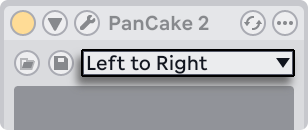
- Each VST instance owns a fixed-size bank of presets, chosen below the title bar. Edits always change the selected preset.
- Unlike Live presets, which every instance and Set share, VST presets belong to that one instance.
- Rename the current preset with Edit → Rename Plug-In Preset while the title bar is selected.
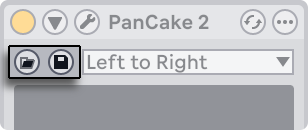
- Load Preset or Bank imports a preset or bank file (on Windows choose the file type in the dialog). Save Preset or Bank saves the current preset or the whole bank, picking VST Preset or VST Bank as the format.