Ableton/Live/UG/24 Plug-Ins
- Using VST and Audio Units plug-ins in Live and their sidechain inputs.
- Plug-ins extend Live's devices. Live supports VST2, VST3, Audio Units 2 and Audio Units 3 (AU on macOS only, AU3 from Live 11.2).
- Plug-ins behave like Live devices: instruments go on MIDI tracks, effects on audio tracks or after instruments; see Ableton/Live/UG/23 Instruments and Effects.
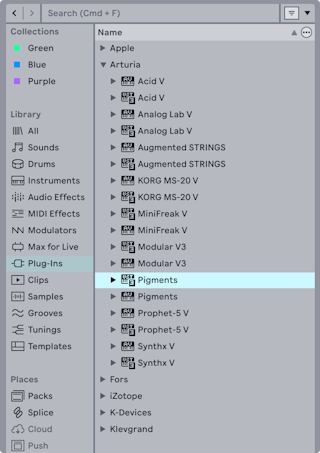
- Plug-ins appear under the browser's Plug-Ins label, instruments with a keyboard icon. Only Audio Units presets show in the browser, and some AU factory presets appear only once the device is on a track with Hot-Swap on.
- On first launch the Plug-Ins label is empty until plug-in sources are activated (see the VST and Audio Units sections below).
- Hold
Option (Mac) / Alt (Windows) while Live starts to skip the plug-in scan, which helps find a plug-in that crashes Live. - Plug-ins installed or removed while Live runs appear after a restart, or after Rescan in the Plug-Ins Settings.
Option/Alt+Rescan deletes the plug-in database and scans from scratch. - Intel Macs can't run PowerPC-only plug-ins.
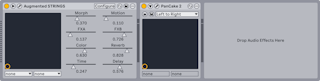
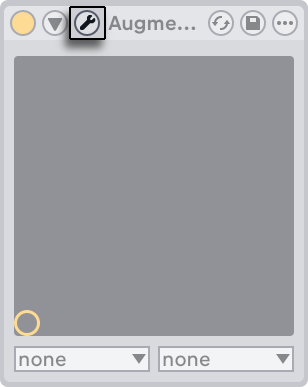
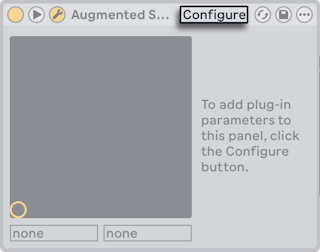
- A plug-in with up to 64 parameters shows them all as sliders in a Live panel. One with more opens with an empty panel to configure.
- The unfold button in the title bar shows or hides the parameters.
- The X-Y field controls two parameters at once, chosen in the menus beneath it, which suits live performance.
- The Show/Hide Plug-In Window button opens the plug-in's own interface in a floating window, kept in sync with the Live panel.
- Plug-Ins Settings:
- Auto-Open Plug-In Windows — open the window when a plug-in is loaded from the browser.
- Multiple Plug-In Windows — allow several open at once; otherwise hold
Cmd (Mac) / Ctrl (Windows) while opening to keep earlier ones. - Auto-Hide Plug-In Windows — show only the selected track's windows.
- View → Show/Hide Plug-In Windows, or
Cmd+Option+P (Mac) / Ctrl+Alt+P (Windows), hides and shows windows already opened. Each window's title names its track.
- Configure in the device header lets you choose which parameters appear in Live's panel: click a control in the plug-in window to add it (some need their value changed; some plug-ins don't expose every parameter).
- In Configure Mode, drag to reorder and press
Delete to remove; Live warns before removing a parameter with automation, envelopes or mappings. Plug-ins without their own window can reorder but not delete. - The configuration is saved per instance in the Set. To reuse it, save the plug-in inside a Rack, or save it as a default configuration.
- Parameters can also be added without Configure Mode:
- tweaking a control in the plug-in window makes a temporary entry in the automation, clip envelope and X-Y choosers; editing or selecting it there makes it permanent;
- controls moved in the plug-in window while recording get automation and join the panel;
- in MIDI, key or Macro mapping mode, a control you move joins the panel, selected and ready to map.
- After that, a plug-in works like a Live device: MIDI mapping, moving and copying, clip envelopes, multiple I/O in track routing (Ableton/Live/UG/17 Routing and IO) and custom info text.
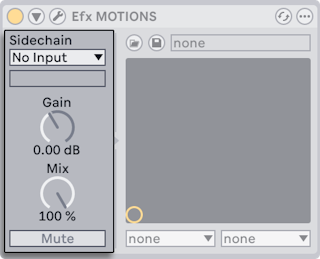
- Sidechaining lets another signal trigger a plug-in's processing. Supported plug-ins show sidechain controls at the left of the device.
- The choosers select any internal routing point as the trigger.
- Gain sets the sidechain input level; Mix blends the trigger between sidechain (100%) and the plug-in's own input (0%). The sidechain is only a trigger and is never heard.
- Mute plays only the plug-in's output, without the sidechain source.
- Setting up VST plug-in folders, and using VST presets and banks.
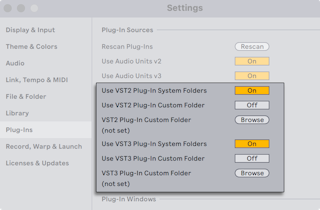
- VST sources must be activated before first use: press Activate in the browser's Plug-Ins panel, or open the Plug-Ins Settings with
Cmd+, (Mac) / Ctrl+, (Windows) and find Plug-In Sources. - Windows: Browse to set the VST Plug-In Custom Folder (Live may already have found it in the registry) and turn on Use VST Plug-In Custom Folder.
- macOS: plug-ins in /Library/Audio/Plug-Ins/VST (home and local) are used when Use VST plug-ins in System Folders is on. A custom folder can be added alongside or instead, with its own on/off option.
- Live scans the chosen folders and their subfolders. Aliases placed in a scanned folder can point to plug-ins elsewhere, even on another drive.
- A plug-in that crashes the scan is reported on the next launch, with the choice to rescan or disable it. One that crashes twice is disabled until reinstalled.
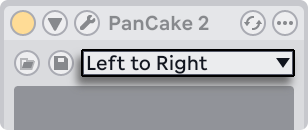
- Each VST instance owns a fixed-size bank of presets, chosen below the title bar. Edits always change the selected preset.
- Unlike Live presets, which every instance and Set share, VST presets belong to that one instance.
- Rename the current preset with Edit → Rename Plug-In Preset while the title bar is selected.
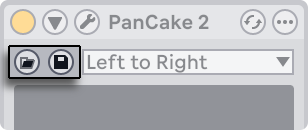
- Load Preset or Bank imports a preset or bank file (on Windows choose the file type in the dialog). Save Preset or Bank saves the current preset or the whole bank, picking VST Preset or VST Bank as the format.
- Audio Units run on macOS only and behave much like VST plug-ins.
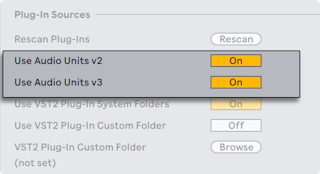
- To activate them, press Activate under the browser's Plug-Ins label, or turn on Use Audio Units in Plug-Ins Settings → Plug-In Sources.
- Some AU plug-ins have device modes, such as reverb quality, set only in the plug-in's own window.
- AU presets work like Live presets, though some are read-only and can't be moved in the browser. They are .aupreset files stored in (Home)/Library/Audio/Presets/(Manufacturer)/(Plug-in).