Ableton/Live/UG/23 Instruments and Effects/02 Using Devices/06 Defaults
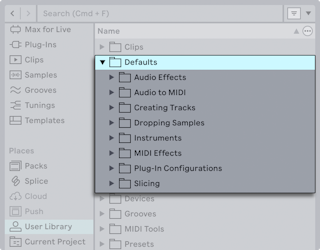
- Defaults apply your most-used settings automatically. They can:
- load devices with set parameter values;
- load VST and Audio Units plug-ins with set parameter configurations;
- create audio and MIDI tracks with set devices and mixer settings;
- choose the presets used for dropping samples, slicing and converting audio to MIDI.
- They live in the User Library's Defaults folder. Delete one from its context menu, or select it and press
Delete, to return to factory settings. 23.2.6.1 Default Presets
- Set a device up and choose Save as Default Preset from its Options or context menu (instruments, MIDI and audio effects, and Racks). It is saved under Defaults in Audio Effects, Instruments or MIDI Effects, and loads every time the device is added — samples included for instruments.
- Dragging a device into those folders works too, as long as it keeps the device's own name, such as "Simpler". Saving a new default asks before overwriting.
23.2.6.2 Default Plug-in Configurations
- For a VST or Audio Units plug-in, add parameters in Configure Mode and choose Save as Default Configuration. It is saved to Plug-In Configurations → Audio Units or VSTs; VST and AU versions can have separate defaults.
- Only the list of parameters is saved, not their values. To keep values too, put the plug-in in a Rack and save the Rack as a default preset.
23.2.6.3 Track Defaults
- Set up a track's devices and mixer settings (routing, volume, pan, sends) and choose Save as Default Audio Track or Save as Default MIDI Track from its title bar's context menu. It goes to Creating Tracks → Audio Track or MIDI Track and applies to every new track of that kind.
- Dragging a track there also works if it is named Default Audio Track or Default MIDI Track.
23.2.6.4 Sample Dropping Defaults
- To choose the instrument made when a sample is dropped into an empty MIDI track's Device View or onto a Drum Rack pad, set up an empty Sampler or Simpler and drag it to Dropping Samples → On Device View or On Drum Rack. A pad's Save as Default Pad adds to On Drum Rack too.
- If a folder holds several, the last one added is used.
23.2.6.5 Slicing Defaults
- Build an empty Drum Rack with one chain holding an empty Sampler or Simpler, plus any effects and Macro mappings, and drag it into the Slicing folder. It then appears in the Slicing Preset chooser of Slice to New MIDI Track; see Ableton/Live/UG/13 Audio to MIDI.
23.2.6.6 Converting Audio to MIDI Defaults
- Custom Racks for Harmony, Melody and Drums to MIDI go in the matching Audio to MIDI folder. Use an Instrument Rack (or a single instrument) for Harmony and Melody; Drums needs a top-level Drum Rack with Sampler or Simpler on its pads, not one nested in an Instrument Rack.
- If a folder holds several, the last one added is used.
23.2.6.7 Project-Specific Defaults
- A Defaults folder, with the same subfolders, inside the Current Project overrides the User Library defaults for Sets in that Project. Create folders in Finder/Explorer or with New Folder in the browser, then drag devices or tracks in.
- Plug-ins can't be dragged into the Project. Instead, create Plug-In Configurations/Audio Units and VSTs folders there, save a configuration as usual, and move its folder with the Default.appc file from the User Library into the Project.
- The Save as Default menu commands always save to the User Library, not the Project.