Ableton/Live/UG/23 Instruments and Effects/02 Using Devices/04 Hot-Swapping Presets
- Hot-Swap links a device to the browser so you can audition and load other presets in its place. Press
Q or click the Hot-Swap Presets button in the title bar. Q swaps the selected device, or else the first audio effect on an audio track or the instrument on a MIDI track.- The browser opens at the device's folder. Any preset of the same device type can be swapped in — an audio effect can't be swapped for a MIDI effect. Arrow keys browse;
Enter or double-click loads. Load the parent folder for the device's default settings. - Adding
-EnableHotSwapOnSelection to Options.txt loads each preset as soon as it's selected. - Leave with
Q, Esc, the X in the browser's Hot-Swap bar or in the title bar, or by moving to another view. 23.2.4.1 Hot-Swapping Samples
- Drum Rack pads, Drum Sampler, Impulse, Sampler and Simpler have a Hot-Swap Sample button: bottom right of each pad, of Drum Sampler's waveform, of each Impulse slot and of Simpler's sample display; top left of Sampler's expanded Zone Editor. Except in Sampler, it appears only on hover.
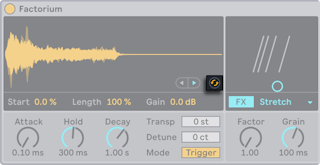
- It opens the sample's folder in the browser; load another with
Enter or double-click. - Leave by clicking the button again, the X in the Hot-Swap bar,
Esc, Q, or moving to another view.
