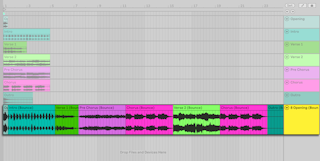
Ableton/Live/UG/20 Bounce to Audio/03 Pasting Bounced Audio
- Paste Bounced Audio bounces whatever you copied in its current state at the moment you paste, so you can change the source and paste again without recopying. Handy for variations with different effects, or for gathering bits of several tracks into one.
- Copy clips in one Session track, or clips or a time selection in the Arrangement (a group's main lane works too). Then paste into an audio track, an empty MIDI track or a take lane from the main lane's context menu, or with
Cmd+Option+V (Mac) / Ctrl+Alt+V (Windows). An empty MIDI track becomes an audio track. - If the copied source is deleted, the command is unavailable until you copy again.