Ableton/Live/UG/20 Bounce to Audio
- Bouncing tracks, group tracks and time selections to new audio tracks.
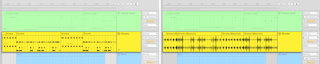
- Bouncing turns tracks, clips or time selections into audio on new audio tracks — to experiment with the result, to lock in sound design before mixing, or to lower CPU load.
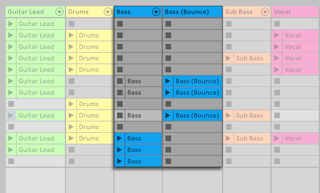
- It works in both views; a track created by a bounce appears in both.
- Bounce Track in Place replaces a track with an audio track of its output. It replaces Freeze and Flatten from earlier versions. Find it in the track title bar's or a clip's context menu.
- Bounce to New Track renders selected clips or a time selection to a new audio track and mutes the originals. Context menu, or
Cmd+B (Mac) / Ctrl+B (Windows). - Bounces are taken after the effects and before the mixer: device processing is printed, while volume, pan and sends carry over as settings on the new track.
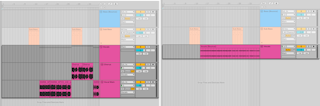
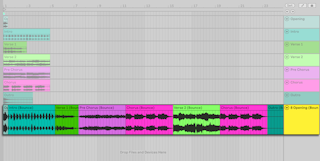
- A time selection across several Arrangement tracks makes one new audio track per track with a selected clip.
- Bounce Track in Place affects both views and bounces both Session and Arrangement clips. Bounce to New Track bounces only the selection; the new track appears empty in the other view.
- New tracks and clips are named after the source plus "(Bounce)" and take the source track's colour. Files go to the Project's Samples/Processed/Bounce folder.
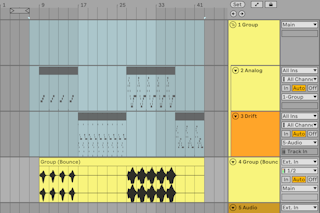
- Bounce Group in Place replaces a whole Group Track with one audio track. Find it in the group's title bar, a group slot, or the group's main lane context menu.
- Bounce Group to New Track renders selected clips or a time selection in the group to a new track and mutes the originals; also
Cmd+B / Ctrl+B. - Groups bounce after the mixer, from what reaches the Main output — including effects and sends inside the group, excluding the Main track's own effects.
- Tracks routed outside the group are left out and may leave silence; return tracks count only if their output reaches Main.
- Paste Bounced Audio bounces whatever you copied in its current state at the moment you paste, so you can change the source and paste again without recopying. Handy for variations with different effects, or for gathering bits of several tracks into one.
- Copy clips in one Session track, or clips or a time selection in the Arrangement (a group's main lane works too). Then paste into an audio track, an empty MIDI track or a take lane from the main lane's context menu, or with
Cmd+Option+V (Mac) / Ctrl+Alt+V (Windows). An empty MIDI track becomes an audio track. - If the copied source is deleted, the command is unavailable until you copy again.