Ableton/Live/UG/19 Recording New Clips/03 Recording
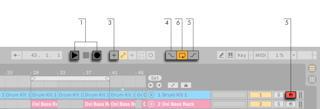
- Record in Arrangement View to capture several tracks at once and watch the take build along the timeline. Record in Session View to split a take into clips on the fly or to record while launching clips.
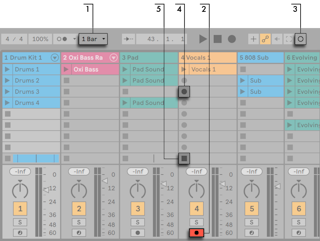
- Set Global Ableton/Live/UI/Control Bar/Menu/Quantization to anything but None so clips are cut on time.
- Arm the tracks; empty slots on armed tracks show Clip Record buttons.
- Session Record records into the selected scene on every armed track; the new clips' launch buttons turn red. Press it again to switch straight to looped playback.
- Or click one Clip Record button to record a single slot, and press the clip's Launch button to loop it.
- A slot's Clip Stop button, or the Control Bar's Stop, stops the clip.
- The New button stops clips on armed tracks and selects a scene ready for a new take, adding a scene if needed. It only appears in Key Map and MIDI Map modes, for mapping.
- Launching a scene doesn't record into its empty armed slots unless Start Recording on Scene Launch is on in the Record, Warp & Launch Settings.
- To build a drum pattern or melody layer by layer in a looping clip:
- Set Global Quantization to one bar, and choose a Record Quantization value if notes should be quantized as they're recorded.
- Double-click an empty Session slot on the instrument's MIDI track to make an empty one-bar clip; change its loop length if needed.
- Arm the track and press Session Record. Notes are added on every loop pass.
- Press Session Record to switch between overdubbing and playing along without recording.
Option/Alt-double-click an empty slot to create the clip, arm the track and launch it in one step.- Undo removes the last pass; notes can be drawn, moved or deleted in the MIDI Note Editor while recording continues.
- Step recording enters notes with the transport stopped, at your own pace.
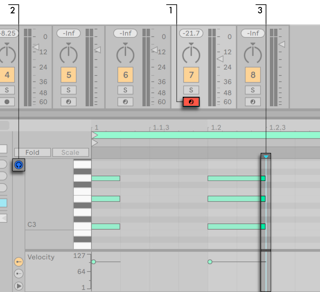
- Arm the track, turn on Preview in the clip's MIDI Editor, and click where recording should start.
- Hold notes and press the right arrow to enter them and move the insert marker one grid step; keep holding and press it again to lengthen them. Hold the notes and press the left arrow to delete them.
- The step arrows can be MIDI mapped.