Ableton/Live/UG/16 Launching Clips/07 Follow Actions
- A Follow Action decides what happens next in a clip's group after it plays. A group is the run of clips in adjacent slots of one track; empty slots separate groups. Scenes have Follow Actions too, in the Scene View.
Controls
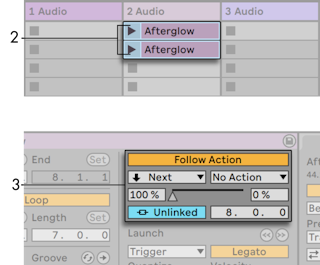
- Follow Action button — turns Follow Actions on for the selected clip or scene; off by default;
Shift+Enter. - Follow Action A and B — two actions to choose between.
- Chance A and Chance B — the relative probability of each. A at 100% and B at 0% always picks A; raising B to 90% makes A happen about one launch in ten. The slider between them adjusts both.
- Linked/Unlinked (clips only) — Linked fires at the end of the clip, or after the number of loops in the Multiplier field. Unlinked fires after the Follow Action Time.
- Follow Action Time — bars-beats-sixteenths from where play starts; one bar by default. A draggable marker shows it in the clip editor.
The ten Follow Actions
- No Action — nothing happens, and once chosen, the other action no longer gets a chance.
- Stop — stops the clip after the Follow Action Time, overriding its loop settings.
- Play Again — restarts the clip.
- Previous — plays the clip above.
- Next — plays the clip below, wrapping from the last to the first.
- First and Last — play the top or bottom clip of the group.
- Any — plays any clip in the group.
- Other — like Any, but never repeats the current clip while there are others.
- Jump — plays a chosen slot or scene, set with the Jump Target slider.
- Clips and scenes with Follow Actions show a striped launch button.
- Follow Actions bypass global quantization but respect clip quantization other than None or Global.
- The Enable Follow Actions Globally button, next to Ableton/Live/UI/Arrangement View/Button/Back to Arrangement, turns every Follow Action in the Set on or off, which is handy for editing a running clip. It is greyed out when the Set has none.
- Clip Follow Actions keep running when a scene Follow Action is scheduled, but scene Follow Actions win once they fire.
- Follow Actions let loop-based music repeat yet still surprise; recording the results gives new material.
- To play a long clip once and then loop only its last eight bars:
- In Arrangement View, with Loop off, use Edit → Split to cut the clip where the loop should start.
- Drag both pieces into adjacent slots of one Session track, forming a group.
- On the first clip set Follow Action Time to its length, Action A to Next at 100%, and Action B to No Action.
- Turn Loop on for the second clip.
- Give every clip or scene in a group the Next action and they play in a cycle until stopped. Adding Any at a low Chance occasionally reshuffles it.
- Create Follow Action Chain in a clip's context menu loops all selected clips, which needn't be adjacent.
- A single clip with Play Again at 80% and No Action at 20%, and a one-bar Follow Action Time, repeats its first bar a few times before playing on through the rest of the sample.
- Or play a clip to a set point and then Next into a looping copy of the same file, which itself can loop forever, for a while, or until chance moves on.
- Randomly triggering clips that differ only in clip envelopes or warp settings gives small variations, such as changing pitch bend, effects or transposition.
- Identical melody clips in Legato Mode can hand over to each other without the melody changing; editing each clip's settings, envelopes or notes a little at a time then makes the melody change gradually.
- Make several copies of a beat or melody with different start and end points and envelopes, set each Follow Action Time to the length you want played, give each two actions with different Chances, and launch one for an unpredictable remix.
- Clips with odd Follow Action Times interact so they seldom play in the same order or position, which suits sound installations meant to run for weeks without repeating themselves.