Ableton/Live/UG/13 Audio to MIDI
- Commands that turn audio into MIDI: slicing, and converting harmony, melody or drums into a new MIDI track.
- Besides warping, Live can pull musical information out of an audio clip and write it into a MIDI clip.
- With an audio clip selected, the Create menu and the clip's context menu offer four commands: Slice to New MIDI Track, and Convert Harmony, Melody or Drums to New MIDI Track.
- Slicing cuts the audio into pieces of time, one per MIDI note, without analysing pitch or rhythm. The pieces keep playing the original sound.
- The dialog slices by beat division, by transients or by Warp Markers, and offers a Slicing Preset. A Rack holds at most 128 chains, so Live refuses settings that would make more than 128 slices.
- Your own slicing presets go in the Defaults folder of the User Library.
- Preserve warped timing keeps timing changes from warping; with it off, slices sound like the raw audio.
- The result:
- a new MIDI track with a clip holding one note per slice, in a rising chromatic sequence;
- a Ableton/Instrument/Drum Rack on that track with one chain per slice, each a Ableton/Instrument/Simpler loaded with its slice;
- the Drum Rack's Ableton/Macro controls mapped to envelope, loop and crossfade settings across every Simpler, as set by the slicing preset.

- The sliced clip forms a rising "staircase" of notes. Editing the notes, or dragging Drum Rack pads onto each other to swap their notes, plays the slices in a new order.
- Each slice has its own Drum Rack chain, so it can take its own audio effects. To share effects across several slices, select their chains and press
Cmd+G (Mac) / Ctrl+G (Windows) to group them into a nested Rack, then add effects after it. - MIDI effects placed before the Drum Rack, such as Arpeggiator or Random, rearrange the slices as they play.
- Slicing suits drum loops but also works on voices and ambient textures.
- Detects the pitches in polyphonic audio and writes them to a clip on a new MIDI track, which comes with an Instrument Rack playing a piano sound.
- Unlike slicing, the Convert commands don't play the original audio; the notes drive a different instrument.
- Works on recordings from your collection, or on your own playing of guitar, piano or other harmonic instruments.
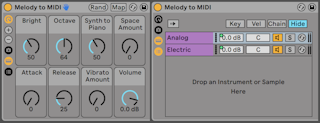
- Detects the pitches in monophonic audio and writes them to a new MIDI track with a synth Instrument Rack. Its "Synth to Piano" Macro moves the sound from an analog-style synth to an electric piano.
- Singing, whistling or a solo instrument can all become MIDI notes this way.
- Extracts rhythms from unpitched, percussive audio onto a new MIDI track with a Drum Rack, trying to sort hits into kick, snare and hi-hat.
- Adjusting the audio clip's transient markers before converting changes where notes land.
- Suits breakbeats, beatboxing or tapping on a surface.
- For the most accurate conversions:
- use material with clear attacks — notes that swell in may be missed;
- use isolated instruments, since every instrument present gets detected;
- use uncompressed audio (.wav, .aiff) or high-bitrate lossy files.
- Live places note boundaries at the clip's transient markers, so adding, moving or deleting markers before converting tunes the result.
- The "wrong" command can be useful: Convert Harmony on a monophonic vocal tends to add notes that weren't there.