Ableton/Live/UG/02 First Steps/02 Learning About Live
- Live has two built-in learning tools, the Learn View for guided lessons and the Info View for help on whatever is under the mouse. Outside the application there are this manual, videos and interactive web apps.
- The Learn View holds learning modules made of lessons. Each lesson has a video walkthrough, a short text on its key concepts, and links to related lessons.
- New modules arrive without a Live update. The view needs an internet connection; press Reload after reconnecting.
- It opens by default on first launch. Close it with the X button and reopen it from the Help menu or with
Cmd+Option+7 (Mac) / Ctrl+Alt+7 (Win). It returns to the last page visited until Live quits. - Filter lessons by topic, and mark a lesson finished with the Complete Lesson button; finished lessons show a check mark on the home page.
- The video player can open a picture-in-picture window that stays on top of every application, so you can follow along while working. Its Learn View → button closes it and reopens the Learn View.

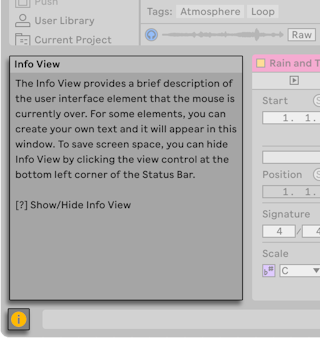
- The Info View shows the name and function of the interface element under the mouse.
- Show or hide it with the toggle in the bottom-left corner of the window or with the
? key. - Choose "Edit Info Text" from the context menu of a track, clip, device and more to write your own note for it; the text is saved with the Set. See Ableton/Info Text.
- The manual recommends reading Ableton/Live/UG/03 Live Concepts first; the remaining chapters expand on it.
- Ableton's YouTube channel has musicians talking about their workflows. The Learning Music and Learning Synths websites teach music-making and synthesizer basics interactively in the browser.